
Homestead is a cozy Vanilla+ survival modpack built by CozyStudios with over 1.9 million downloads on CurseForge. It has 375 mods covering custom world generation, a guided quest system, farming, automation through Create, and hundreds of building and furniture options, all without losing the feel of vanilla Minecraft. Built-in shaders, custom wildlife like Mushlings and Fernlings, and hand-placed structures make it one of the most visually polished modpacks available for 1.20.1.
Setting up a Homestead Minecraft modpack server is simpler than most packs. The creator provides a dedicated server pack with startup scripts and a configuration guide already included.
Before you get started
Hosting a modded server on your own PC is free but comes with three trade-offs worth knowing up front.
- It's only online while your PC is on
- Homestead needs 6–8GB of RAM plus a good CPU, and that's before you join yourself
- Letting friends join requires opening a router port, which can expose your network if you're not careful
None of this is a dealbreaker, but it's worth knowing now rather than mid-setup.
Homestead modpack server hosting
If that sounds like more than you want to manage, using a Minecraft hosting provider skips all three. If you haven't already, purchase a server with WiseHosting to get started, then follow the instructions:
- Head to your WiseHosting game panel and locate the Version tab
- Choose Modpacks and select Modrinth from the dropdown filter
- Search for Homestead and click Install
- Click Start to start your server
- Copy the IP and join the world
Your server is live in under two minutes, stays online 24/7, and never touches your home network.
If you still prefer to set up a Homestead modpack server yourself, keep reading.
1. Download the Homestead server pack
Unlike many modpacks, the Homestead modpack server files are not available on CurseForge. The creator maintains them directly on the CozyStudios website, which means they're always up to date and include everything you need in a single download.
Get the latest server pack
Head to cozystudios.org/homestead/server-pack and download the latest version.
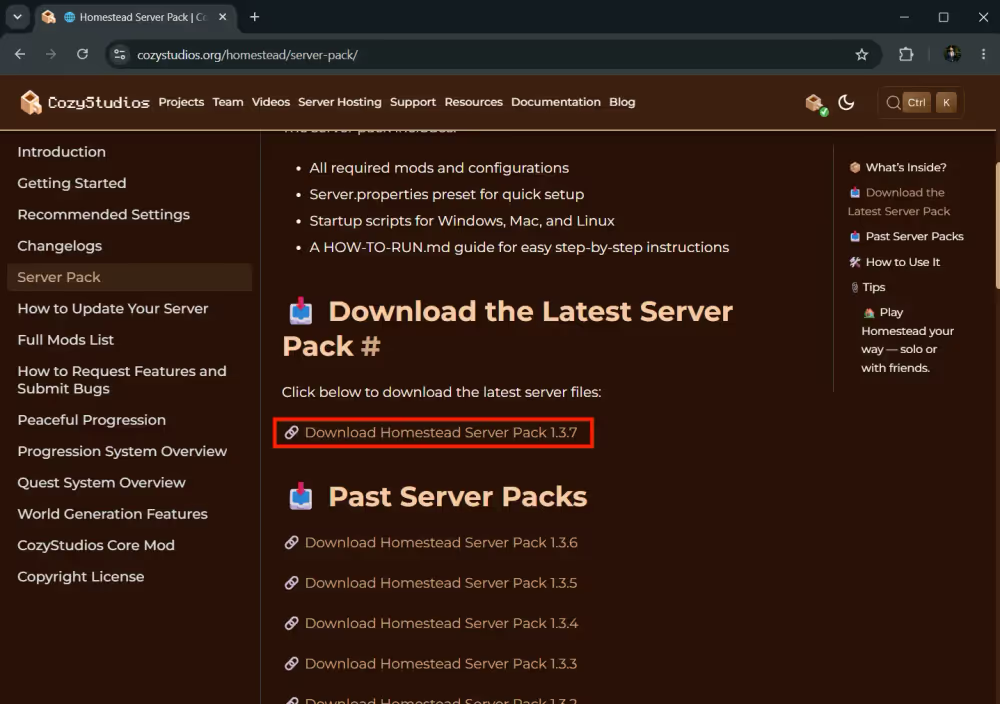
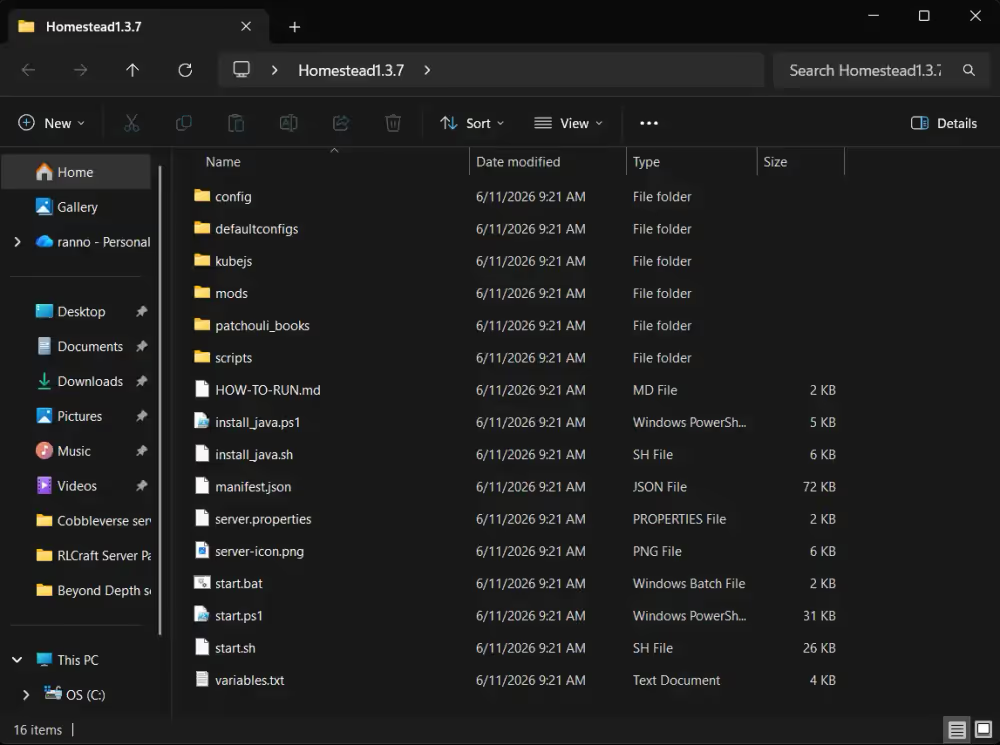
Save the zip to a dedicated folder on your PC like your desktop and extract the zip there. Move the folder inside to your desktop, it will be your server folder.
Extract the server pack
Right-click the downloaded zip and extract it to your server folder. Inside you'll find startup scripts for Windows, Mac, and Linux, a mods folder, a config folder, a variables.txt file, and a HOW-TO-RUN.md guide.
2. How much RAM does a Homestead server need?
Homestead is lighter than exploration-focused packs like Beyond Depth or ATM10, but 375 mods still add up. The pack includes performance-focused mods and config tuning to keep things running smoothly, so the requirements are more reasonable than the mod count might suggest. Start at 8GB and scale up as more players join.
Homestead server RAM allocation:
| Players | Recommended RAM |
|---|---|
| 1-3 | 8GB |
| 4-6 | 10GB |
| 7+ | 12GB |
The official CozyStudios documentation recommends 8–12GB for smooth gameplay, with more needed as player count grows.
Your host machine also needs RAM on top of what the server uses. Windows typically takes 4–6GB on its own. On a 16GB PC, 8GB for the server is a comfortable ceiling.
If you plan to play on the same machine you're hosting from, factor in the Minecraft client's RAM usage on top of the server's. If the system can't handle both comfortably, consider a hosting provider so your machine only needs to run the client.
3. Configure RAM in variables.txt
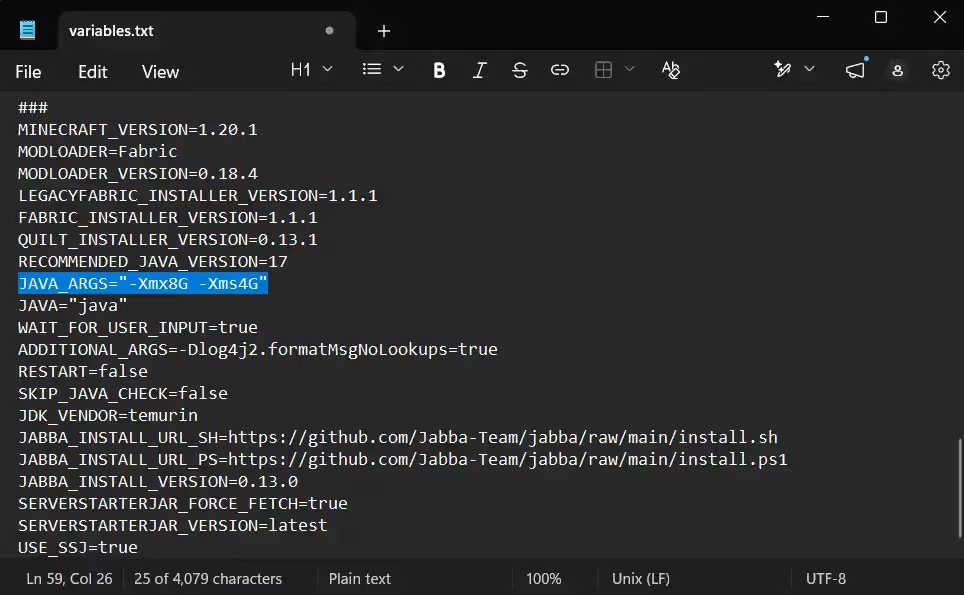
Before running the server for the first time, open variables.txt in a text editor. Scroll to the bottom and find the line:
JAVA_ARGS="-Xmx5G -Xms5G"
Update the numbers to match your target RAM allocation. For 8GB:
JAVA_ARGS="-Xmx8G -Xms4G"
Save the file. This is the only place you need to change RAM allocation for Homestead. Unlike most Fabric packs, there's no need to edit a startup script directly.
4. Java version compatibility
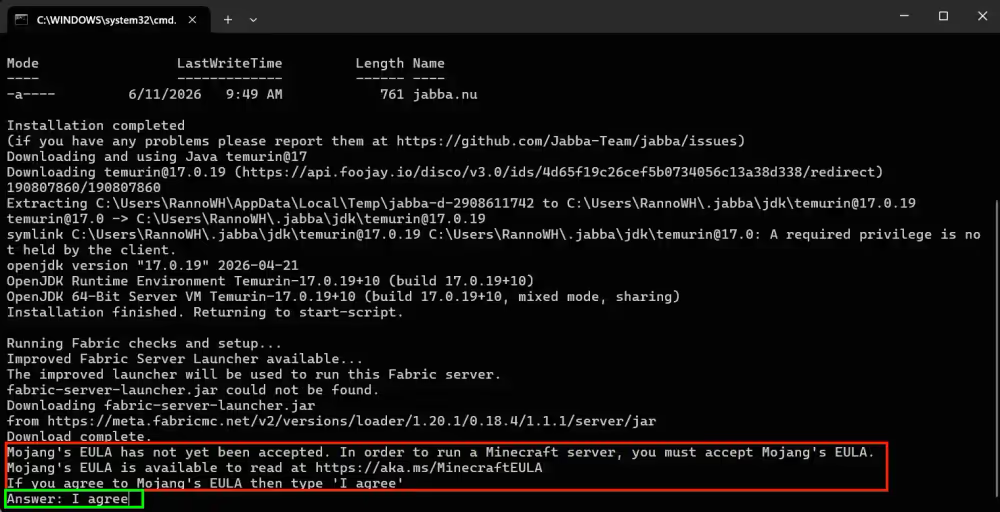
Homestead on Fabric 1.20.1 requires Java 17. If you already have it installed, you don't need to change anything. When you don't have the right version, the terminal asks if you agree to download it. Type I agree and press Enter, the installer will download the correct Java for you.

If you don't want the terminal to install java, download Java 17 yourself. With multiple Java versions installed, you might need to update the start script to point directly to the Java 17 executable path.
5. Start the server for the first time
Double-click the start.bat file. A terminal window opens and begins downloading Fabric and all required libraries. Leave it running until it finishes.
Leave the terminal open. Closing it mid-download interrupts the process. If it stops before finishing, run the start script again and it will resume.
Accept the EULA
Once the download completes, the terminal stops and prompts you to accept Minecraft's End User License Agreement. Type I agree and press Enter. The terminal will continue installing The Homestead server.
Successful startup
A clean startup at some point will say:
[Server thread/INFO]: Done (Xs)! For help, type "help"
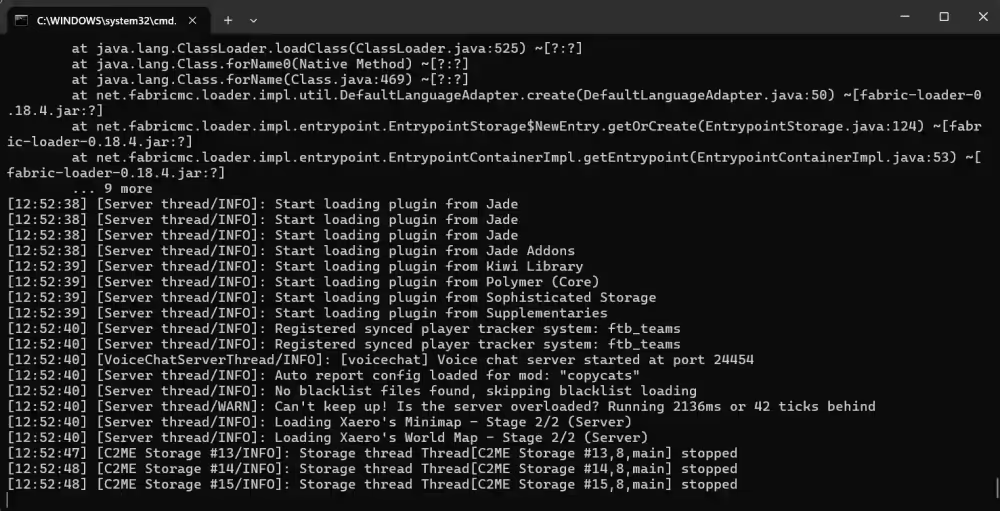
Startup time: The first boot takes a few minutes while Fabric generates initial data. Later starts are faster.
To stop the server: Type stop in the terminal and press Enter. This saves the world and shuts down cleanly. Closing the terminal window directly risks world corruption on the next launch.
6. Install Homestead on your client
Use the CurseForge app
Every player joining the server needs Homestead installed on their own machine. Download the CurseForge app if you don't have it, then:
- Select Minecraft from the game list
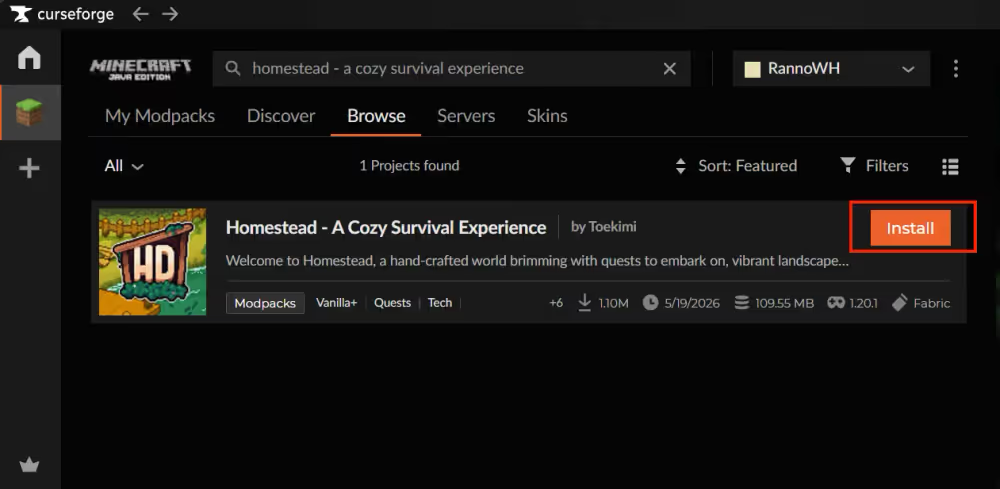
- Go to Browse Modpacks and search for Homestead - a cozy survival experience
- Click Install
Match client and server versions
The client version every player runs must match the server pack version exactly. To check the installed client version, look at the badge in the top right corner of the Homestead card on the My Modpacks page. To switch versions, click the three-dot menu on the modpack, select Change Version, and choose the version that matches the server.
7. Connect locally via localhost
With the server running, open Minecraft through the CurseForge app, go to Multiplayer, and click Add Server. Set the Server Address to localhost and click Done.
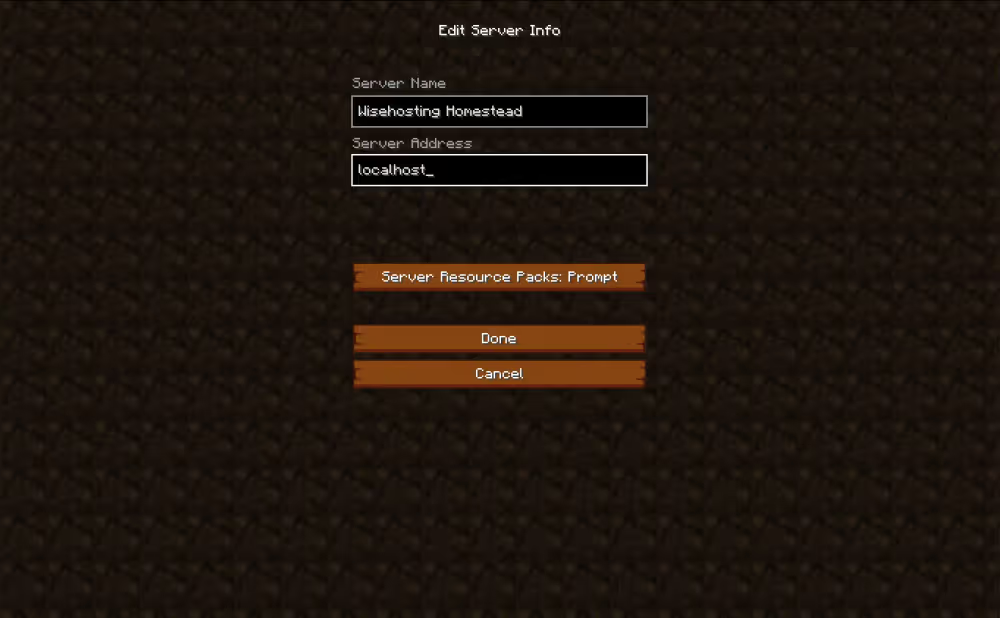
A successful connection means your Homestead server is running locally.
8. Open your server to the internet
Your server is currently local network only. To let friends join from outside, you need to open the port Minecraft runs on.
What is port forwarding?
Your router blocks incoming connections by default. Port forwarding creates a rule that routes traffic on a specific port directly to your PC. Minecraft Java Edition uses port 25565 by default, which can be changed in server.properties under server-port if needed.
How to forward port 25565
The steps vary by router but follow the same general steps explained in this video:
portforward.com has router-specific walkthroughs for almost every model. Search for your router model there if the steps in the video don't match what you're seeing.
Can't forward the port? Some ISPs block port forwarding on residential connections. Contact your provider and ask them to open port 25565.
Find your IP
Search "what's my IP" in Google to get your public IP address. Share it in this format:
123.45.67.89:25565
Final thoughts
Homestead is one of the more straightforward modpacks to self-host. The creator provides a clean server pack with startup scripts and documentation already included, and the RAM requirements are reasonable for what the pack delivers. Match your server and client versions, allocate enough memory in variables.txt, and you should be up and running without much trouble.