
Craftoria with 502 mods is one of the heavier modpacks available: hundreds of mods, custom progression systems, and a lot of moving parts. Setting up a server for it takes more steps than vanilla Minecraft, and the places people get stuck are almost always the same: wrong Java version, not enough RAM, or a version mismatch between the server and the client.
1. Download the Craftoria server pack from CurseForge
If you don't have the CurseForge app yet, download it first. It handles modpack installs, manages NeoForge versions automatically, and makes switching between modpack versions straightforward, without manually tracking files.
Find the right server version
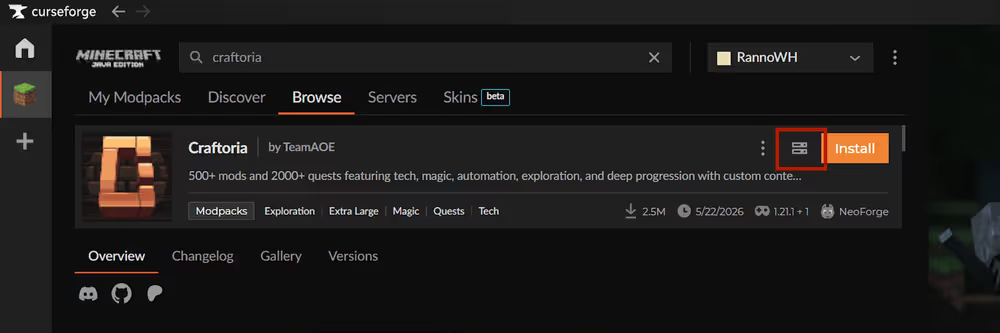
Go to CurseForge and search for Craftoria in the Minecraft modpacks section. Open the modpack page and click the Download server pack icon next to the Install button. This downloads the latest release version of the Craftoria server pack automatically.
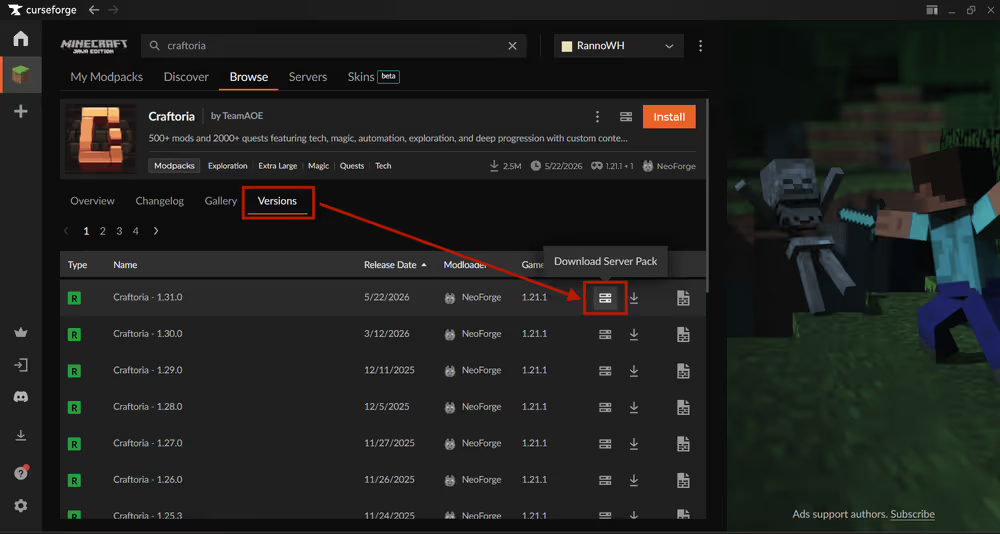
To match a specific version, for example, if you're continuing an existing world go to the Versions tab and pick the version your world runs on. For a new server, stick to the latest Release version and avoid Alpha or Beta releases, which can be unstable. Note down the exact version number, because every player connecting will need to match it on their client.
2. Install your Craftoria server
Unzip and run the installer
Right-click the downloaded .zip file and extract it to your desktop or a dedicated folder. Inside you'll find a startserver file, and several other files.
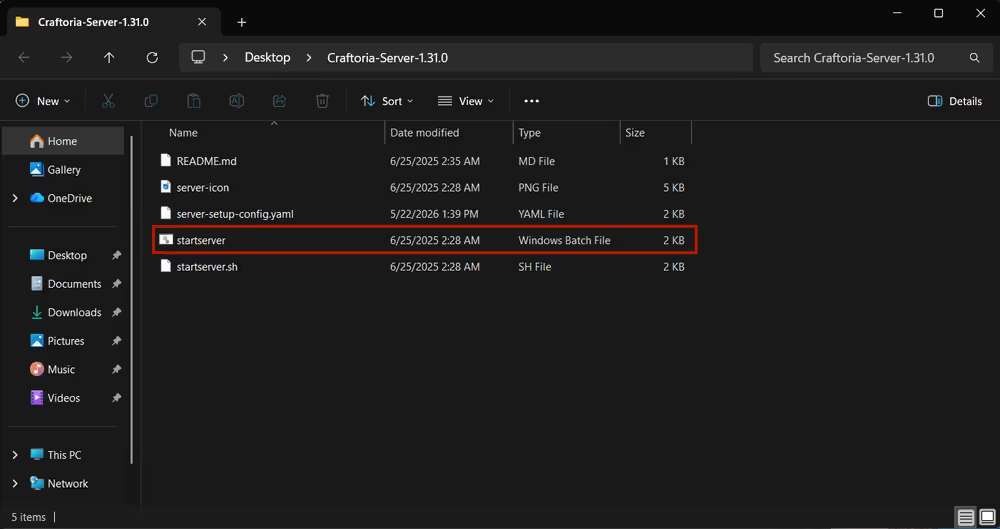
Double-click the startserver file to start the installation. A terminal window opens and begins downloading NeoForge and all required libraries needed to run the craftoria server . This takes a few minutes depending on your connection — let it run until it stops on its own.
Don't close the terminal while it's downloading. If it stops unexpectedly, run startserver again, it picks up where it left off.
Accept the EULA
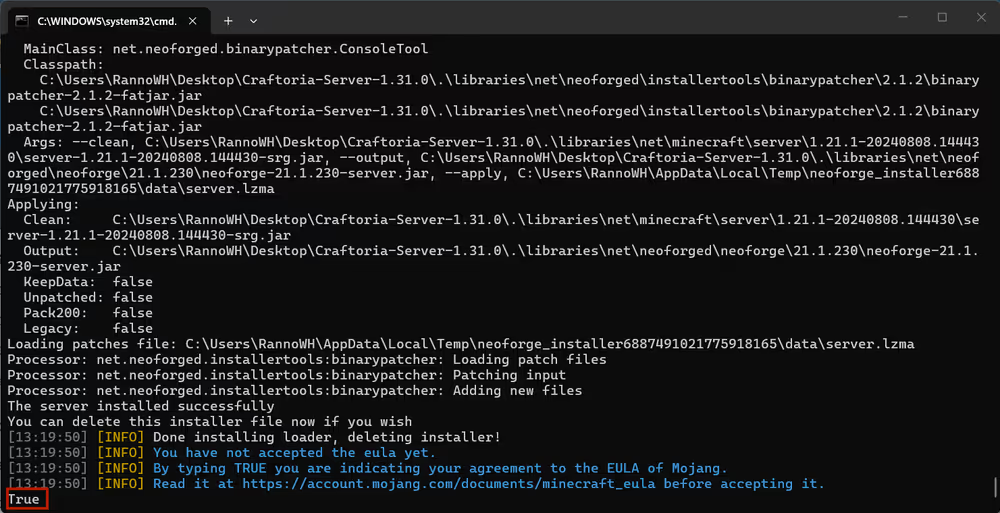
When the download finishes, the terminal pauses and asks you to accept Minecraft's End User License Agreement. Type true and press Enter. The server won't continue until you do, after that, the rest of the installation completes automatically.
3. Install the Craftoria modpack on your client
Use the CurseForge app
Every player joining the server needs the Craftoria modpack installed on their own machine.
- Open the CurseForge app
- Select Minecraft from the game list
- Go to Browse Modpacks and search for Craftoria
- Click Install
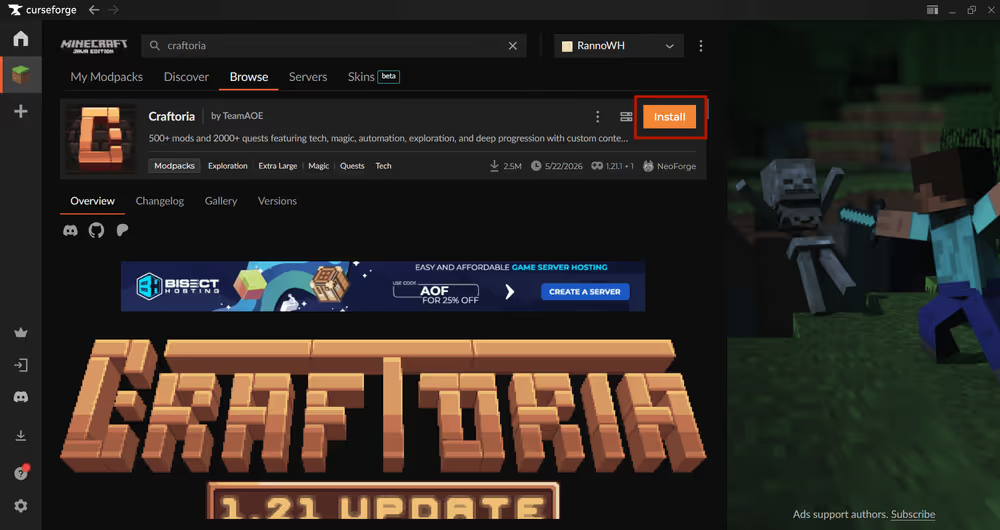
Once installed, launch Craftoria from the CurseForge app, and it loads the correct NeoForge version and all mods automatically.
Match client and server versions
The modpack version on every player's client must exactly match the version running on the server. A mismatch produces an error like this on connection:
Connecting to server failed.
Mods that are missing or have version differences:
[list of mismatched mods]
To check the client version, look at the version badge in the top right corner of the Craftoria installation on the My Modpacks page in CurseForge. To switch versions, click the three-dot menu on the modpack, select Change Version, then choose the version that matches your server.
4. How much RAM does a Craftoria server need?
A Craftoria server needs more RAM than most modpacks because it loads hundreds of mods simultaneously with each one adding entities, world generation logic, and background processes that run every game tick. For a small friend group, 8–10GB is a reasonable starting point.
Craftoria server RAM allocation:
| Players | Minimum RAM | Recommended RAM |
|---|---|---|
| 1-2 | 6GB | 8GB |
| 3-5 | 8GB | 10GB |
| 6-10 | 10GB | 12-16GB |
The minimums will get the server running, but expect lag during world generation and in mob-heavy areas. The recommended figures give the JVM enough headroom to handle chunk loading and player activity without constant garbage collection pauses.
Your host machine also needs RAM on top of the server's allocation — Windows uses around 4–6GB on its own. On a 16GB PC, allocating 10GB to the server is about the sensible ceiling.
If you plan to play Craftoria on the same machine you're hosting from, factor in the client's RAM usage too. Craftoria's client typically needs another 6–8GB allocated to it. On a 16GB PC, running both simultaneously is very tight — a 32GB system is much better suited for this. If your PC doesn't have enough memory, consider using a hosting provider like WiseHosting so your machine only runs the client.
Allocate the right amount of RAM
The default RAM in server_start.bat usually isn't enough for Craftoria. To increase it, open startserver (or user_jvm_args.txt if present) in a text editor and find the line with -Xmx. Change it to your target allocation. For example, to allocate 8GB:
-Xmx8G -Xms4G
Java Version Compatibility
If the terminal closes immediately after you run startserver without downloading anything, a Java version mismatch is almost always the cause. Craftoria requires Java 21 specifically.
To check what's installed:
- Open Command Prompt (press
Win + R, typecmd, press Enter) - Type
java -versionand press Enter - The output should say
openjdk version "21.x.x"or similar
If it shows a different version, download Java 21. If you have multiple Java versions installed, you may need to edit startserver file to point directly to the Java 21 executable path.
5. Start the server and connect locally
Launch the server
Once installation is complete the server starts right away. To start the server again double-click startserver. The terminal loads through the mods one by one. A successful startup ends with:
[Server thread/INFO] [co.he.se.ServerStarted/]: Server Started!
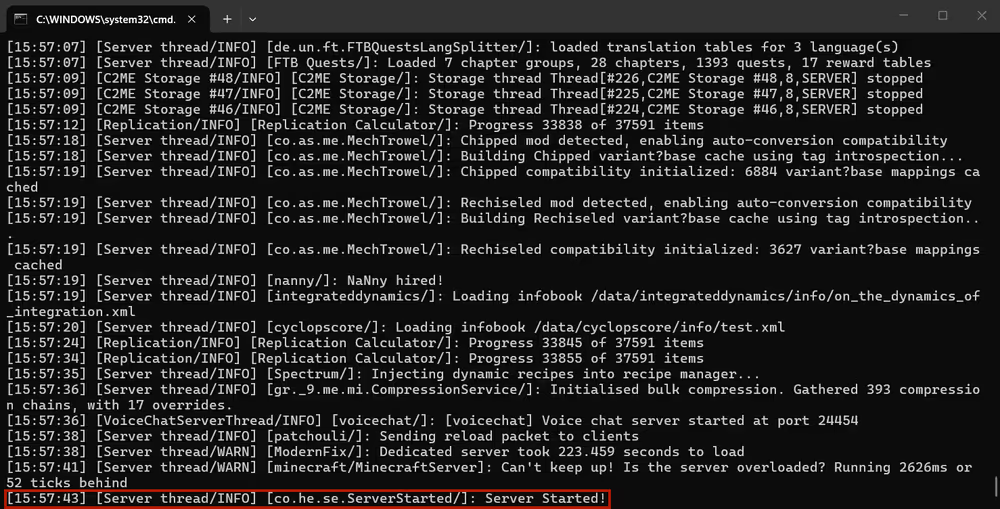
Server Started! it's running.Startup time: The first launch can take 3–5 minutes while Craftoria generates initial data. This is normal, and later starts are faster.
To stop the server: Type stop into the terminal and press Enter. This saves the world and shuts everything down. Don't just close the terminal window, as that can corrupt your world files or cause chunk errors the next time you start up.
Connect via localhost
With the server running, open Minecraft through the CurseForge app, go to Multiplayer, and click Add Server. Enter localhost as the Server Address and click Done.
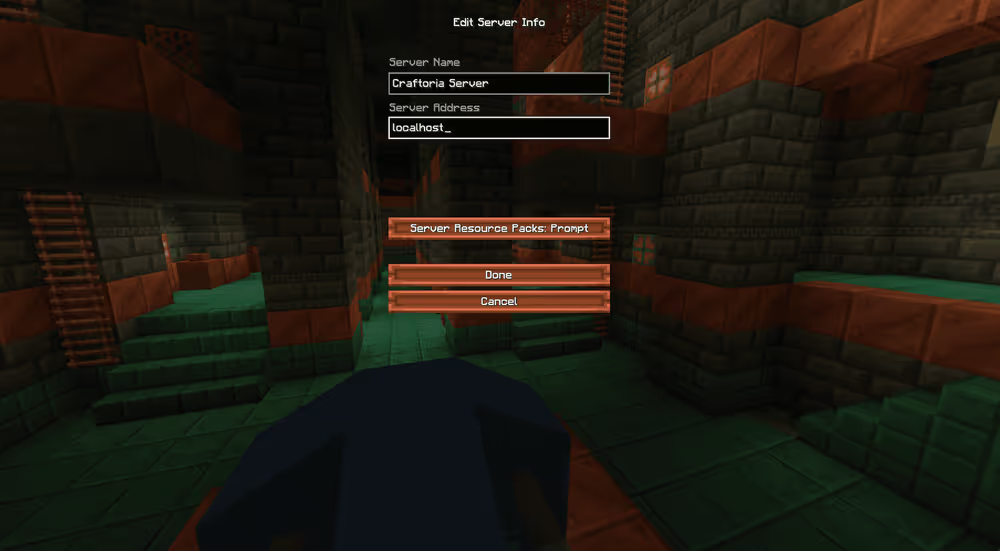
If everything is set up correctly, you'll connect and load into the world with all mods active.
6. Open your server to the internet
Your server is LAN-only at this point, only devices on the same network as your PC can connect with your local IP. To let friends join from anywhere, you need to forward the port Minecraft runs on.
What is port forwarding?
Port forwarding tells your router to direct incoming traffic on a specific port to your PC. Minecraft Java Edition uses port 25565 by default. This can be changed in server.properties under server-port if needed.
How to forward port 25565
The exact steps vary by router model, but the general process is explained in this video:
portforward.com has step-by-step guides for almost every router model — search for your specific router there if you get stuck.
Find Your IP
Search "what's my IP" in Google to find your public IP address. Your full server address will look like:
123.45.67.89:25565
The easier option: Craftoria server hosting
Self-hosting works well, but it means keeping your PC on whenever anyone wants to play and managing port forwarding and updates yourself. If that's more than you want to deal with, Craftoria server hosting with WiseHosting is the simpler alternative.
WiseHosting is built exclusively for Minecraft by Shulkercraft, a YouTube creator with over 2.4m subscribers, the modpack installs in a few clicks, the server runs 24/7, and you don't touch port forwarding at all.

Final thoughts
The most common issues when setting up a Craftoria server: wrong Java version, not enough RAM, version mismatches, all have straightforward fixes once you know what to look for. Follow the steps above and you should be up and running without much trouble. If you hit something unexpected, the version and Java sections are the first places to check.