
Otherworld is a fantasy RPG modpack built around the D&D 5e rulebook and inspired by Baldur's Gate 3. It brings a full character creation system into Minecraft: choose your race and class, fill out a character sheet, unlock cantrips and feats, and build your character from the ground up. Combat is overhauled, the world is packed with dungeons and quests, and the progression system gives the game a proper RPG structure from start to finish. With over 544K downloads and regular updates, it's one of the most ambitious RPG modpacks on Forge 1.20.1.
Before you get started
Hosting a modded server on your own PC is free but comes with three trade-offs worth knowing up front.
- It's only online while your PC is on
- Otherworld needs 6–8GB of RAM plus a good CPU, and that's before you've joined yourself
- Letting friends join requires opening a router port, which can expose your network if you're not careful
None of this is a dealbreaker, but it's worth knowing now rather than mid-setup.
Otherworld server hosting
If that sounds like more than you want to manage, using a Minecraft hosting provider skips all three. If you haven't already, purchase a server with WiseHosting to get started, then follow the instructions:
- Head to your WiseHosting game panel and locate the Version tab
- Choose Modpacks and select CurseForge from the dropdown filter
- Search for Otherworld and click Install
- Click Start to start your server
- Copy the IP and join the world
Your server is live in under two minutes, stays online 24/7, and never touches your home network.
If you still prefer to set up an Otherworld server yourself, keep reading.
1. Download the Otherworld server pack from CurseForge
If you don't have the CurseForge app yet, download it first. You'll need it to install the modpack on the client side later in this guide.
Find the server pack
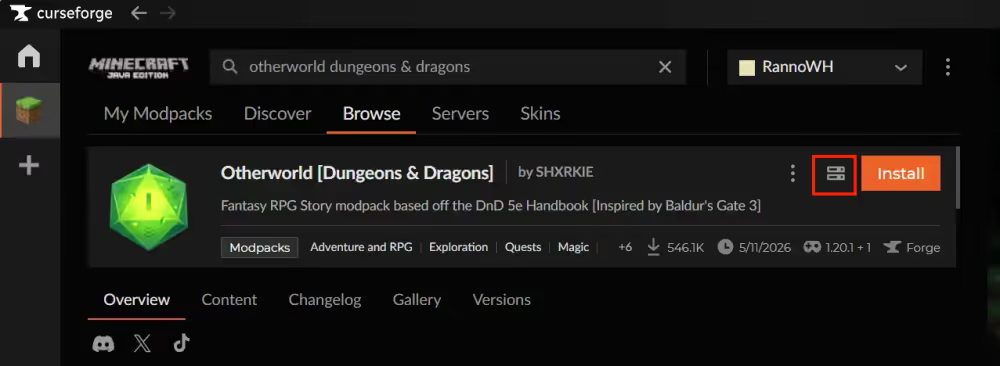
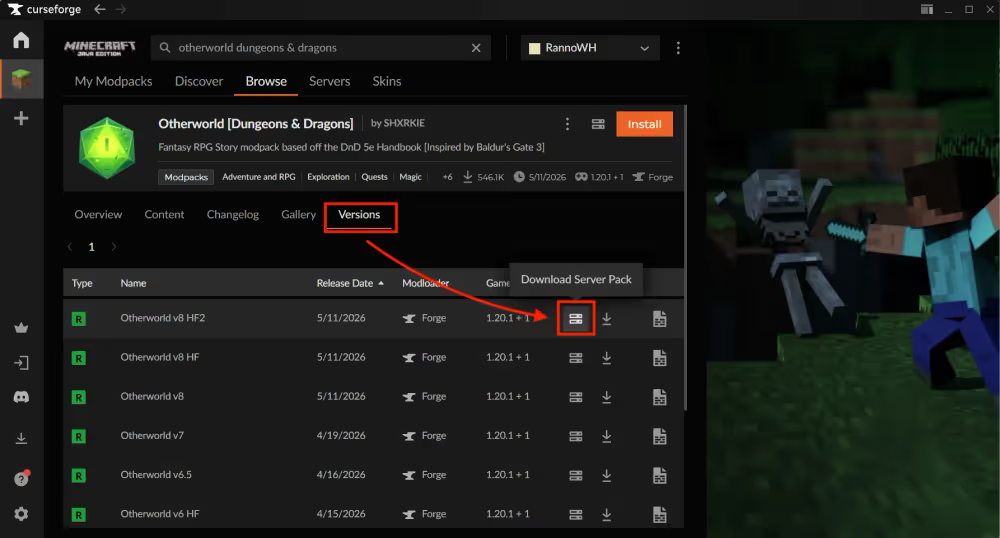
Head to the Minecraft page and search for "Otherworld [Dungeons & Dragons]" on CurseForge and open the modpack page. Click on the download server pack button next to the install button. This will download the newest Otherworld server pack version. Save it to an easily accessible location like your desktop.
2. Install your Otherworld server
Unzip and run the installer
Right-click the downloaded zip and extract it to your desktop or easily accessible folder. Inside you'll find a start.bat file, server.properties, and several folders including mods and config.
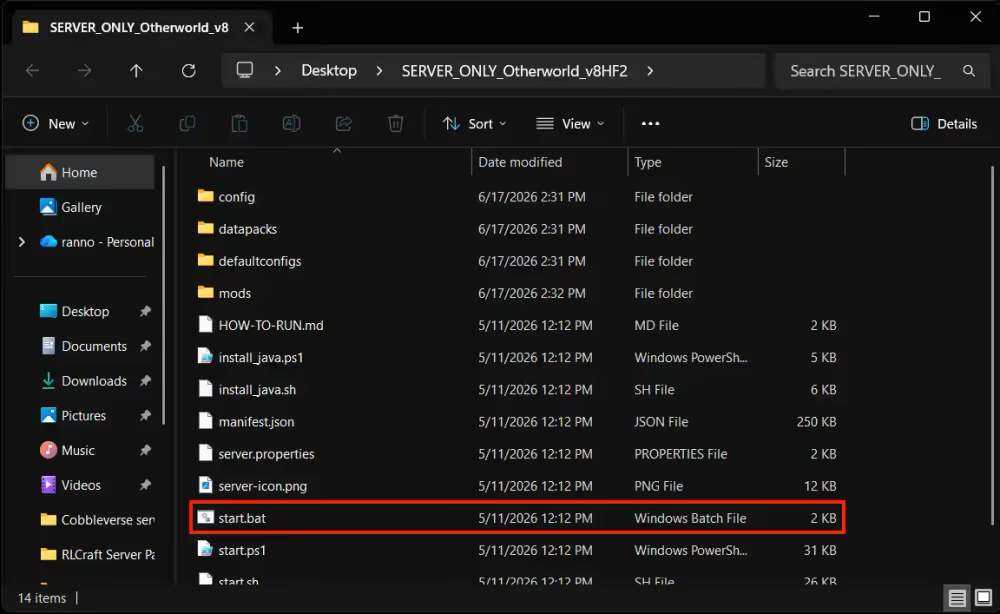
Double-click start.bat to begin. A terminal window opens and starts downloading Forge and all required libraries. Leave it running until it finishes on its own.
Leave the terminal open. Closing it mid-download interrupts the process. If it stops before finishing, run start.bat again and it will pick up where it left off.
Java version compatibility
Otherworld runs on Forge 1.20.1, which requires Java 17 as a minimum. If you already have it installed, you don't need to change anything. When you don't have the right version the terminal will download the correct java for you.
You can also manually download Java 17. With multiple Java versions installed, you may need to edit start.bat to point directly to the correct executable path. Or uninstall other Java versions from Control Panel > Programs and Features.
Accept the EULA
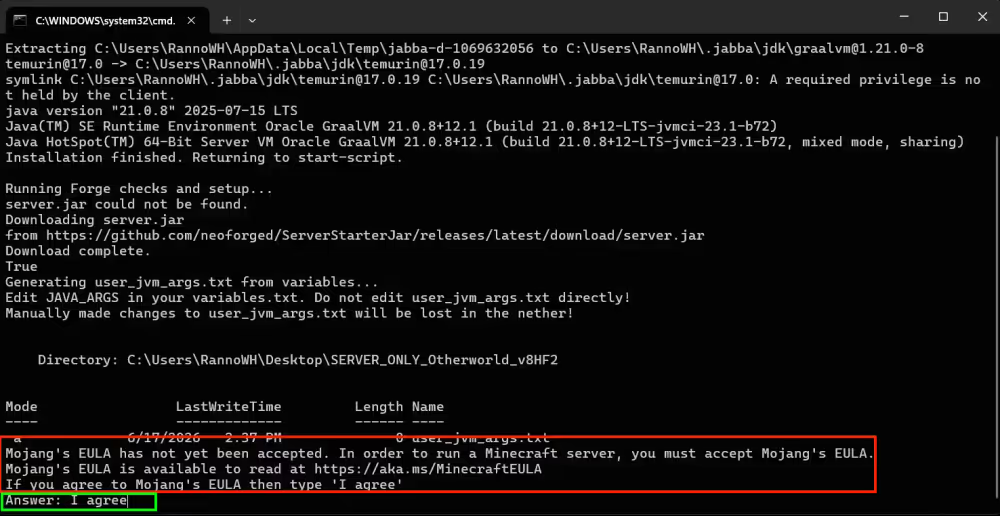
When the download finishes, the terminal stops and prompts you to accept Minecraft's End User License Agreement. Type I agree and press Enter. The server won't continue until you do. After accepting, the rest of the setup completes automatically.
3. Install Otherworld on your client
Use the CurseForge app
Every player joining the server needs Otherworld installed on their own machine:
- Open the CurseForge app
- Select Minecraft from the game list
- Search for Otherworld Dungeons and Dragons under Browse Modpacks
- Click Install
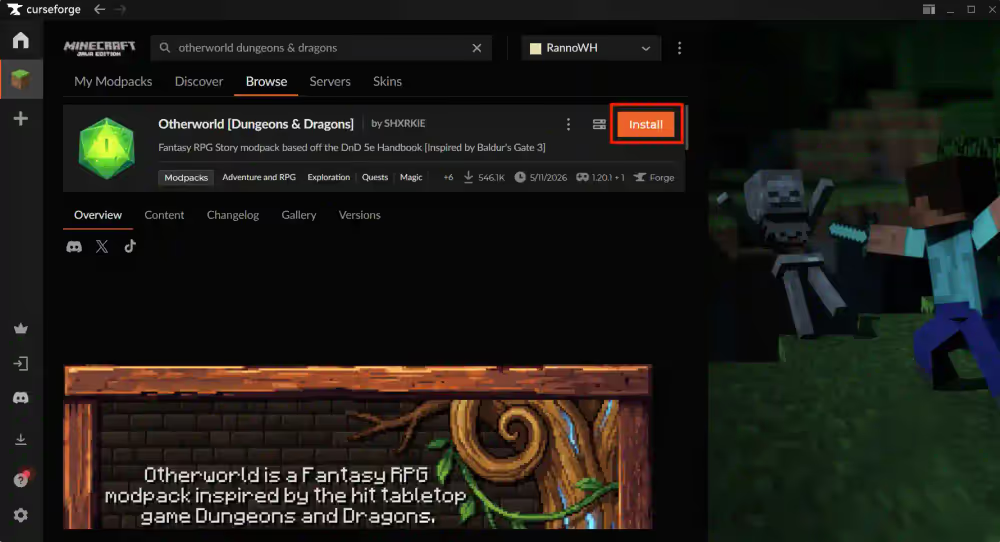
Once installed, launch Otherworld from the CurseForge app and it loads the correct Forge version and all mods automatically.
Match client and server versions
The modpack version on every player's client must match the server exactly. A mismatch produces a connection error like this:
Connecting to server failed.
Mods that are missing or have version differences:
[list of mismatched mods]
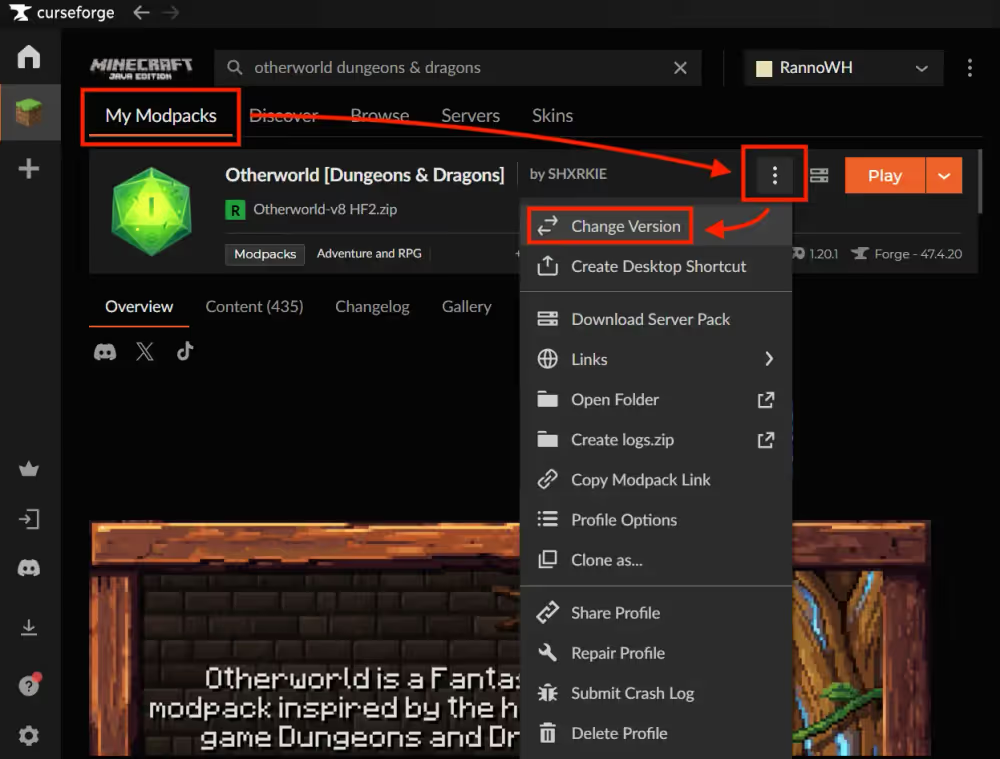
To check the client version, you can look at the badge in the top right corner of the Otherworld card on the My Modpacks page in CurseForge. To switch, click the three-dot menu on the modpack, select Change Version, and pick the version that matches the server.
4. How much RAM does an Otherworld server need?
Otherworld is a quest-heavy RPG pack with custom AI for enemies, overhauled combat systems, and complex world generation. These all contribute to a higher baseline memory requirement than a typical survival or tech pack. Start at 8GB and scale up as more players join.
Otherworld server RAM allocation:
| Players | Recommended RAM |
|---|---|
| 1-3 | 8GB |
| 4-6 | 10GB |
| 7+ | 12GB |
The recommended RAM gives the server enough room to handle combat, AI processing, and multiple active players without lag.
Your host machine needs RAM on top of the server's allocation. Windows typically takes 4–6GB on its own. On a 16GB PC, 8GB for the server is a reasonable ceiling.
If you plan to play on the same machine you're hosting from, factor in the Minecraft client's RAM usage on top of the server's. If the system can't handle both comfortably, consider a Minecraft server hosting provider like WiseHosting so your PC only needs to run the client.
Allocate the right amount of RAM
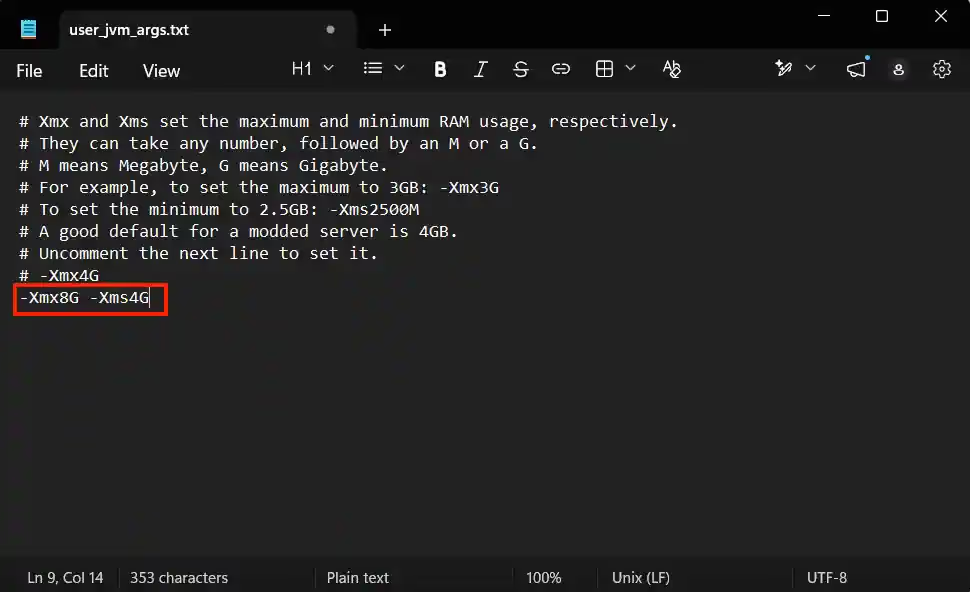
The default allocation in user_jvm_args.txt may not be enough for a smooth Otherworld experience. Open it in a text editor, and copy-paste this -Xmx8G -Xms4 in the end to allocate 8GB to the server and save the file.
5. Start the server and connect locally
Launch the server
With installation complete, double-click start.bat. The terminal loads through the mods one by one. A clean startup has this message in the terminal:
[Server thread/INFO] [minecraft/DedicatedServer]: Done (Xs)! For help, type "help"
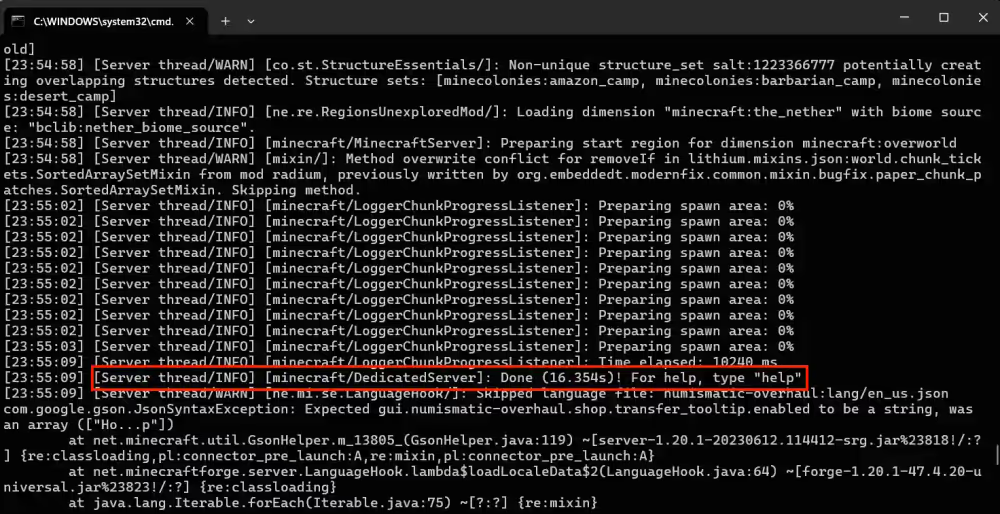
Startup time: Otherworld takes a few minutes on the first boot while Forge generates its initial caches. Later starts are faster.
To stop the server: Type stop in the terminal and press Enter. This saves the world and shuts down cleanly. Closing the terminal window directly risks world corruption on the next launch.
Connect via localhost
Open Minecraft through the CurseForge app, go to Multiplayer, and click Add Server. Set the Server Address to localhost and click Done.
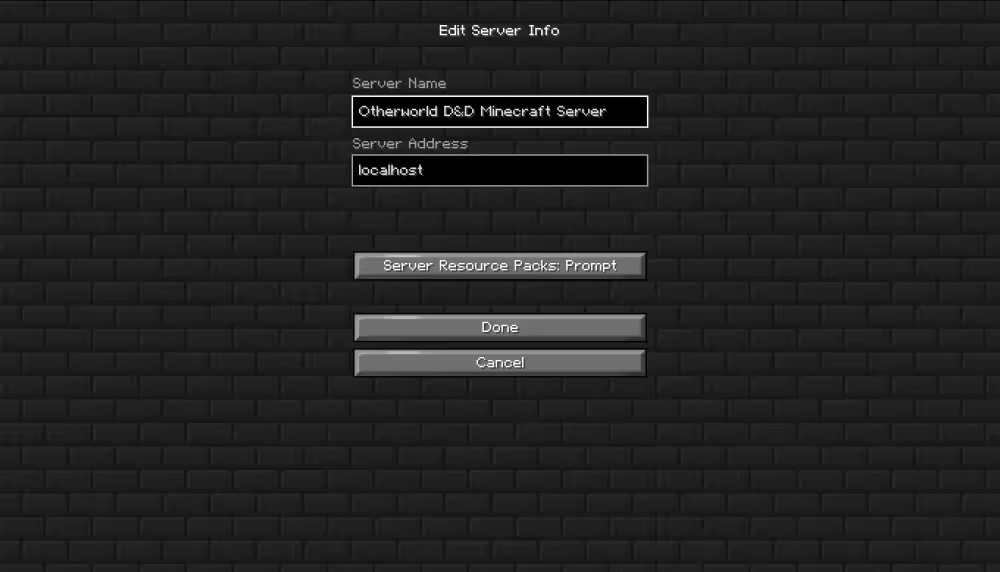
A successful connection puts you into the Otherworld character creation screen. Pick your race and class, fill out your character sheet, and you're in.
6. Open your server to the internet
Your server is currently local network only. To let friends join from outside, you need to open the port Minecraft runs on.
What is port forwarding?
Your router blocks incoming connections by default. Port forwarding creates a rule that routes traffic on a specific port directly to your PC. Minecraft Java Edition uses port 25565 by default, which can be changed in server.properties under server-port if needed.
How to forward port 25565
The steps vary by router but follow the same general steps explained in this video:
portforward.com has router-specific walkthroughs for almost every model. Search yours there if the steps don't match what you're seeing.
Find your IP
Search "what's my IP" in Google to get your public IP address. Share it in this format:
123.45.67.89:25565
Final thoughts
Otherworld is one of the more complete RPG experiences available in Minecraft right now. Getting the server running takes standard Forge setup: Java 17, the server pack from CurseForge, enough RAM for the AI and quest systems, and matching versions between client and server. Get those right and you're ready to roll.
For a more visual guidance check out this guide: