
 Ranno Raamets
Feed The Beast has been around longer than most modpack platforms, and it shows. The packs are polished, well-maintained, and cover everything from tech-heavy packs like FTB Stoneblock 4 to pure skyblock challenges like FTB Skies. Getting an FTB server running is straightforward once you know where to find the files.
Before you get started
Hosting a modded server on your own PC is free but comes with three trade-offs worth knowing up front.
- It's only online while your PC is on
- A large FTB pack can need 8–12GB of RAM plus a good CPU, and that's before you've joined yourself
- Letting friends join requires opening a router port, which can expose your network if you're not careful
None of this is a dealbreaker, but it's worth knowing now rather than mid-setup.
FTB server hosting
If that sounds like more than you want to manage, using a Minecraft hosting provider skips all three. If you haven't already, purchase a server with WiseHosting to get started, then follow the instructions:
- Head to your WiseHosting game panel and locate the Version tab
- Choose Modpacks and select FTB from the dropdown filter
- Find the modpack you want and click Install
- Click Start to start your server
- Copy the IP and join the world
Your server is live in under two minutes, stays online 24/7, and never touches your home network.
If you still prefer to set up an FTB server yourself, keep reading.
1. Download the FTB server installer
FTB server files are usually not available on CurseForge. They live on the official FTB website, and the installer works a little differently from what you might expect.
Head to feed-the-beast.com/modpacks/server-files and find the modpack you want to host. Select the version from the dropdown. In most cases the latest version is the right choice. Under the version you selected, you'll see two download options: Desktop and Server. Click the Download for Windows button under the desktop option to get the server installer exe file.
![FTB server files page with a modpack selected and the Desktop download button visible]](https://cms.wisehosting.com/content/images/size/w1000/format/avif/2026/07/Download-for-windows-server-files.png)
Save the file to a dedicated folder on your PC. Name the folder something obvious, like "FTBModpackServer."
2. Run the server installer
Double-click the serverinstall_xx_xxxxxx.exe file you downloaded. A window opens and walks you through a few prompts: do you want to continue installing the server, do you want Java install, and whether to install Neoforge or not. Answer each one yes and let the installer run.
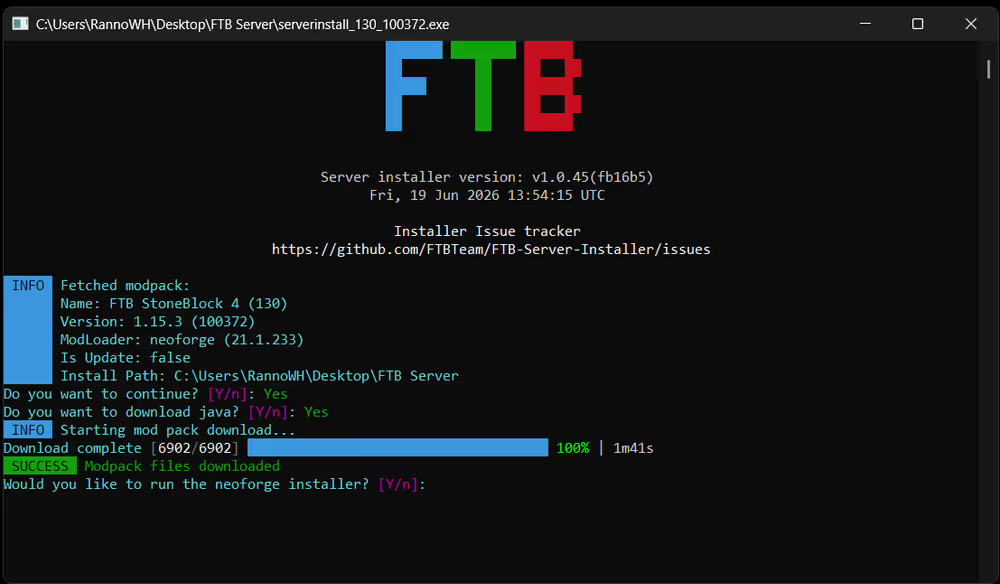
This process downloads Forge (or NeoForge/Fabric depending on the pack), all the mods, and the config files. It takes a few minutes. When it finishes, you'll find a run.bat file in your server folder alongside the mods, config, and a handful of other files.
Accept the EULA
Run run.bat to start the server for the first time. It generates a few files then stops and asks you to accept Minecraft's End User License Agreement. Open eula.txt in your server folder and change:
eula=false to: eula=true
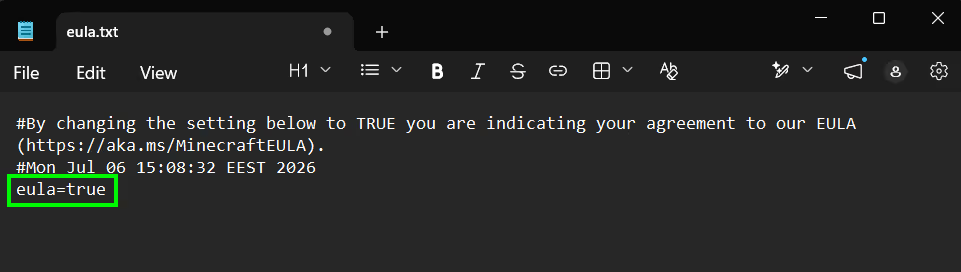
Save the file, then double-click run.bat again. This time it will complete the full startup.
3. Java version
The Java version depends on which Minecraft version the FTB pack is built on, not the pack itself. The server pack installer usually checks the Java version and installs the correct one.
Most modern FTB packs run on Minecraft 1.20.1 or newer and need Java 17 or 21. Older packs on 1.12.2 need Java 8. Using the wrong version is the most common reason the installer fails immediately.
To check what's installed, open Command Prompt and type java -version. If you need a different version you can download different Java versions.
I also recommend installing Jarfix. It makes sure .jar files open with Java instead of whichever program Windows decides to associate them with by default.
4. Allocate RAM
The default RAM allocation in run.bat is almost always too low for a modded server. Open user_jvm_args.txt in a text editor and change the -Xmx on the last line to set the RAM allocation to your target.
For 8GB set:-Xmx8G
-Xmx in user_jvm_args.txt to the recommended amount. You need to edit it when you feel the performance getting worse as your world grows and more players join.How much RAM does an FTB server need?
It depends on the size of the pack.
| Pack size | Example packs | Recommended RAM |
|---|---|---|
| Small / lightweight | FTB Skies, FTB Plexiglass Mountain | 4–6GB |
| Medium | FTB Oceanblock, FTB Stoneblock 3 | 6–8GB |
| Large / kitchen sink | FTB Revelation, FTB Infinity Evolved | 8–12GB |
Not sure which category your pack falls into? Check the pack's CurseForge or FTB page. Most list a recommended RAM amount.
5. Install the modpack to your client
Every player joining the server needs the same FTB modpack installed on their own machine. The easiest way to do that is through the FTB App, which you can download from feed-the-beast.com.
Open the app, search for your modpack, and click Install. The app handles the correct mod loader version and all associated files automatically.
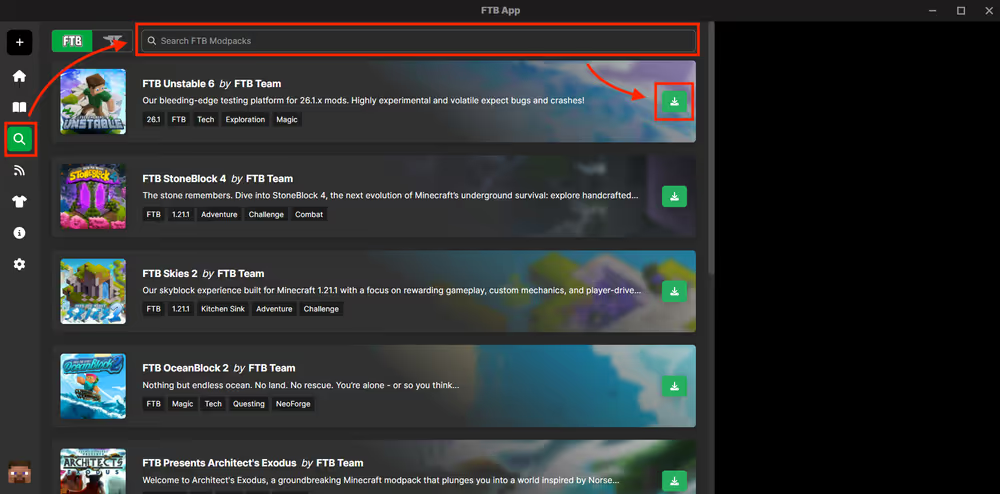
If you'd rather not use the FTB App. Most FTB modpacks are also available through the CurseForge app. Search for the pack by name and install it from there instead.
Either way works, but make sure the version installed on the client matches the version running on your server exactly. A mismatch is the most common reason players can't connect.
6. Connect to your server
Open Minecraft using the FTB App or your preferred launcher with the same modpack and version the server is running. The versions need to be an exact match. A mismatch is the most common reason people get a connection error and assume something is broken when the server itself is fine.
Go to Multiplayer, click Add Server, enter localhost as the server address, and connect. If the world loads, the server is working.
7. Set up port forwarding
At this point only you can reach the server. To let friends connect from outside your home network, you need to forward port 25565 on your router.
The exact steps vary by router model but the general process is covered in this video:
portforward.com has step-by-step guides for almost every router model.
Can't forward the port? Some internet service providers block this on residential connections. Contact your provider and ask them to open port 25565.
Once you have opened the port, find your public IP by searching "what's my IP" in Google and share it with friends in this format:
123.45.67.89:25565
Final thoughts
Making an FTB server comes down to a few steps where the order matters: download the right server installer from the FTB website, get the correct Java version, run the installer, allocate enough RAM, and make sure everyone is on the same modpack version. Get those right and the rest is smooth.
If the uptime, RAM demands, or port forwarding feel like more than you want to manage, WiseHosting handles all three with 24/7 uptime and support from Minecraft experts. Remember to use code BLOG for 20% off your first month.