

In this guide, we will walk you through on how to safely update your Minecraft server version. Updating your server without any preparation can cause corruption and data loss, so it is important to follow the right steps to reduce the risks of any world corruption.
⚠️
WARNING: Some mods and plugins that add or remove stuff from the game will make the world dependent on them.
If a new version of those mods or plugins isn’t available, then you must wait until that plugin supports the version you wish to update to.
If a new version of those mods or plugins isn’t available, then you must wait until that plugin supports the version you wish to update to.
Step 1: Creating a Backup
Before proceeding, it's important to take a backup of the entire server to ensure we have a working world to revert back to in case the world gets corrupted.
- Head over to the Game Panel and close your server.
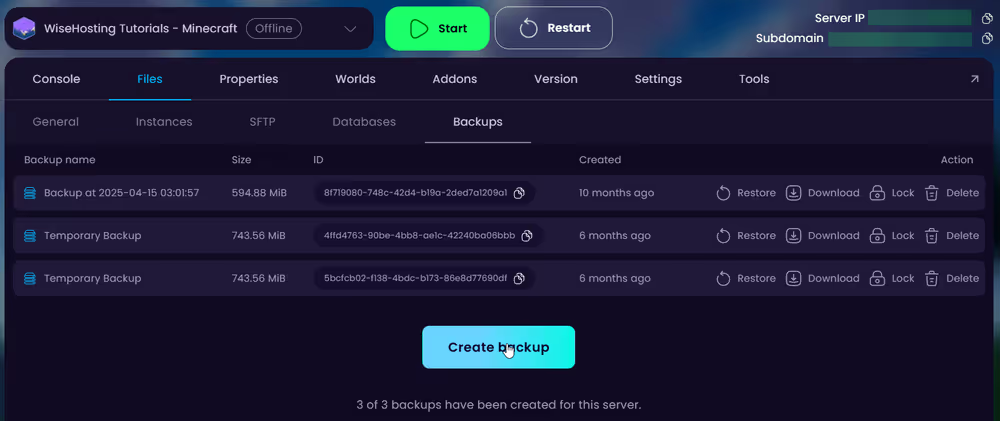
- Navigate to the Files → Backups tab and create a backup.
Step 2: Updating The Server Version
If you've made sure that all the plugins/mods support the version you wish to update to, we can proceed with the next steps.
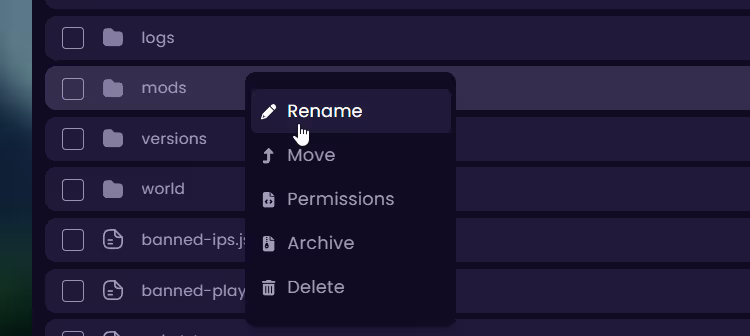
- If you have installed any plugins or mods to the server, rename the plugins folder to something else – same with the mods folder (e.g., mods → mods-temp, or plugins → plugins-temp).
- If your server is multiple versions behind from the one you wish to update to (e.g., you're running on 1.21.1 and want to update to 1.21.11), you need to update the server one version at a time.


