

Your modded Minecraft server crashes during startup. In most cases, the error comes down to a missing dependency, a client-only mod, or a mod conflict.
Quick Notes:
- The easiest way to install mods and plugins is through our “Addons” tab.
- The simplest way to install modpacks is through our “Version > Modpacks” tab.
Missing Dependencies or Wrong Mod Versions
Many Minecraft mods require other mods or libraries to work. If one is missing, the server won't start.
Our Game Panel can detect these crashes and show the missing dependency directly in the Console.

How to Fix It
- Check the crash message for the missing dependency.
- Find the dependency on CurseForge or Modrinth.
- Make sure it matches your Minecraft version and mod loader.
- Upload the .jar file to Files → mods.
- Restart the server.
Check Your Mod Versions

For example, a Forge 1.20.1 mod shouldn't be installed on Fabric or a different Minecraft version unless the mod developer states that it is compatible.
Also check for duplicate versions of the same mod in your mods folder. If you updated a mod manually, remove the old .jar file.
Client-Only Mods Installed on the Server
Some mods are only meant to run on your Minecraft client. Rendering, HUD, menu, shader and other visual mods are common examples. Uploading your entire client mods folder to a server can cause startup crashes.
Avoid permanently removing mods that add blocks, items, biomes, or dimensions from an existing world. Worlds containing data from these mods may fail to start without them.
A related error may contain “net/minecraft/client or DEDICATED_SERVER”, or show pop-ups like these:


How to Fix It
1. Find the mod mentioned in the error.
2. Check its CurseForge or Modrinth page.
3. If it's “client-only”, stop the server.
4. Open Files → mods and remove the client-only mod.
5. Start the server again.
You can keep the mod installed on your own PC.
We've also seen this happen with the Distant Horizons mod. A client-only version was installed on the server, and removing it fixed the startup problem.
Use Server Packs
If you're installing a modpack manually, use its Server Pack when one is available. You can follow this guide.
Your client installation can contain client-only mods, shaders, and other files that shouldn't be uploaded to a dedicated server.
Mixin Errors and Mod Conflicts
Mixin errors usually happen when a mod is incompatible with another mod, your Minecraft version, or your mod loader. These crashes often appear after adding or updating mods.
How to Fix It
Go to Files → crash-reports, open the newest crash report, and search for "Caused by:"
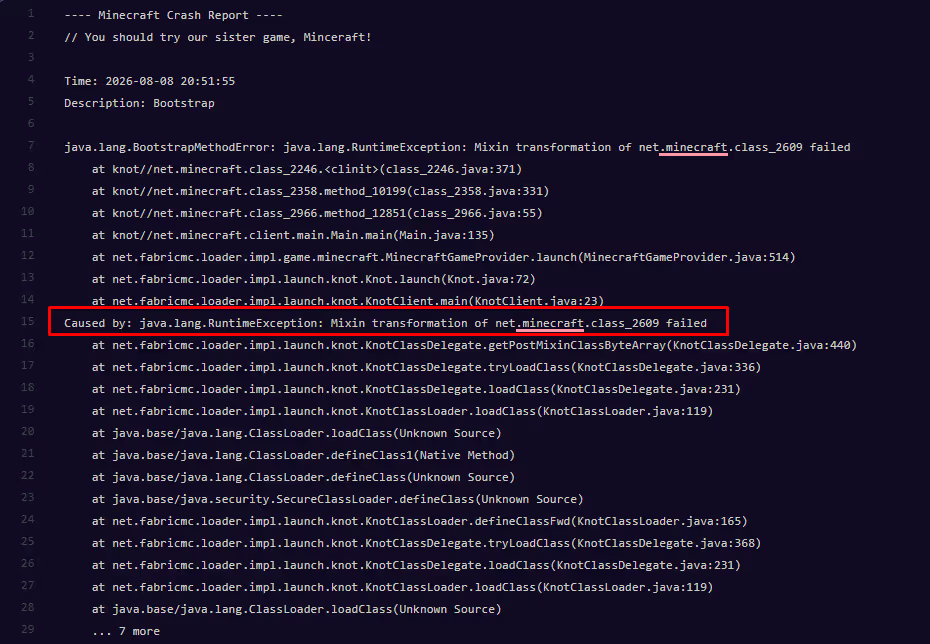
If the server started crashing after you installed or updated a mod, test that mod first. Remove it temporarily and restart the server.
We have a deep guide for this here: How to Diagnose Minecraft Server Crashes
No Crash Report?
Check Files → logs → latest.log or watch the Console tab while starting the server.
If the server repeatedly crashes without generating a crash report, also check its RAM usage.
Can't Find the Conflicting Mod?
1. Create a backup.
2. Remove half of your mods.
3. Start the server.
4. If it still crashes, test the half still installed.
5. If it starts, test the half you removed.
6. Keep splitting the problematic group until you find the mod.
Be careful with dependency mods. Removing something like “Fabric API” while testing will cause a new missing dependency error.
Quick Checklist
- Missing dependencies or wrong mod version.
- Client-only mods installed on the server.
- Mixin errors or conflicting mods
If those aren't the problem, check your Java version, RAM usage, duplicate mods, and latest.log.
Help articles to look through:
- How to Install Modpacks On Your Minecraft Server
- How to Install Mods on Your Minecraft Server
- How To Convert Your Modpack to a Serverpack


