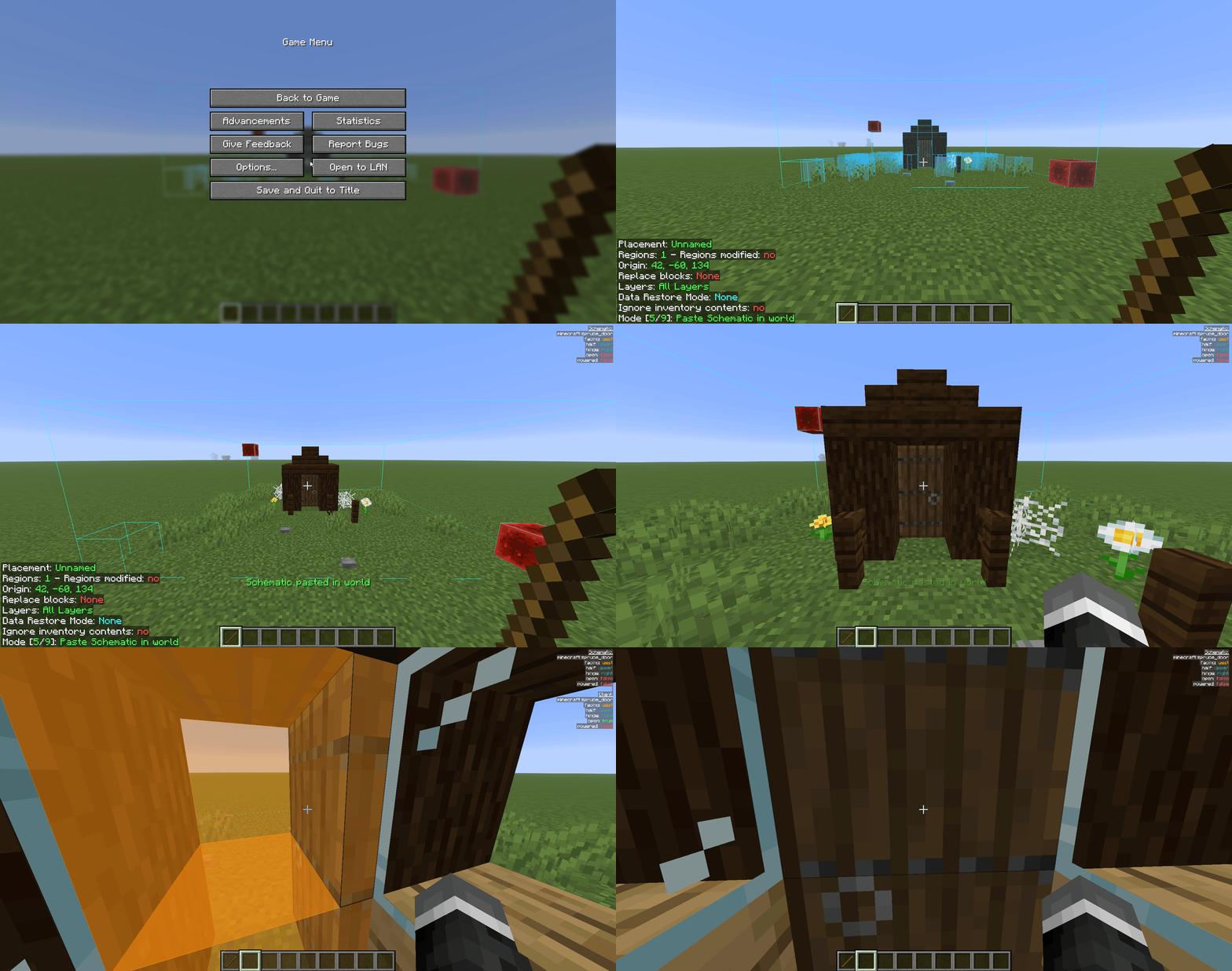
Litematica is a building tool used to help builders or new players build amazing things with the help of holograms. It is a very popular tool used by the Minecraft community, and in this guide, we will be explaining how to use Litematica.
Litematica Basics
- To use Litematica, you’d have to have a default Minecraft stick in your hand.
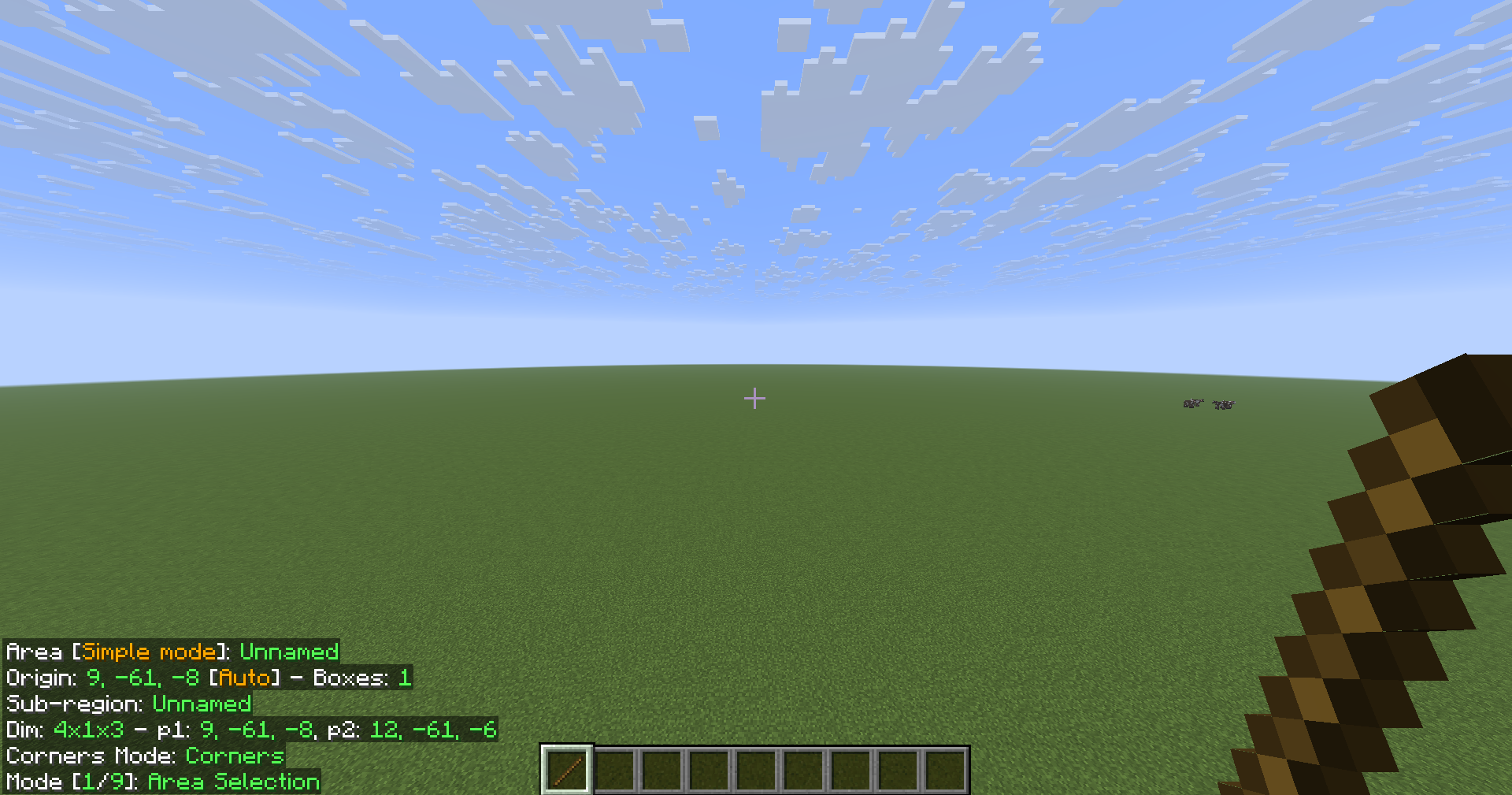
- You can cycle through the different modes with the stick with Ctrl + scroll wheel up/down.
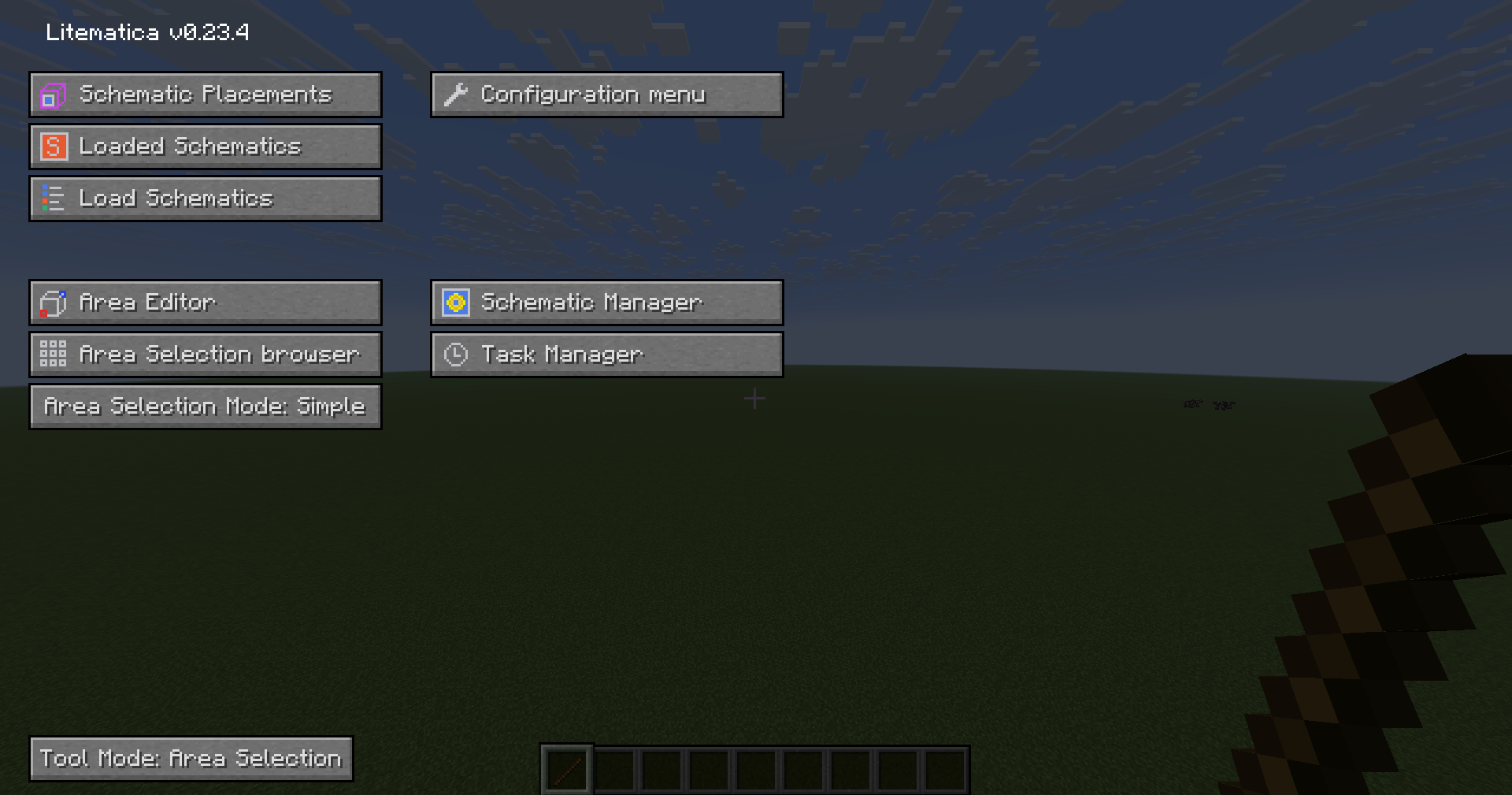
- You can open the Litematica menu by pressing M on your keyboard.
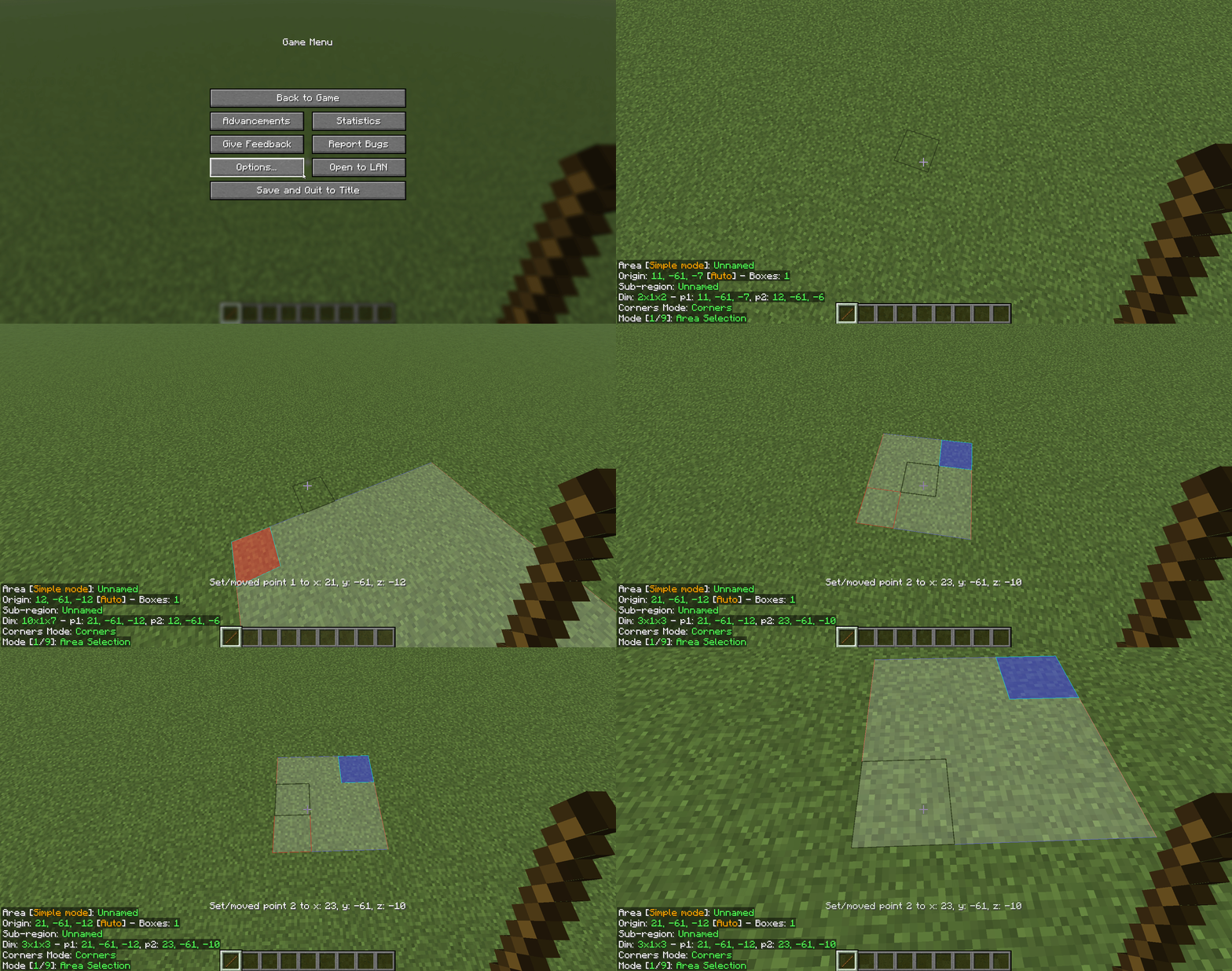
- You can select 2 positions with right-click and left-click.
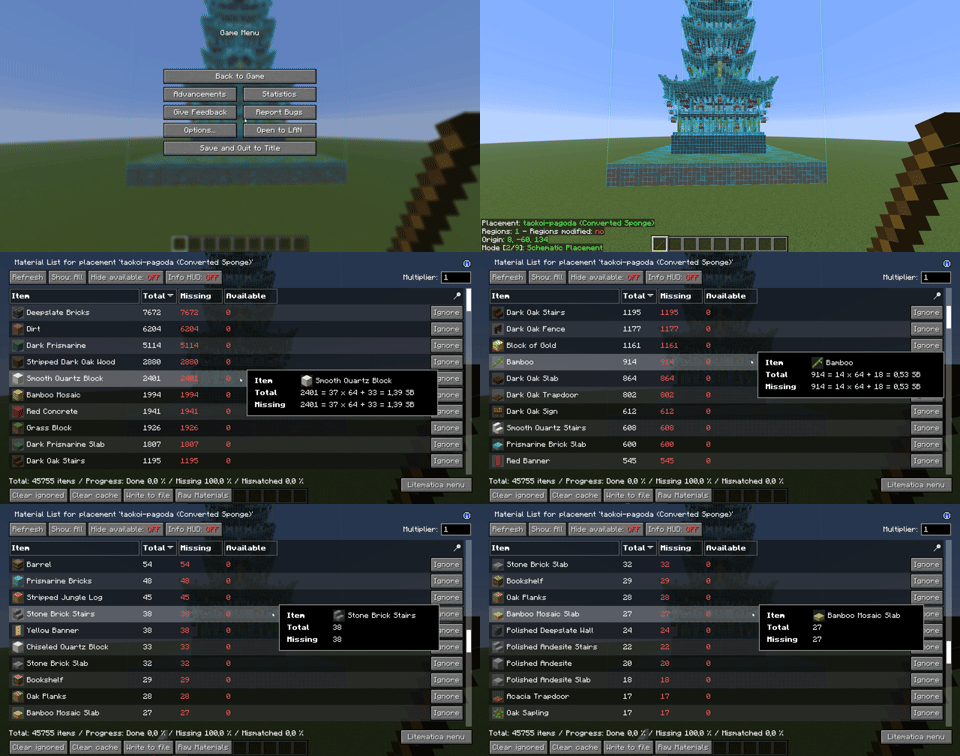
- You can see what blocks a schematic needs by pressing M + L.
- If you want to change the opacity of the schematic, go to the Litematica menu → Configuration Menu → Visuals → Set RenderBlocksAsTranslucent to true.
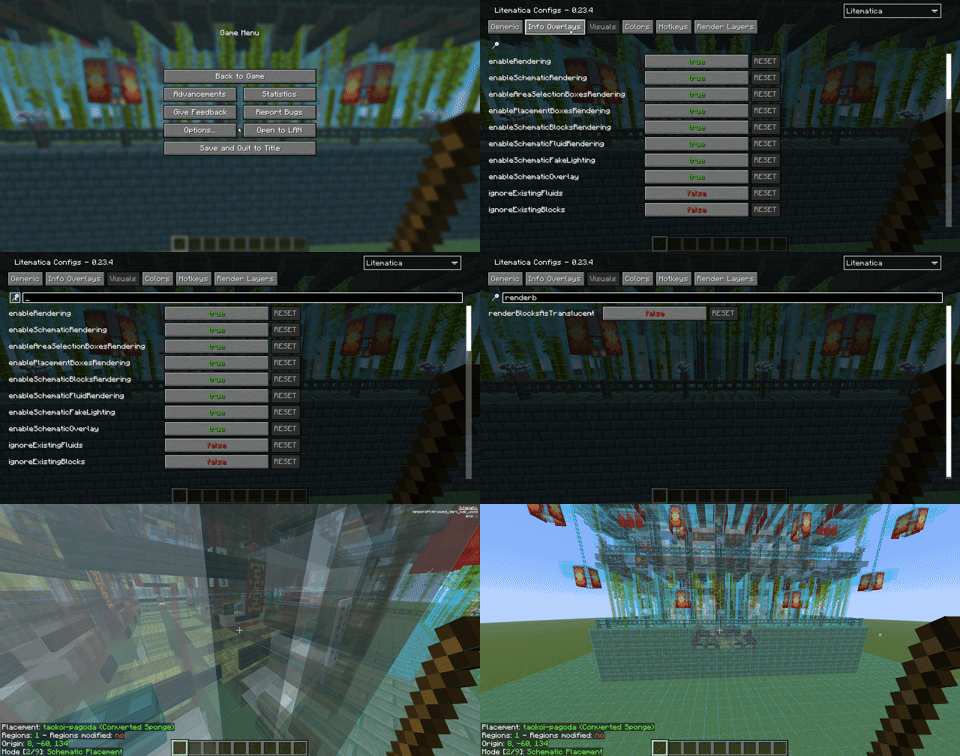
- You can render each line of blocks by going to the Litematica menu → configuration menu → render layers.
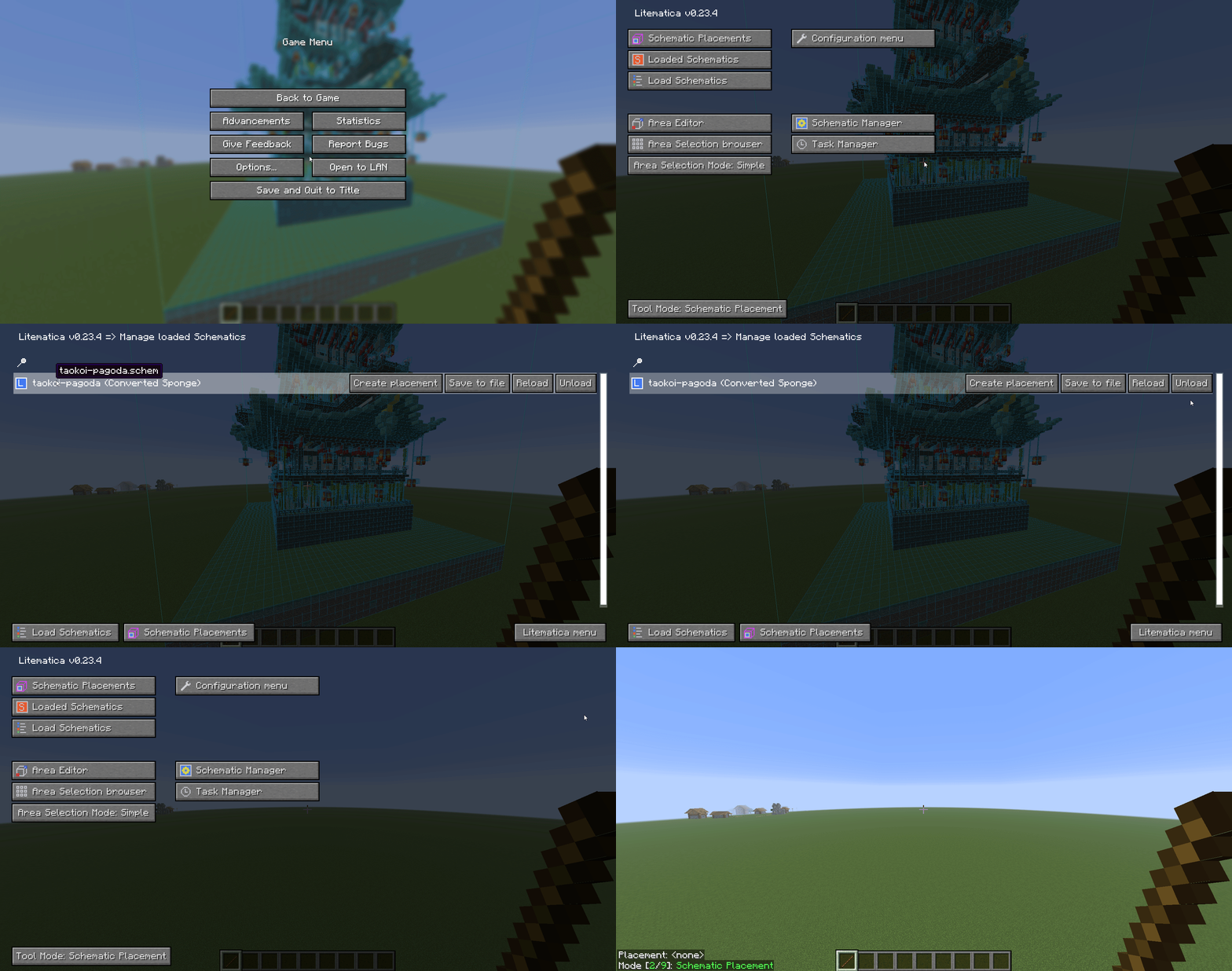
- You can unload your schematic by going to the Litematica menu → Loaded Schematics → clicking Unload.
Saving Your Build into a Schematic File
- Select the area you want to save.
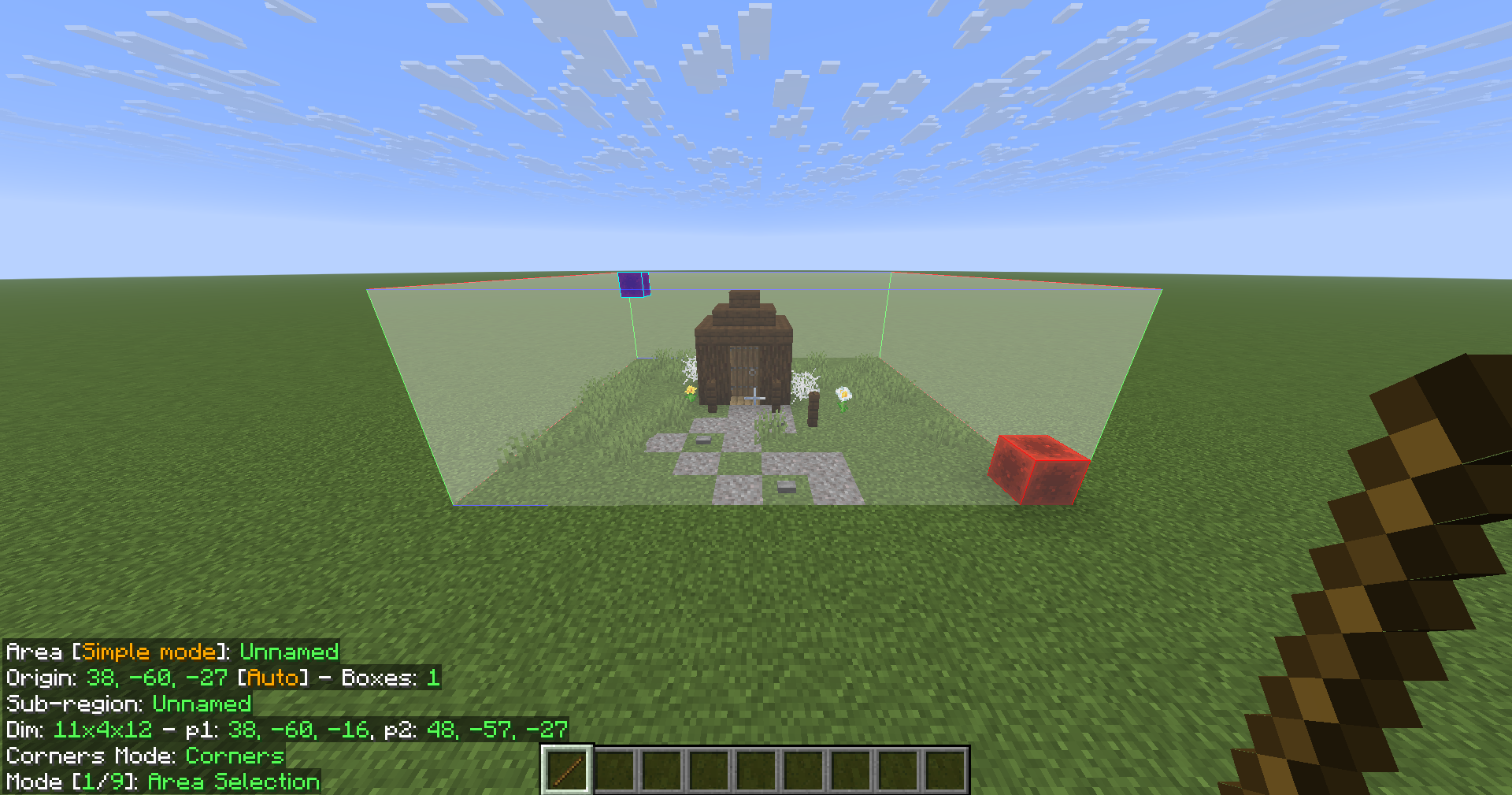
- Go to the Litematica menu and click Area Editor.
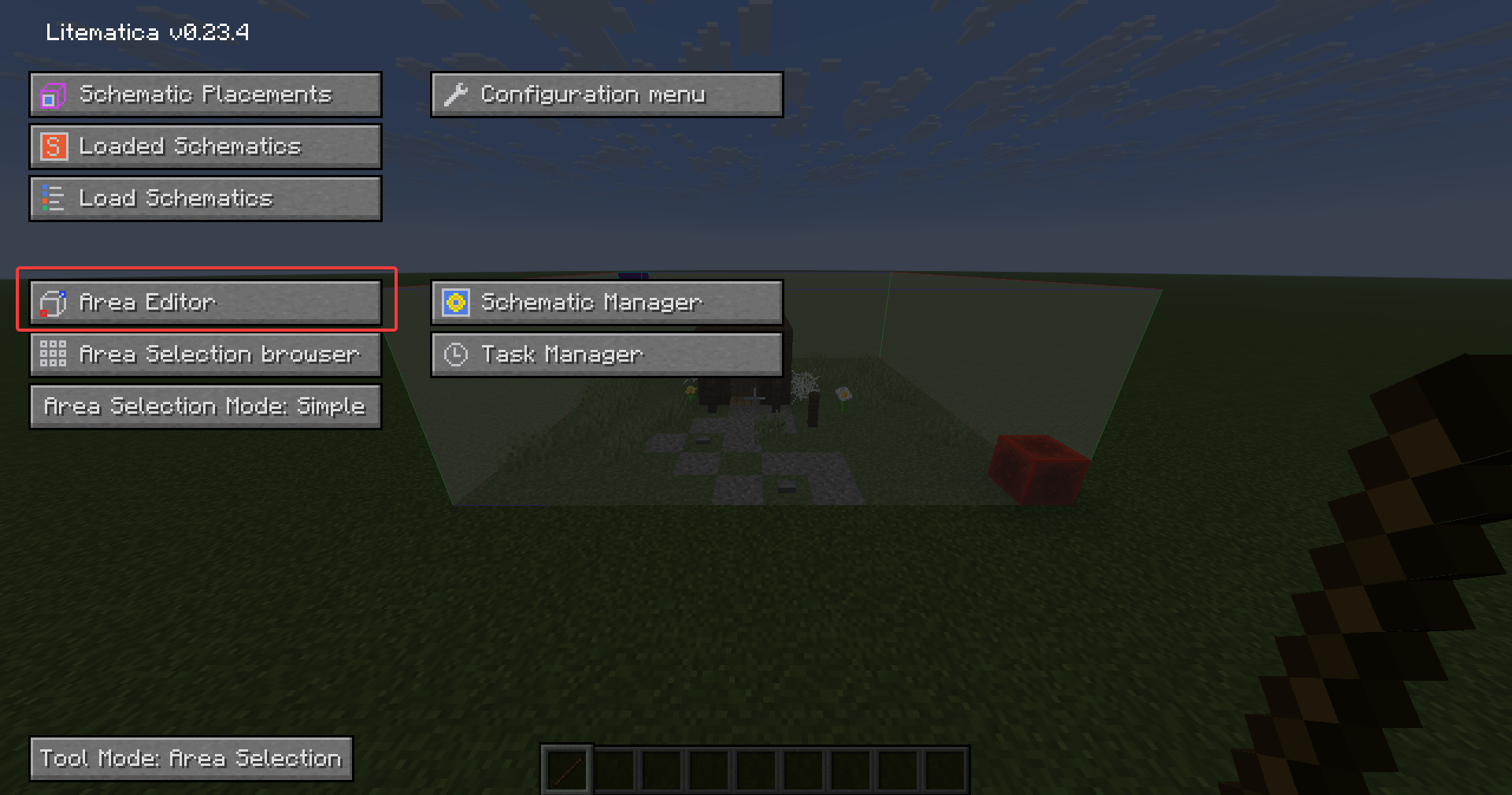
- Click on Save Schematic.
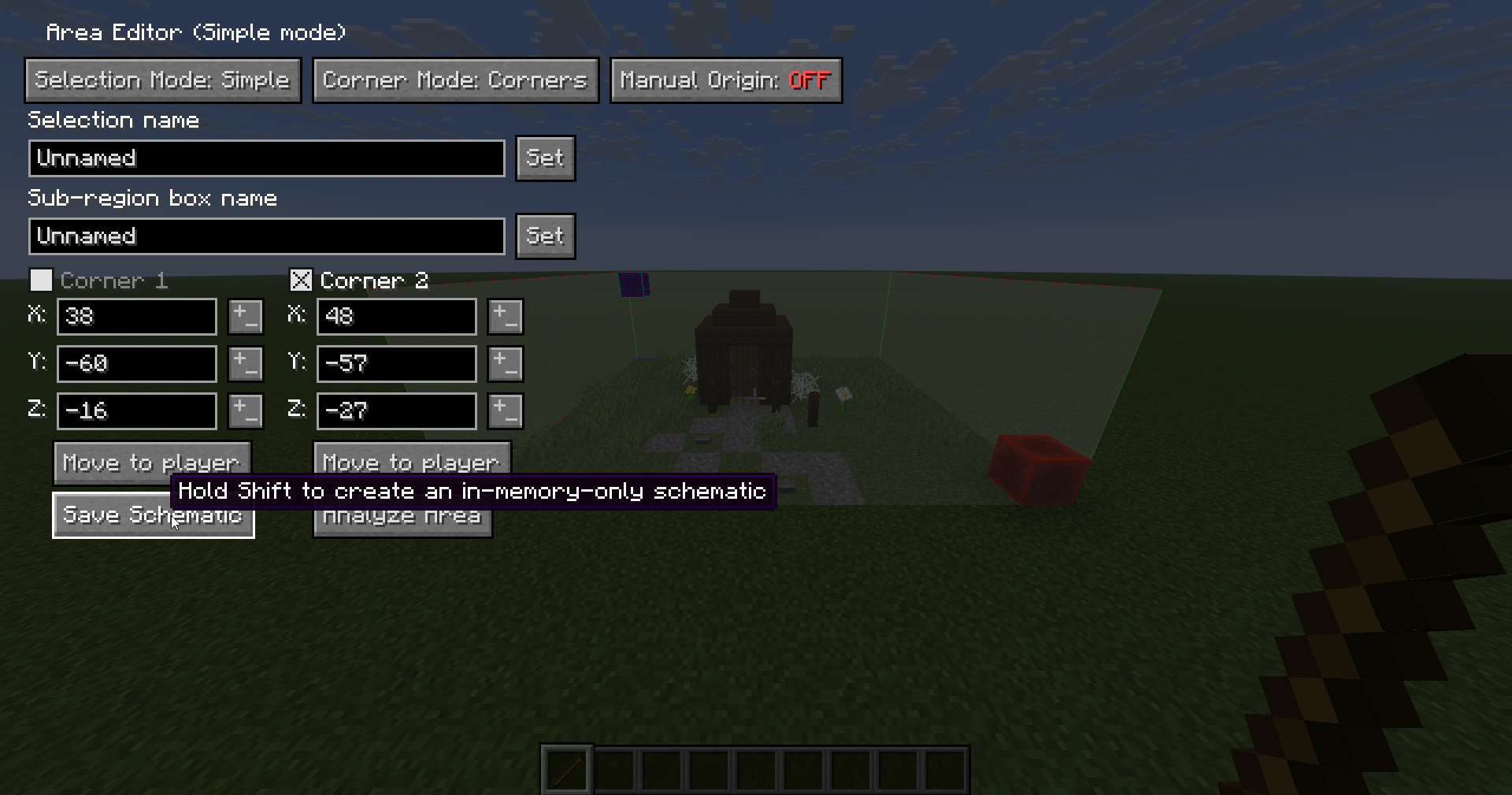
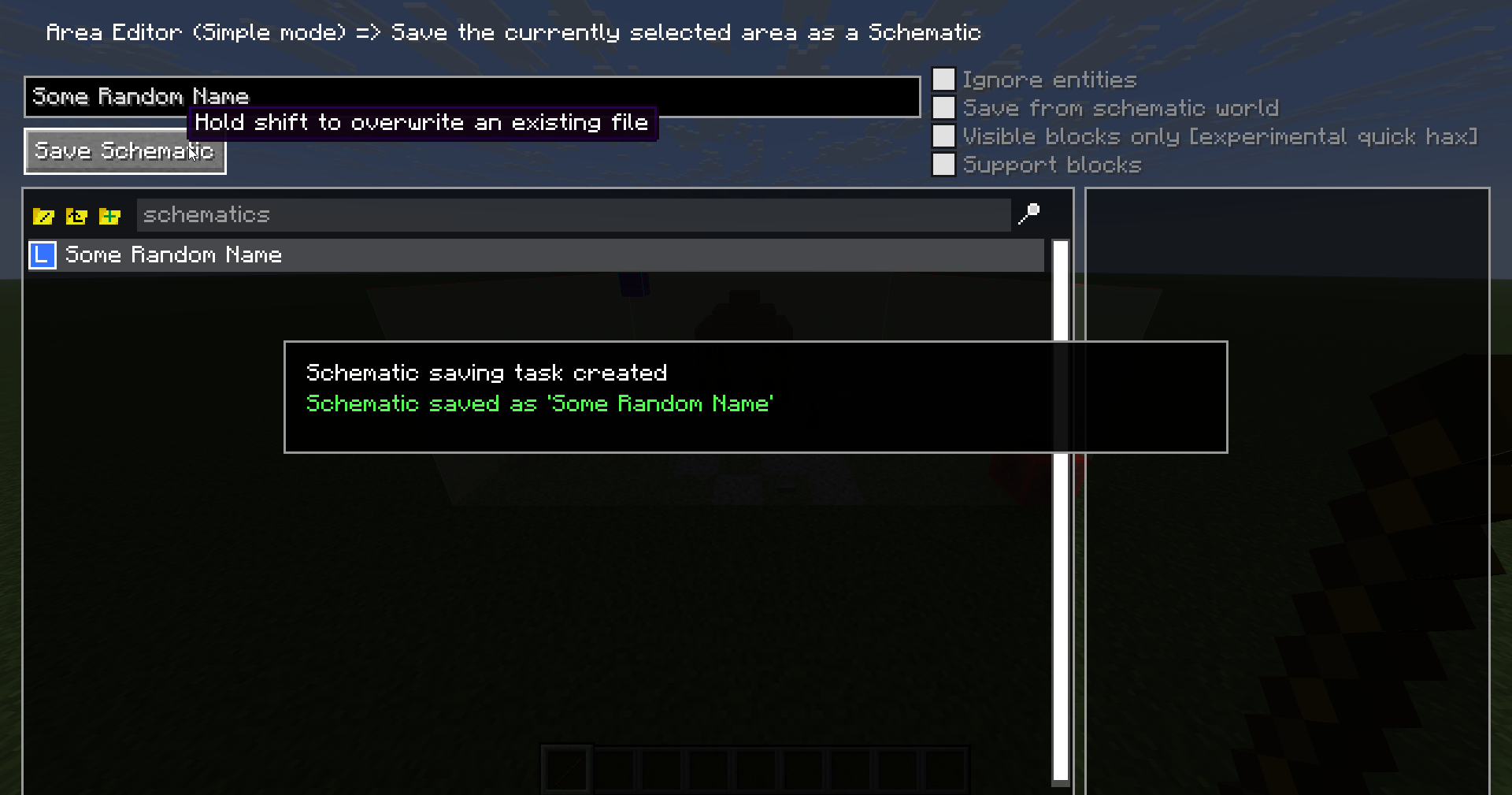
- Name your schematic and click on Save Schematic.
Loading Your Build/Schematic
- Go to the Litematica menu, and click on Load Schematics.
- Click on the schematic you want to load.
- Then click on Load Schematic.
👉
INFO: You can load a schematic in any world or server.
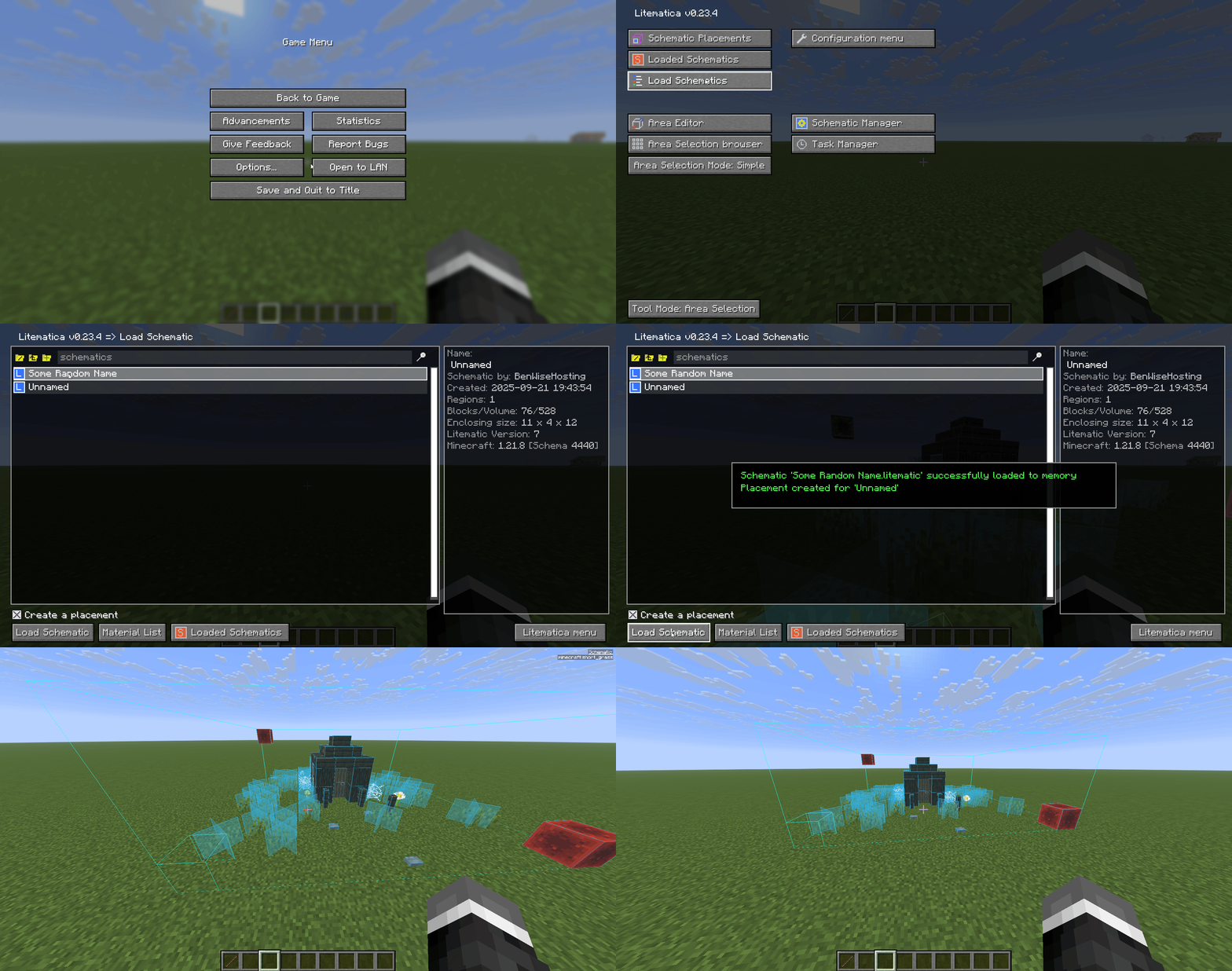
Downloading and Loading Schematics
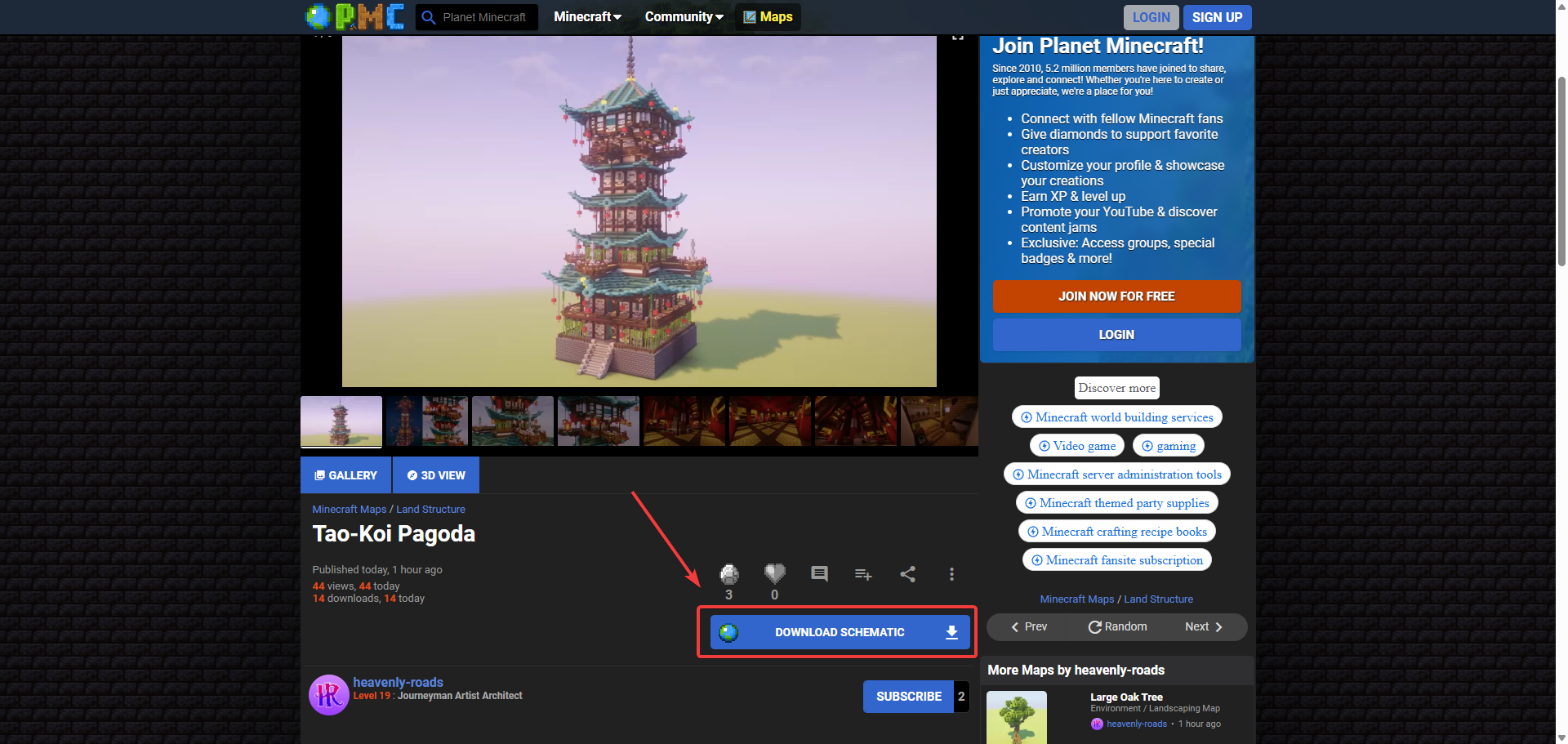
- Go to a website that has schematics available to download, like PlanetMinecraft.
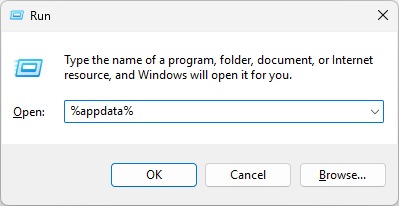
- After you have downloaded the schematic, press Windows + R and type
%appdata%.
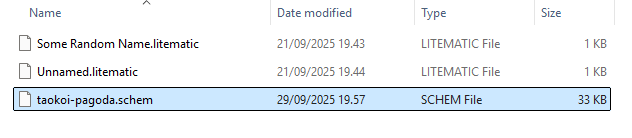
- Go to .minecraft → schematics, and move the schematic you have downloaded there.
- Load the schematic.
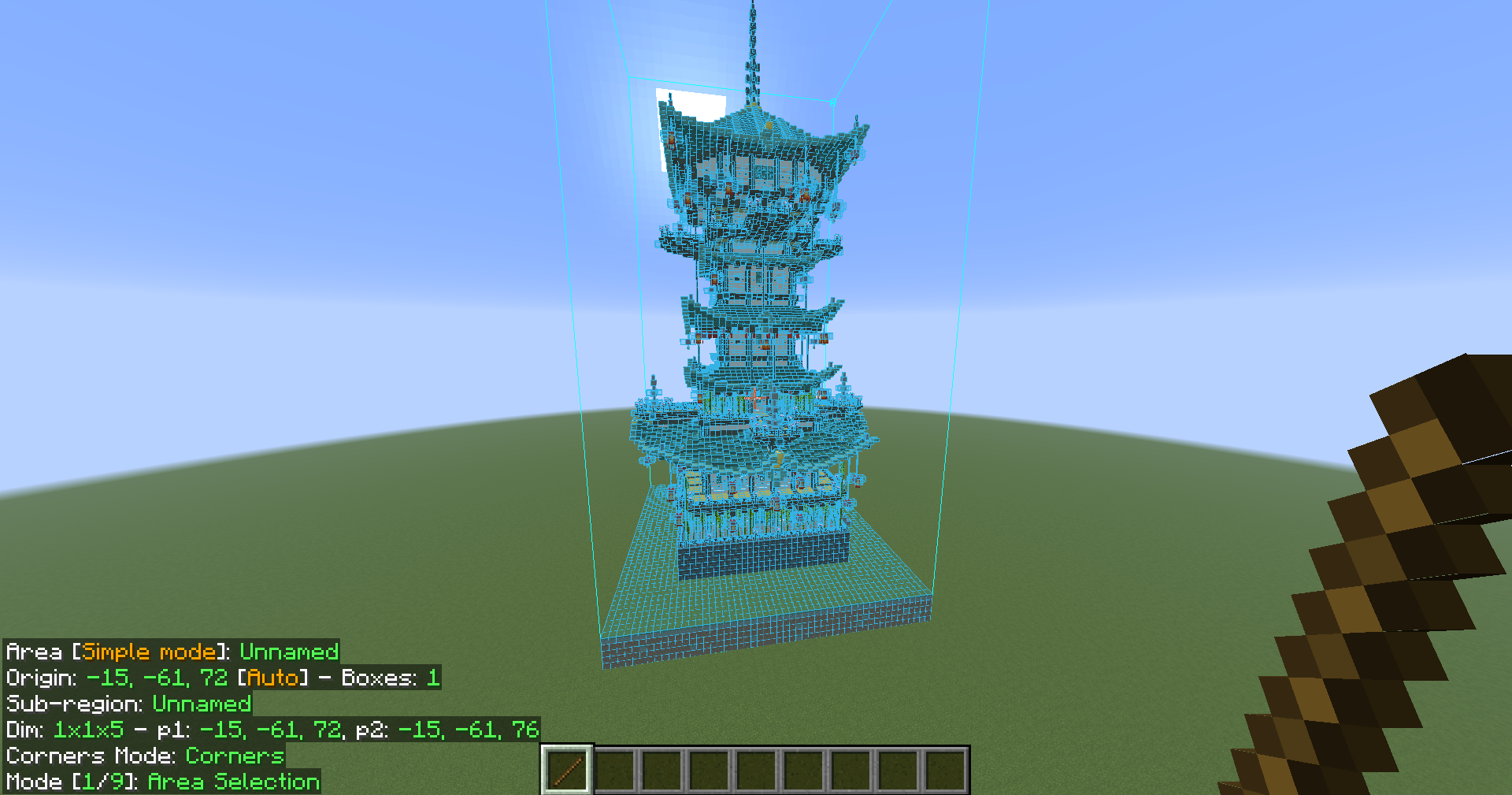
Positioning the Schematic
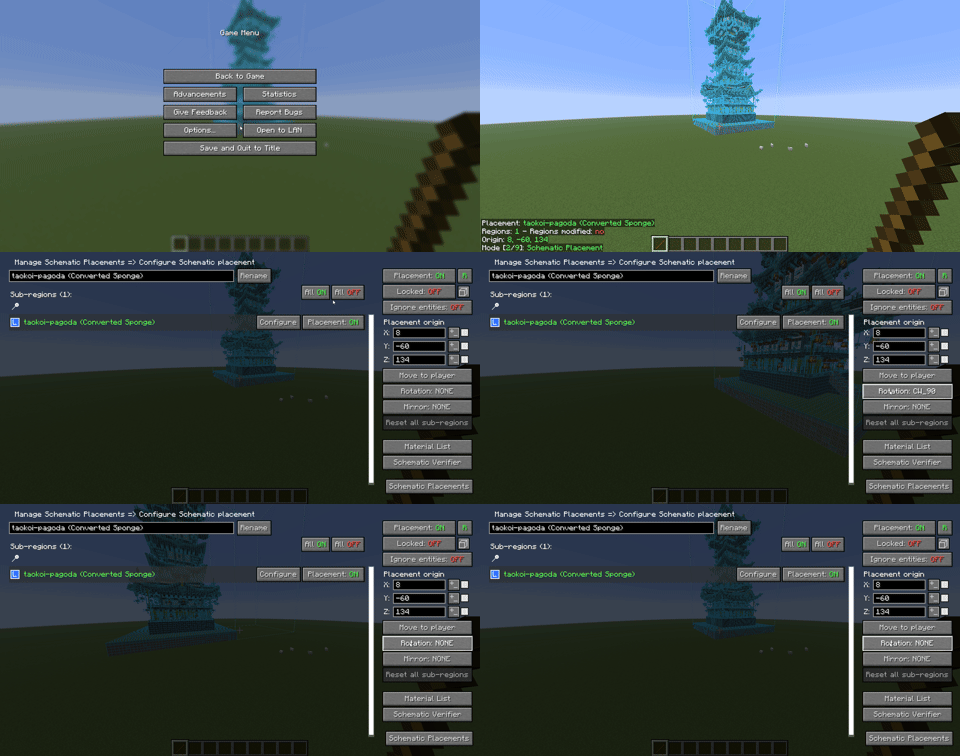
- While holding the stick, go to mode 2, which is the Schematic Placement.
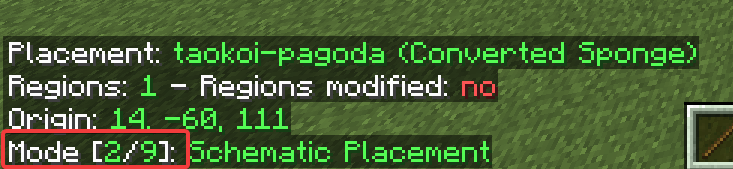
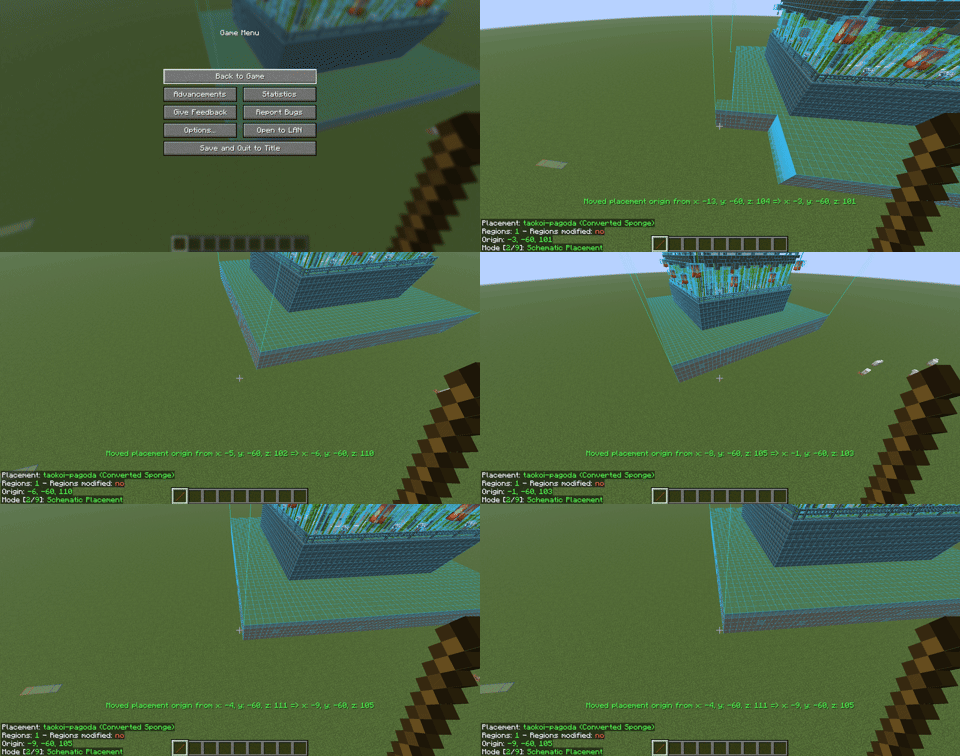
- You can move the schematic by mouse clicking on a block.
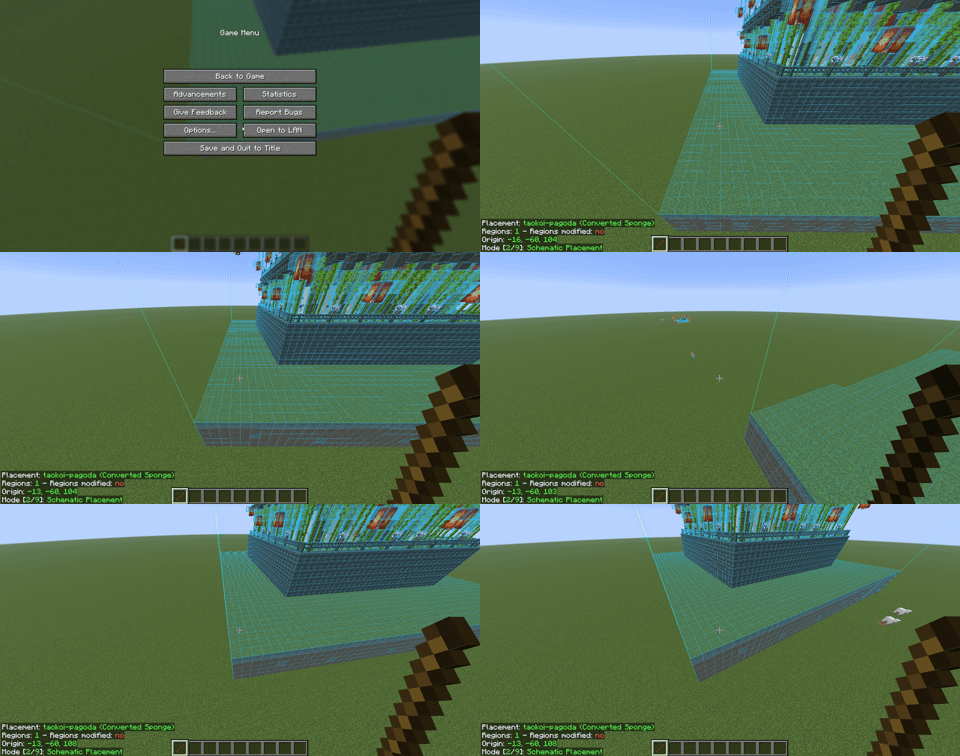
- If you want to move it by one block, simply ALT + scroll wheel up or down while looking at the direction you want it to move.
- For rotating your schematic so it faces the right direction, press M + P, then go to the configure settings and press rotation to rotate the schematic.
Pasting Your Schematic
- Set up a hotkey for pasting in the Litematica menu → configuration menu → hotkeys → search for executeOperation and set it to whatever keybind you’d like.
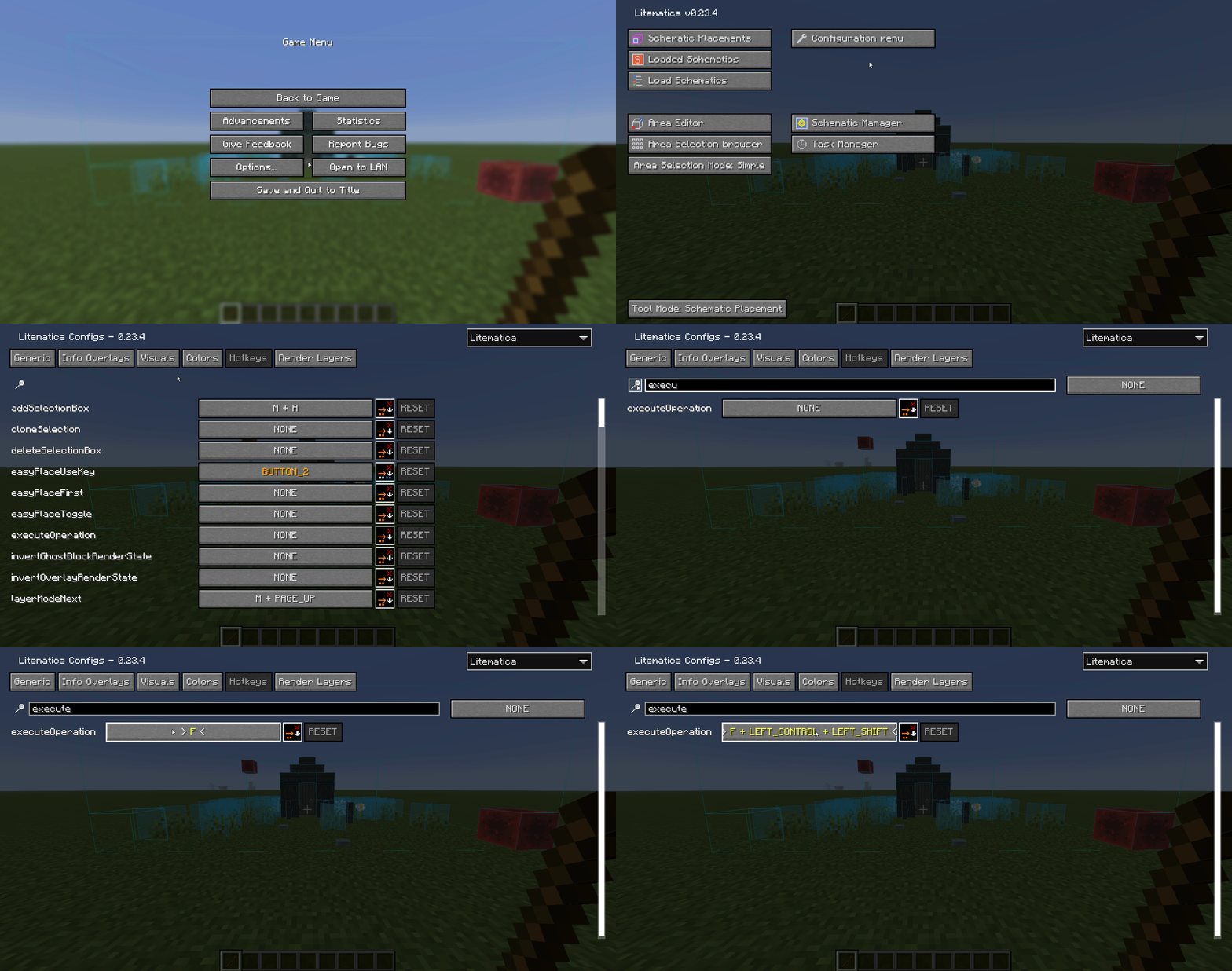
- Go to mode 5 and press the hotkey you just configured.