



This guide will show you how to export and upload your Realms world to your WiseHosting server, allowing you to continue the progress exactly where you left it.
👉
NOTE: This is a tutorial for Java, not Bedrock Edition.
If you have a Bedrock Edition Realms world that you're looking to export and upload to your server, please follow this guide here.
If you have a Bedrock Edition Realms world that you're looking to export and upload to your server, please follow this guide here.
Step 1: How To Export Your Realms World?
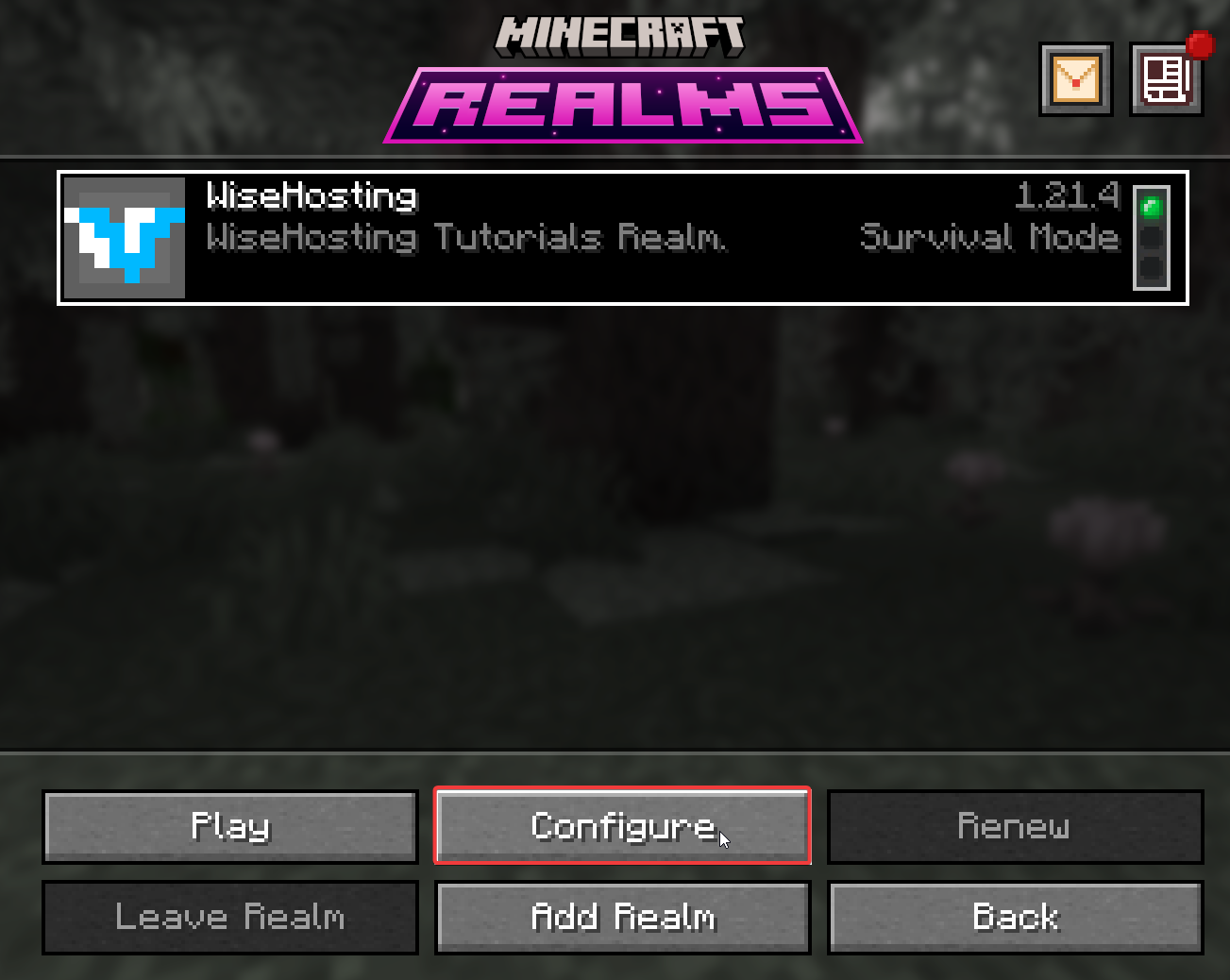
- Open Minecraft and click on the Minecraft Realms button, from the list choose your Realm and click on the Configure button.
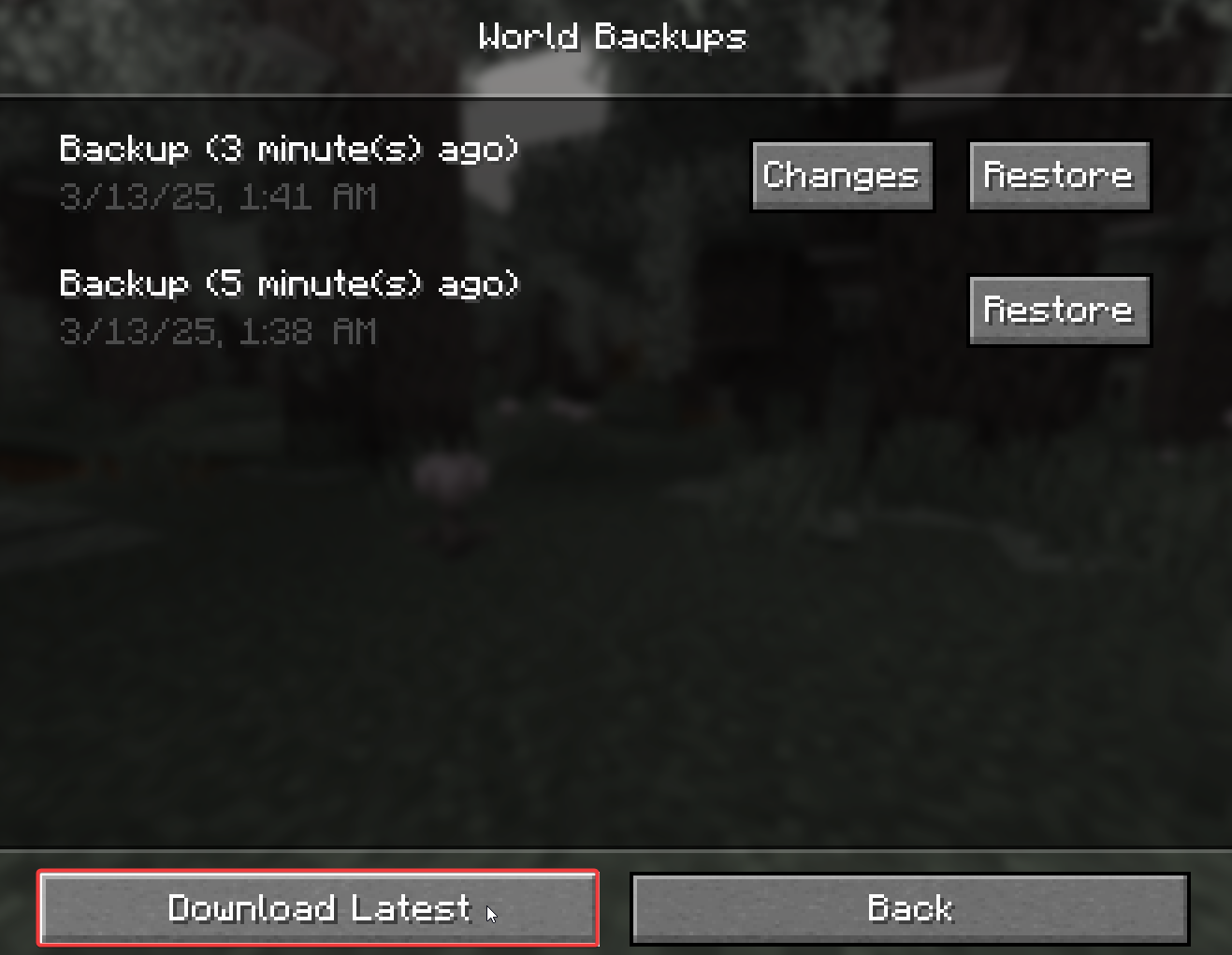
- From here, go to the World Backups tab and click on the Download Latest button to download your world.
- The world was successfully downloaded to your computer. To access it, go to your Singleplayer’s world list, select the world, and click on Edit → Open World Folder.
Step 2: Uploading your Realms World
- Head over to the Game Panel and make sure your server is not running.
- Navigate to the Worlds tab and click on the Add World → Upload World button. Select the world folder that is in your Singleplayer’s world list and name the world.
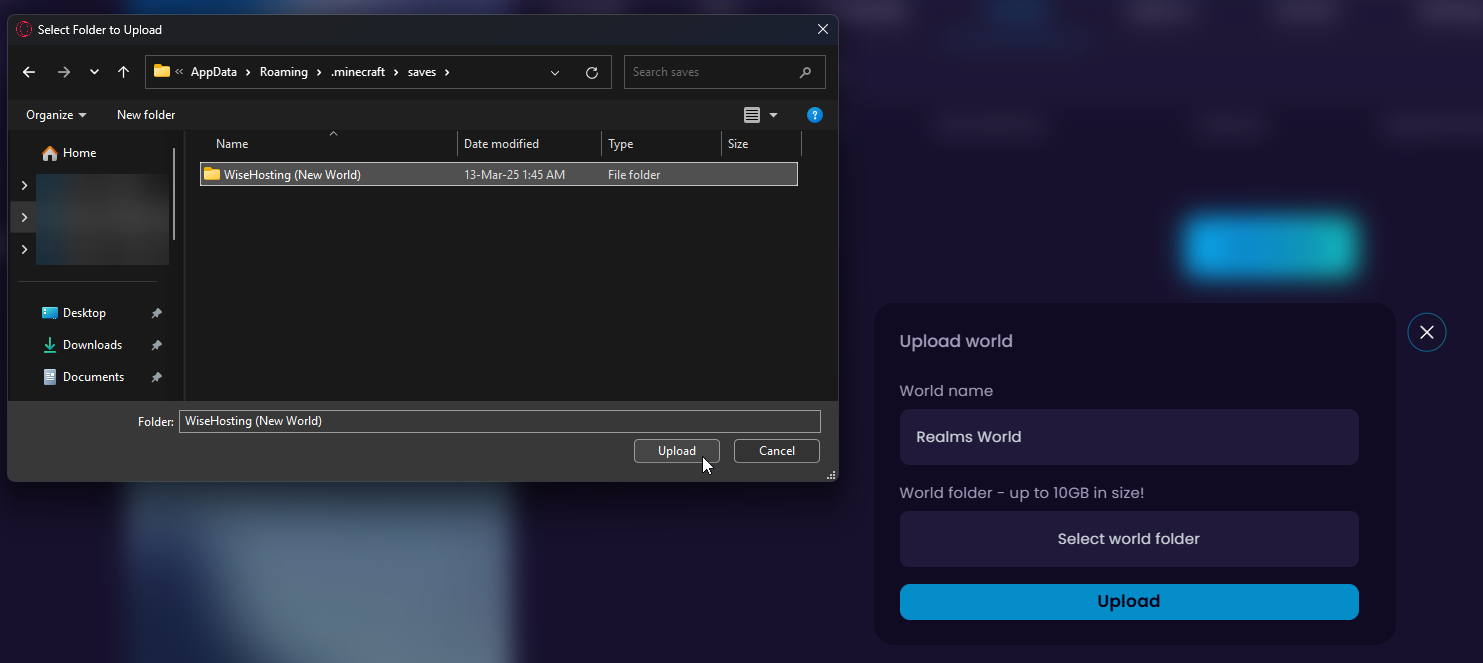
- Wait for the upload to finish and activate your world!


