



This guide will show you how to export and upload your Realms world to your WiseHosting server, allowing you to continue the progress exactly where you left it.
👉
NOTE: This is a tutorial for Bedrock, not Java Edition.
If you have a Java Edition Realms world that you're looking to export and upload to your server, please follow this guide here.
If you have a Java Edition Realms world that you're looking to export and upload to your server, please follow this guide here.
Step 1: How To Export Your Realms World?
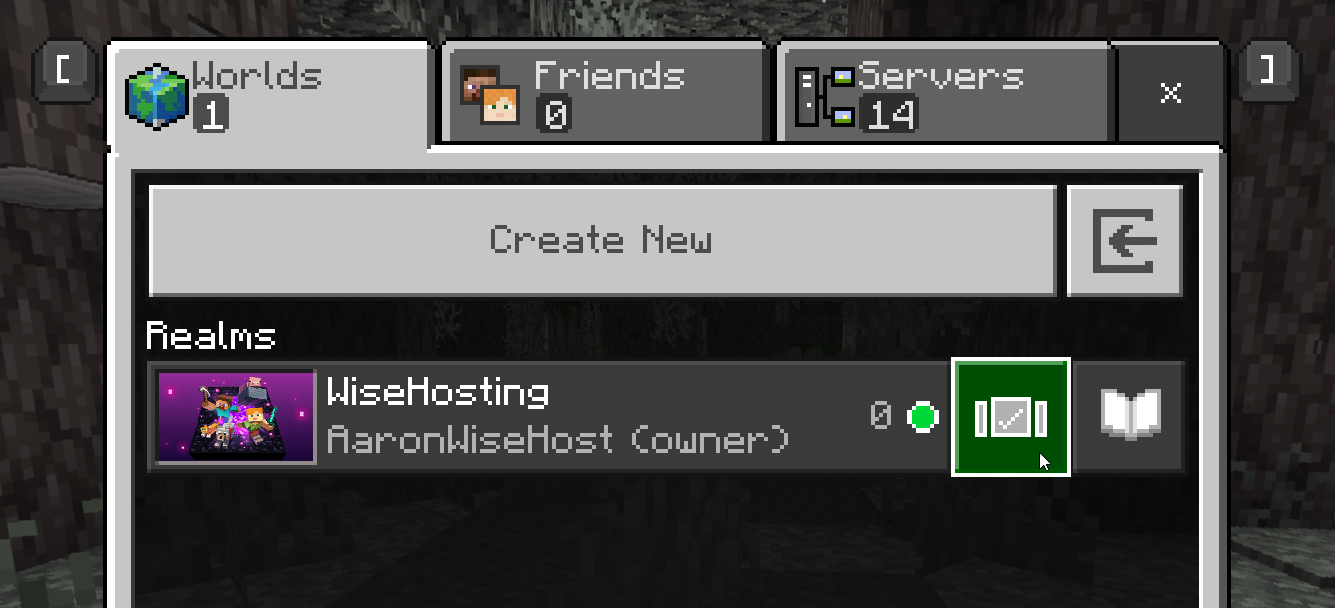
- Open Minecraft and click on the checkmark-icon next to your Realms server.
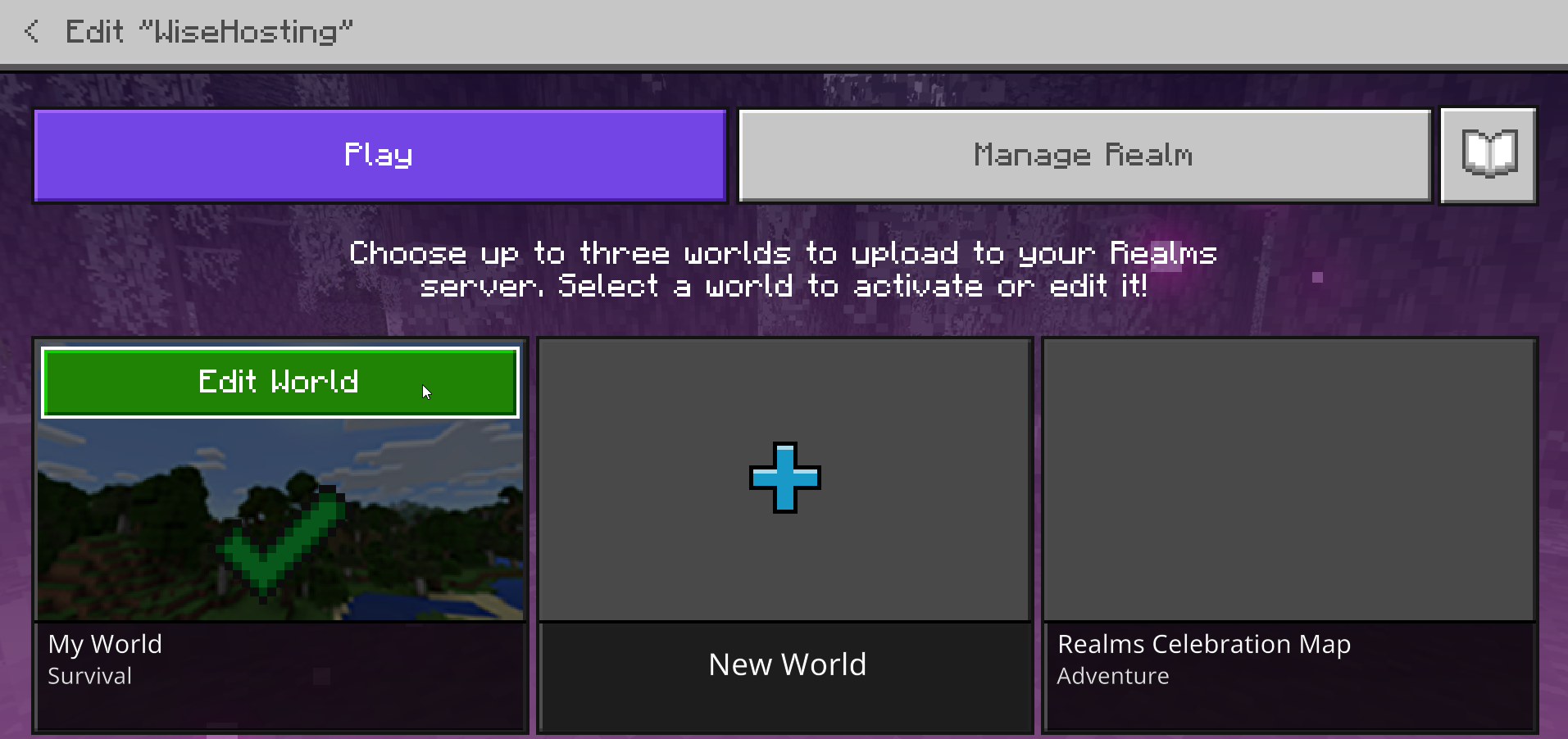
- Select your world from the list and click on Edit World.
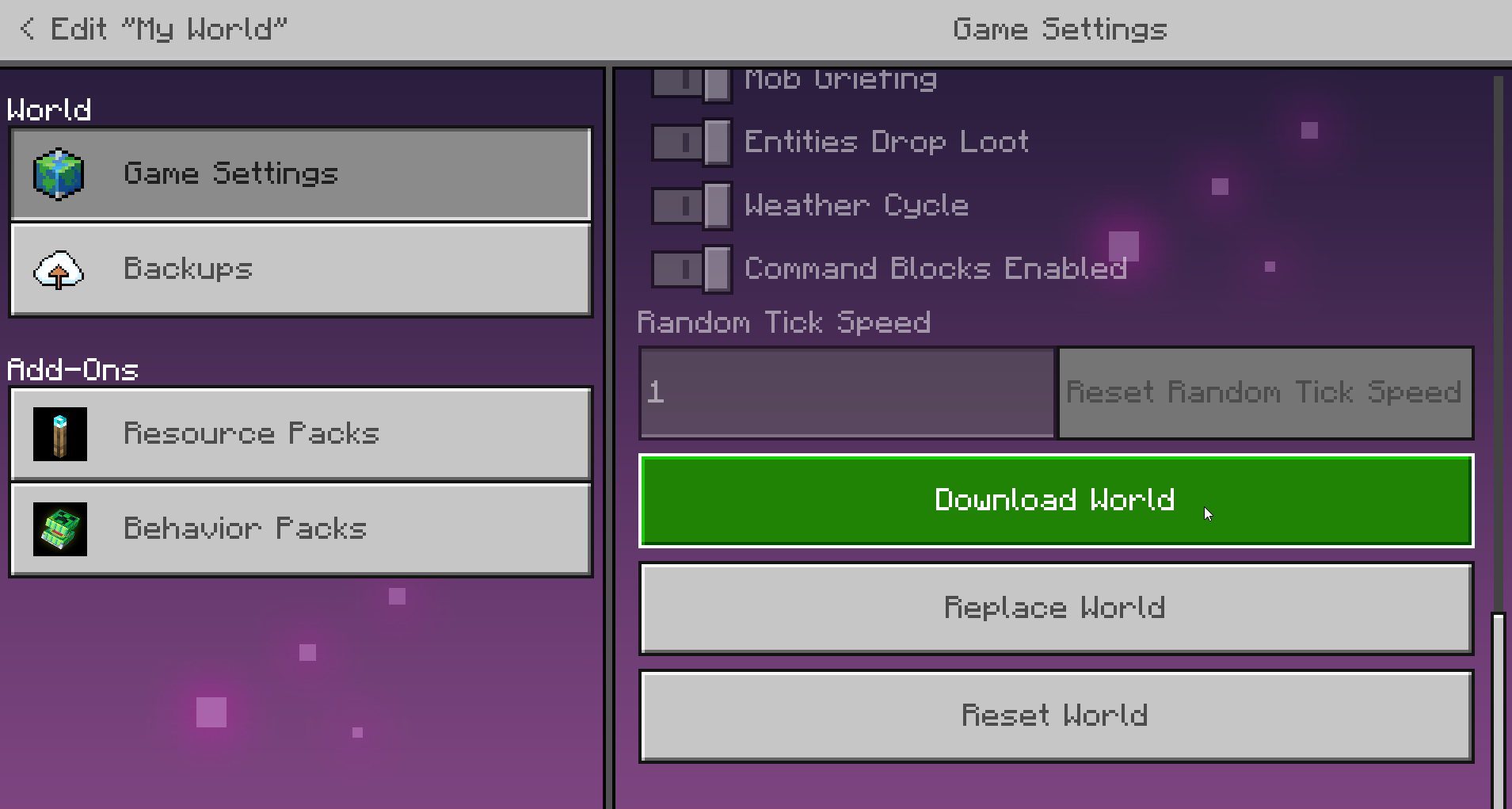
- Scroll all the way down in the Game Settings tab and click on the Download World button.
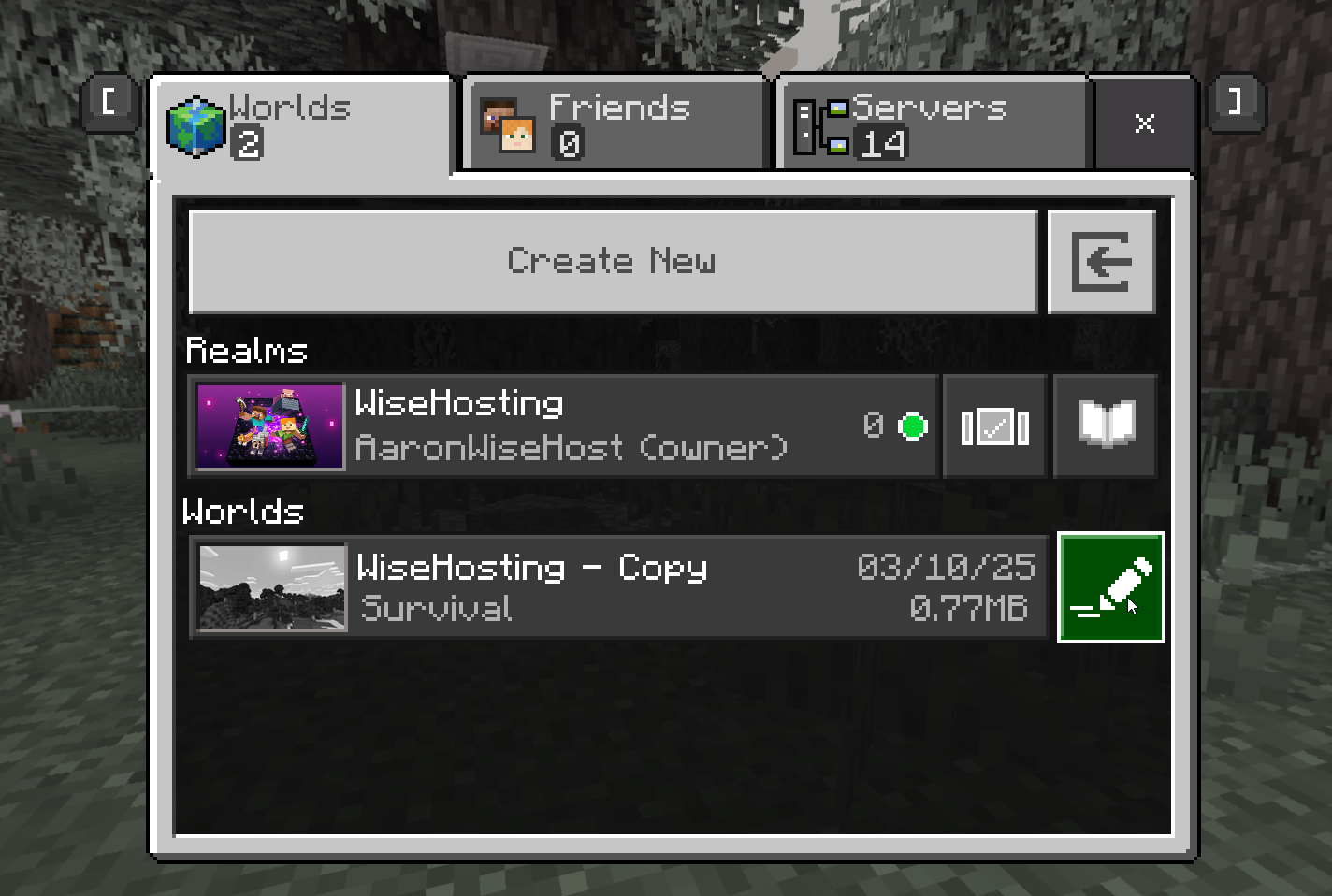
- Go back to the Worlds tab where you were in the first step and click on the pencil icon on the new world.
- Scroll all the way down in the General tab and click on the Export world button.
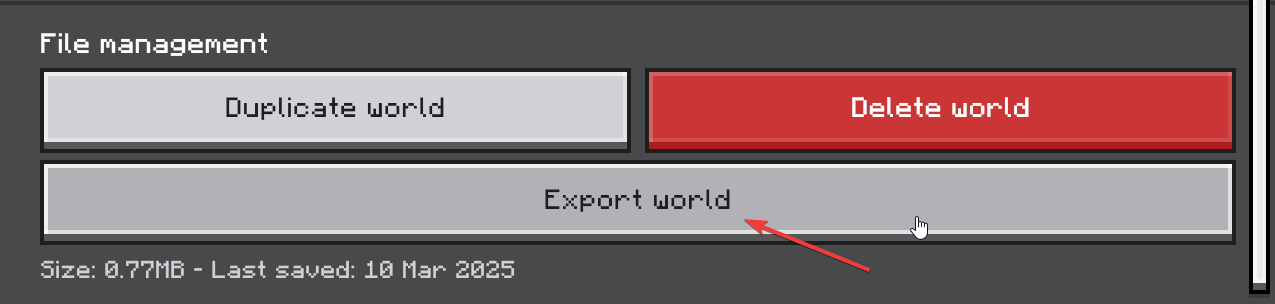
Step 2: Uploading your Realms World
- Head over to the Game Panel and make sure your server is not running.
- Navigate to the Worlds tab and click on the Add World → Upload World button.
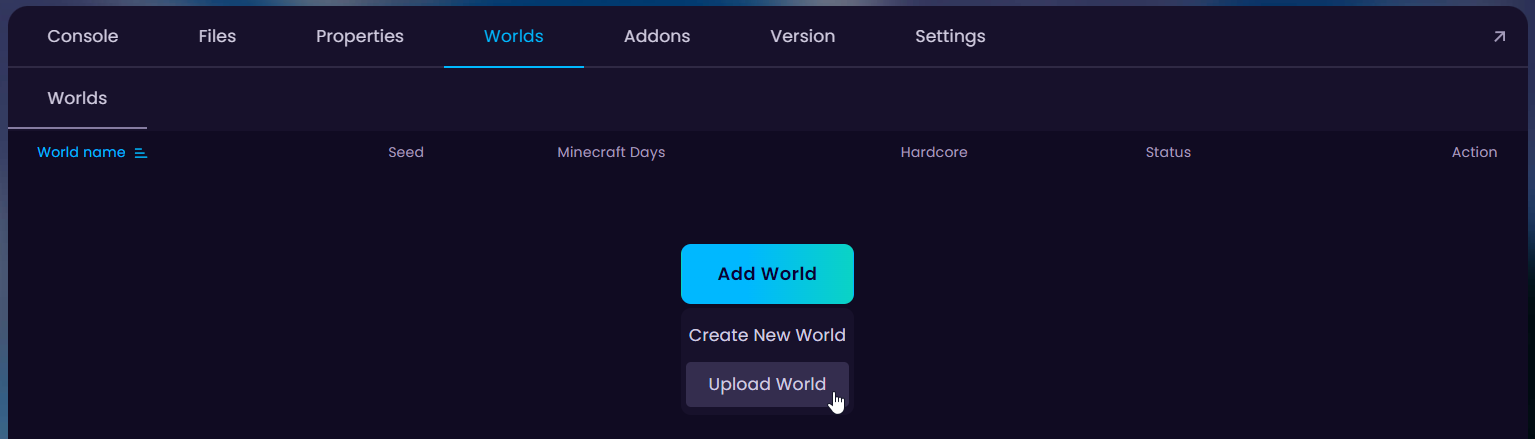
- Select the .mcworld file you downloaded previously and name your world, after that click on “Upload”.
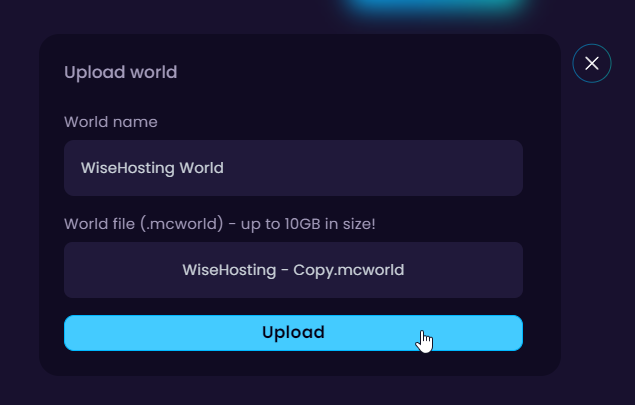
- Click on the Activate button and your server will use the Realms world!


