

The DiscordSRV plugin lets you connect your Discord chat with your Minecraft chat. It’s a powerful tool for making your server more fun and modern.
Step 1: Installing DiscordSRV
- Head over to the Game Panel and turn off your server.
- Navigate to the plugins folder and install the correct version of DiscordSRV for your server.
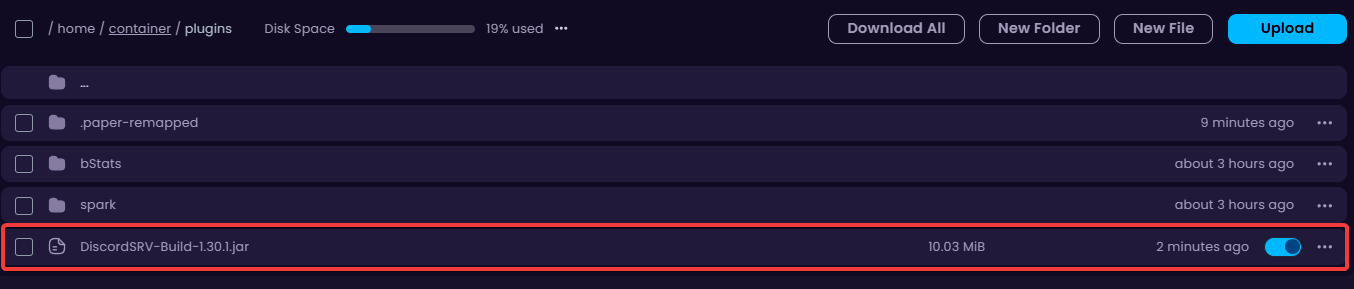
- Start your server so the necessary configuration files are generated.
Step 2: Creating a Discord Bot Application
- Go to the Discord Developer Portal and create a new application.
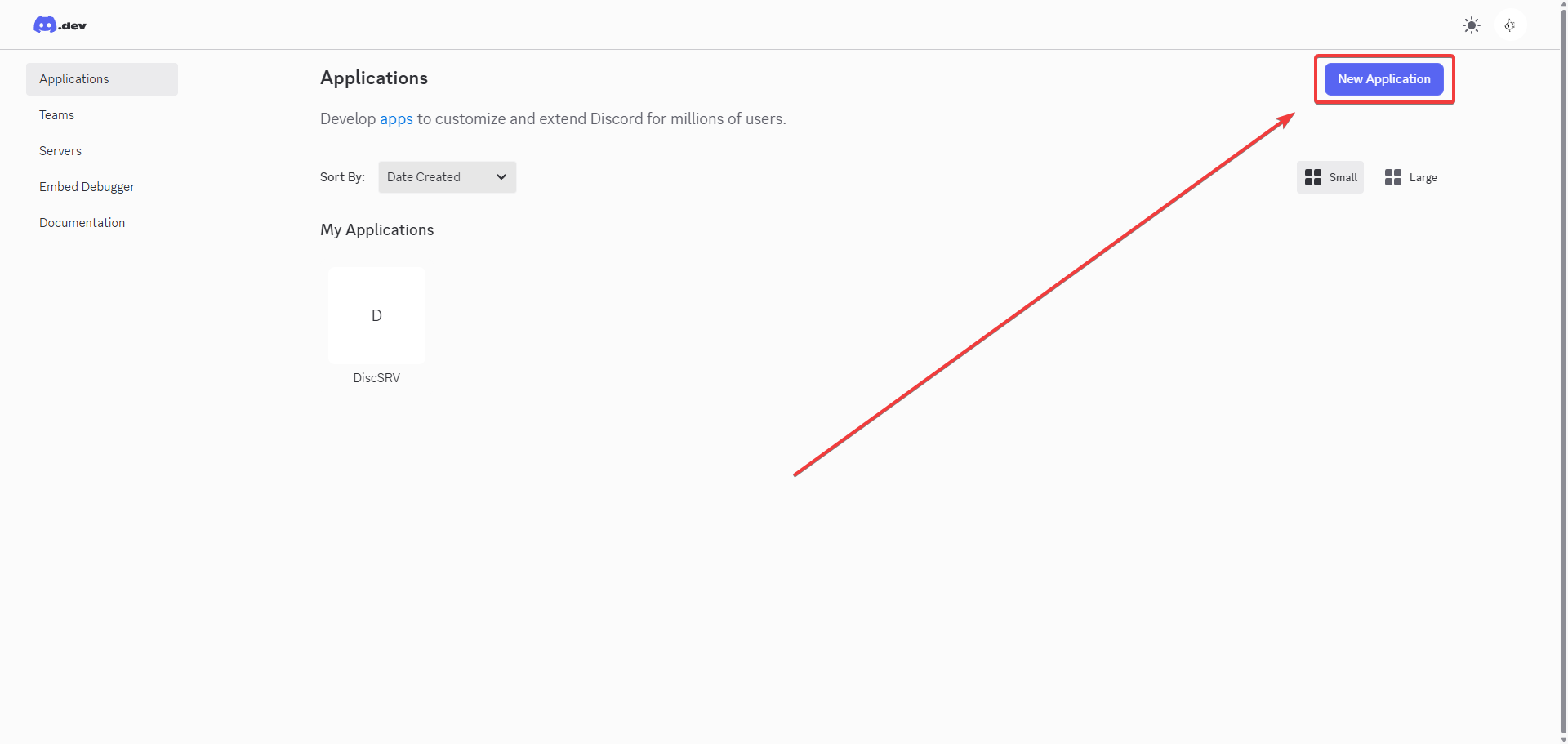
- Go to Installation and change the install link to none.
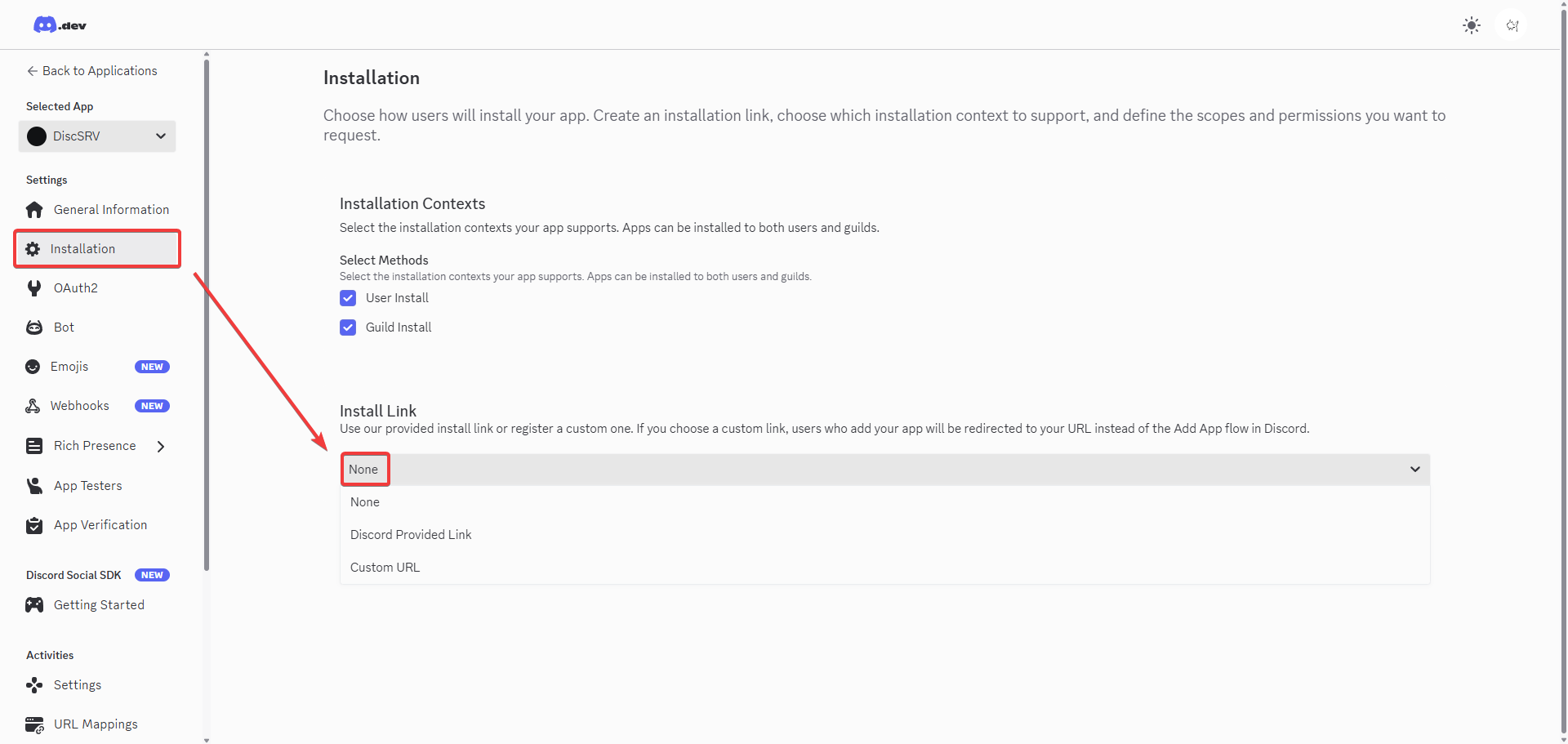
- Go to Bot and make the bot private.
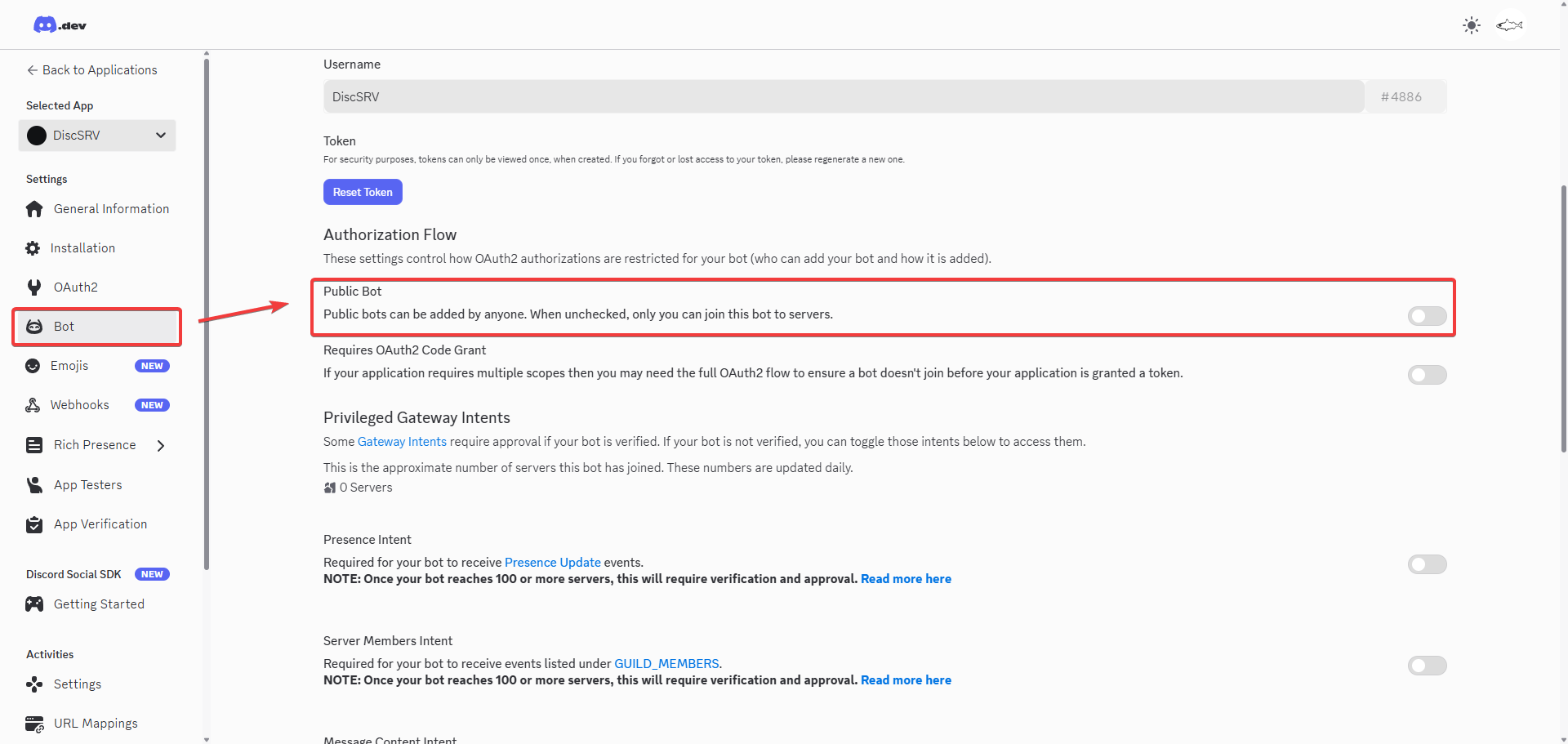
- Enable Presence Intent, Server Member Intent, and Message Content Intent. These are required by the DiscordSRV plugin.
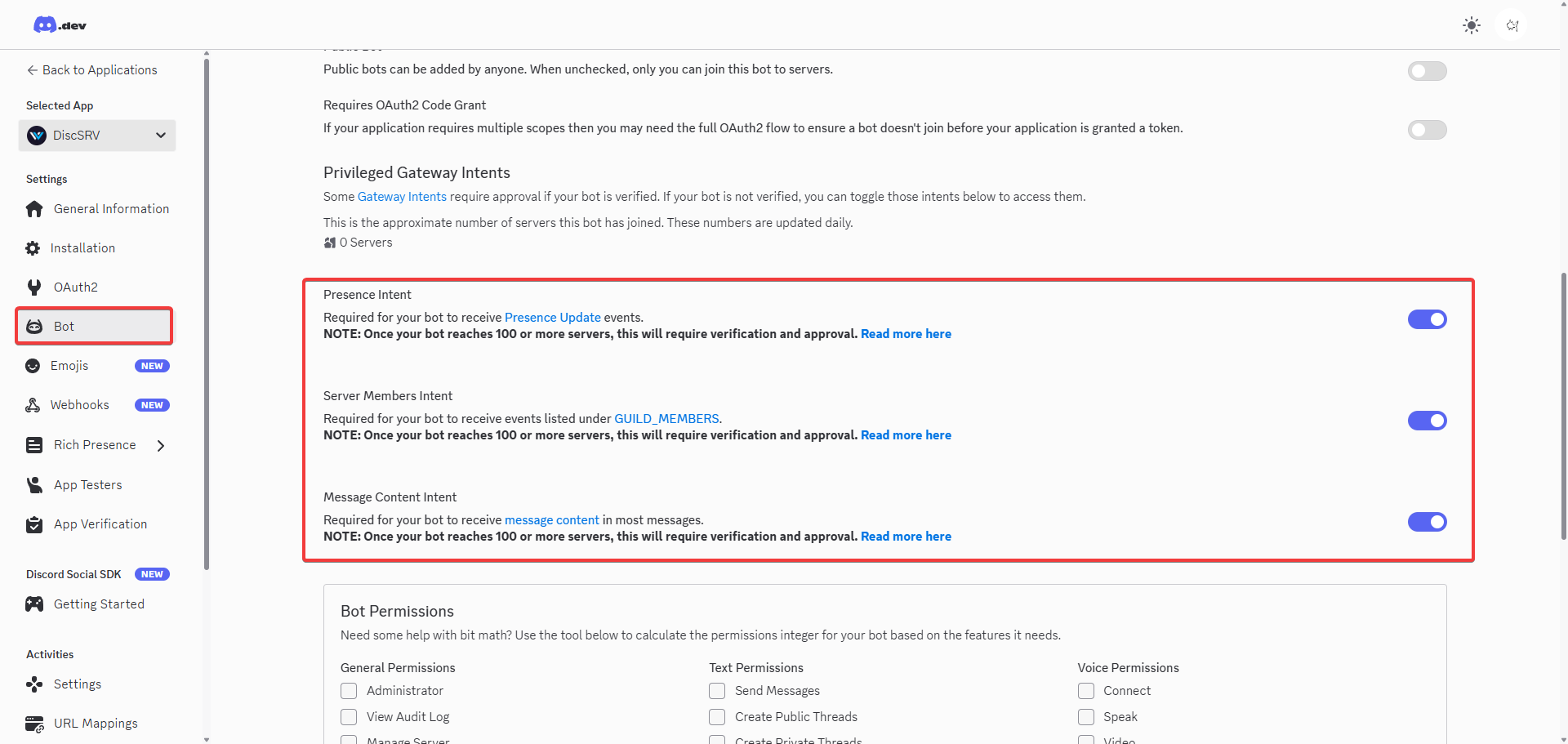
Step 3: Connecting the Bot to the Server
- Reset the bot’s token.
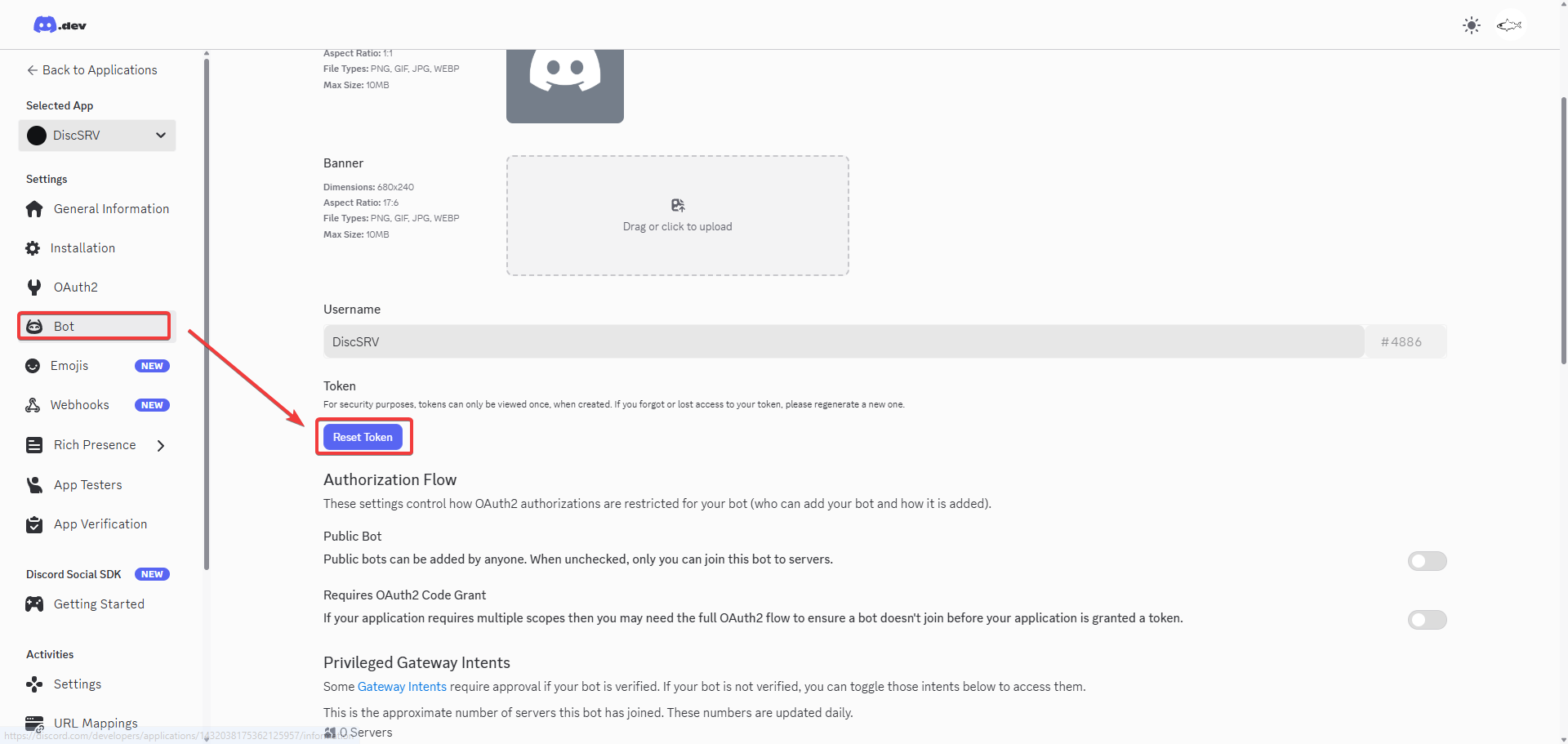
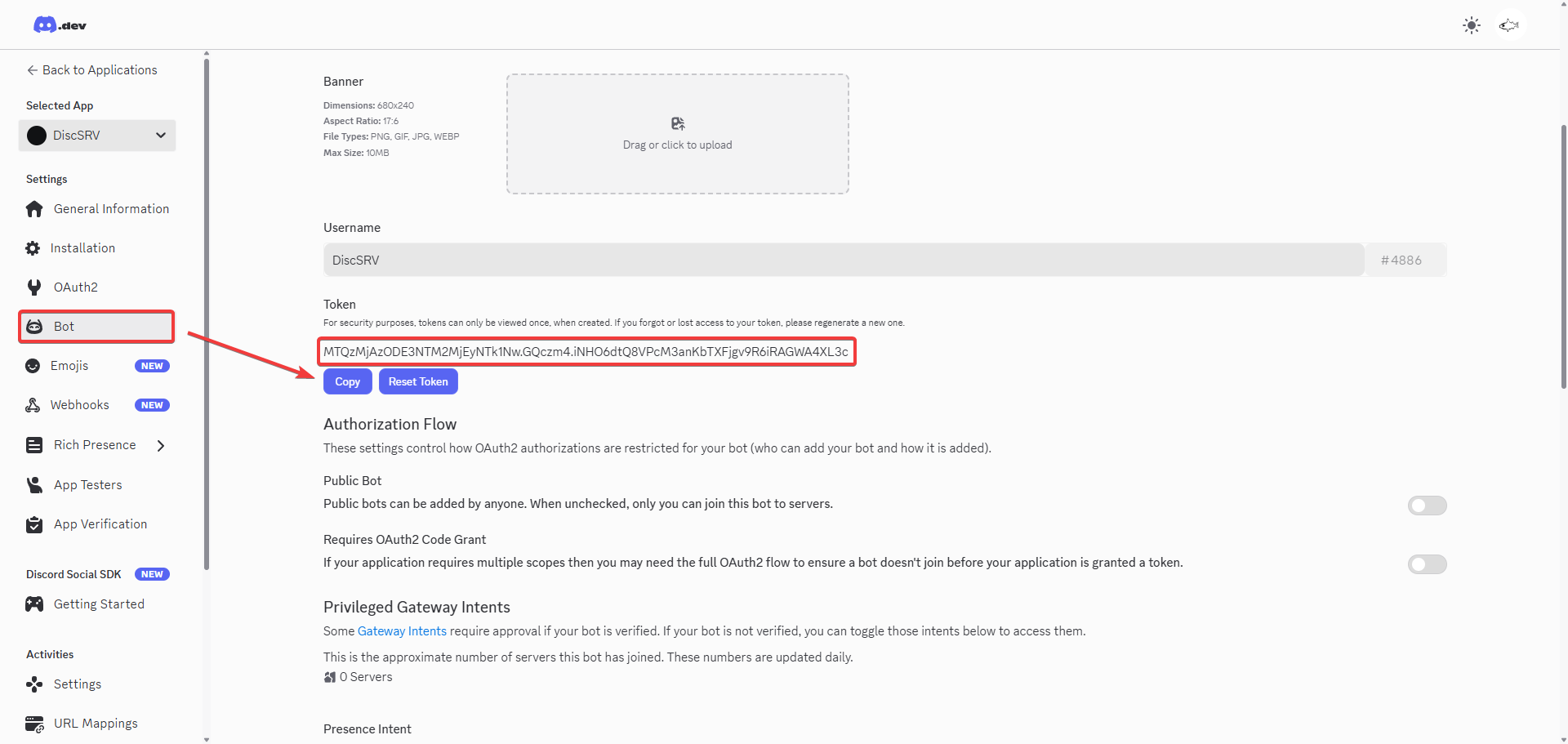
- Copy your bot’s new token. Don’t share this token with anyone as they can take control of the bot’s permissions if you do.
- Inside of the DiscordSRV config file, change the BotToken ID on Line 9 to the one we copied in the previous step.
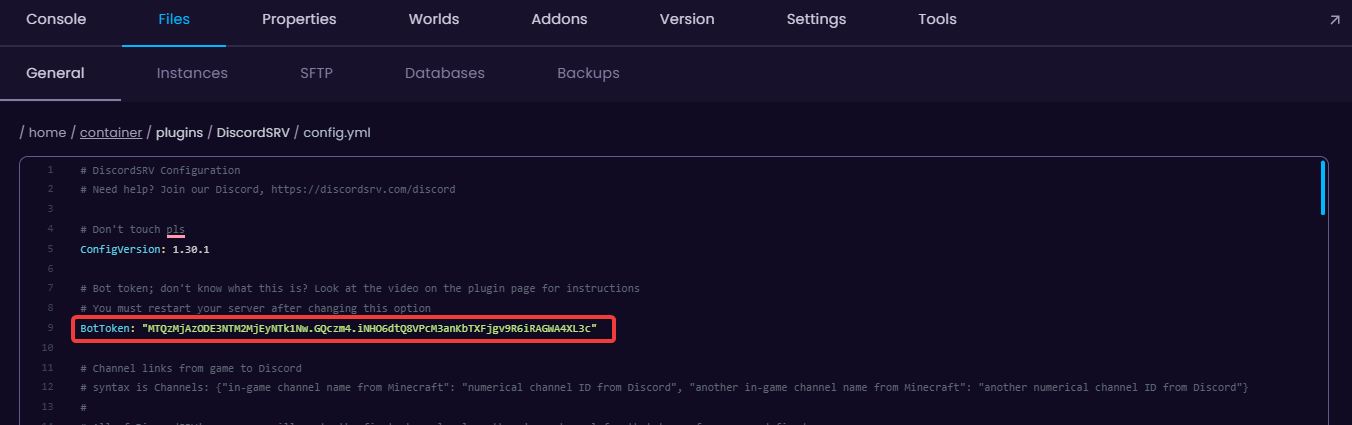
- Save the config.
- Go to General Information and copy the Application ID.
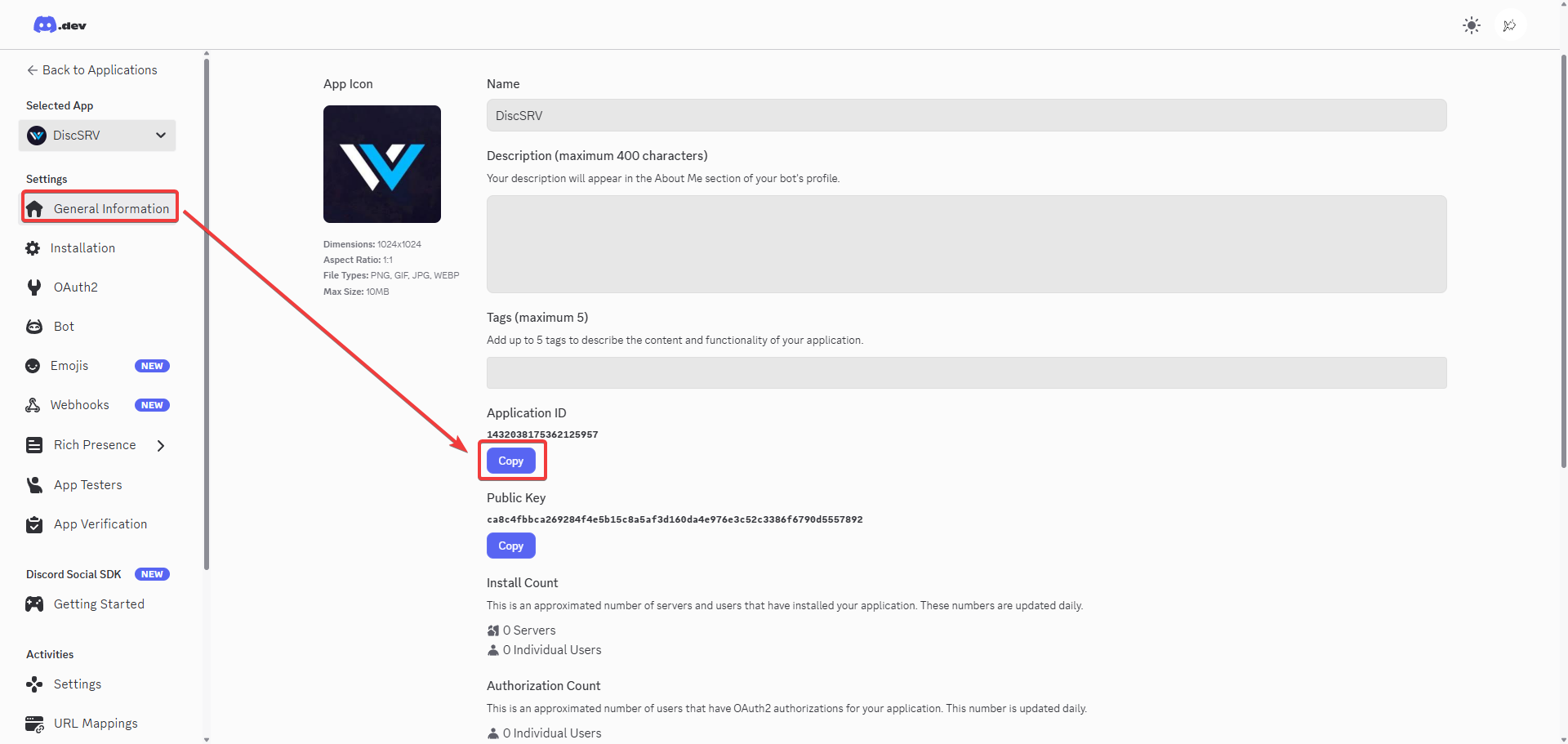
- Go to the following link, but add the Application ID to the end of it: https://discordapp.com/oauth2/authorize?scope=bot+applications.commands&client_id=
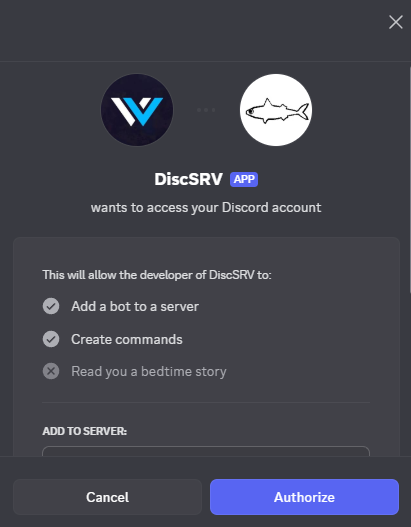
- Add it to your server.
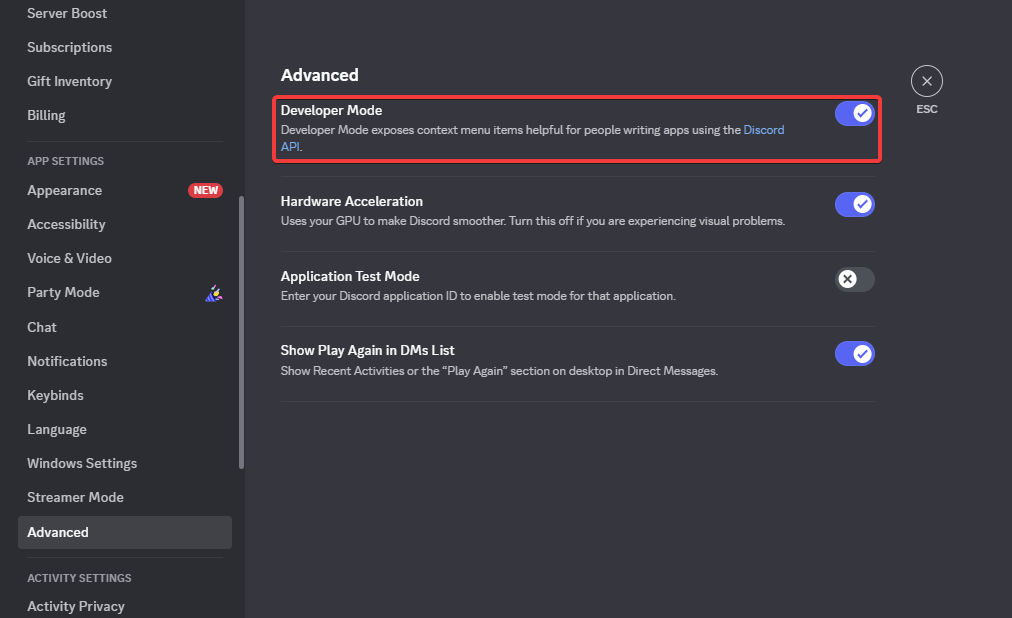
- Go to your Discord Settings → Advanced and enable Developer Mode.
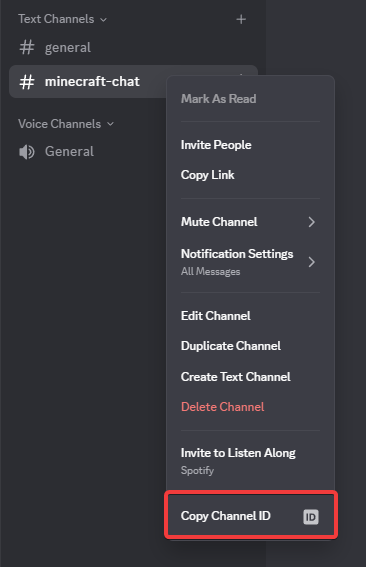
- Right click on the desired Text Channel that will be used between Discord and Minecraft, and Copy the ID.
- Change the ID on Line 30 of
config.ymlto the copied one.
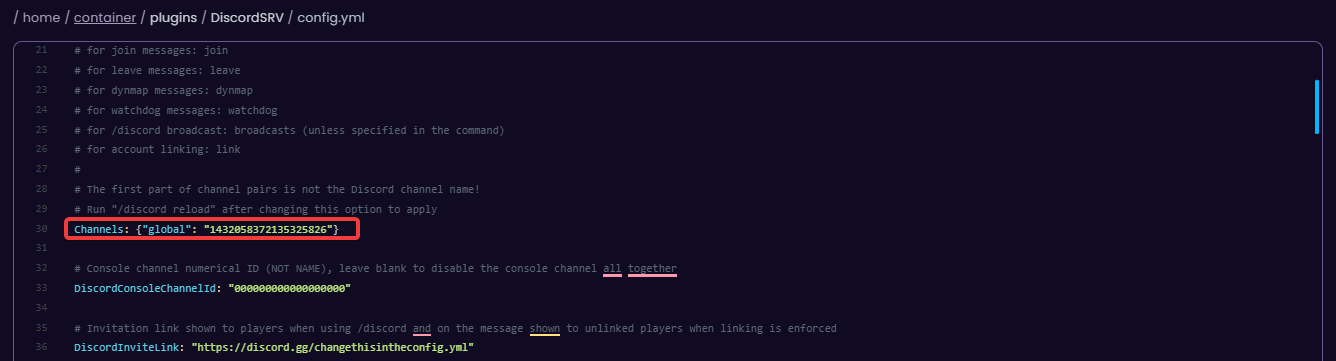
💡
TIP: If you want to add more than one channel, you can do that by adding
Example:
, "extra_channel": "000000000000000"} at the end of the line.Example:
Channels: {"global": "1432058372135325826", "extra_channel": "000000000000000"}- Create a role and give it administrator permissions.
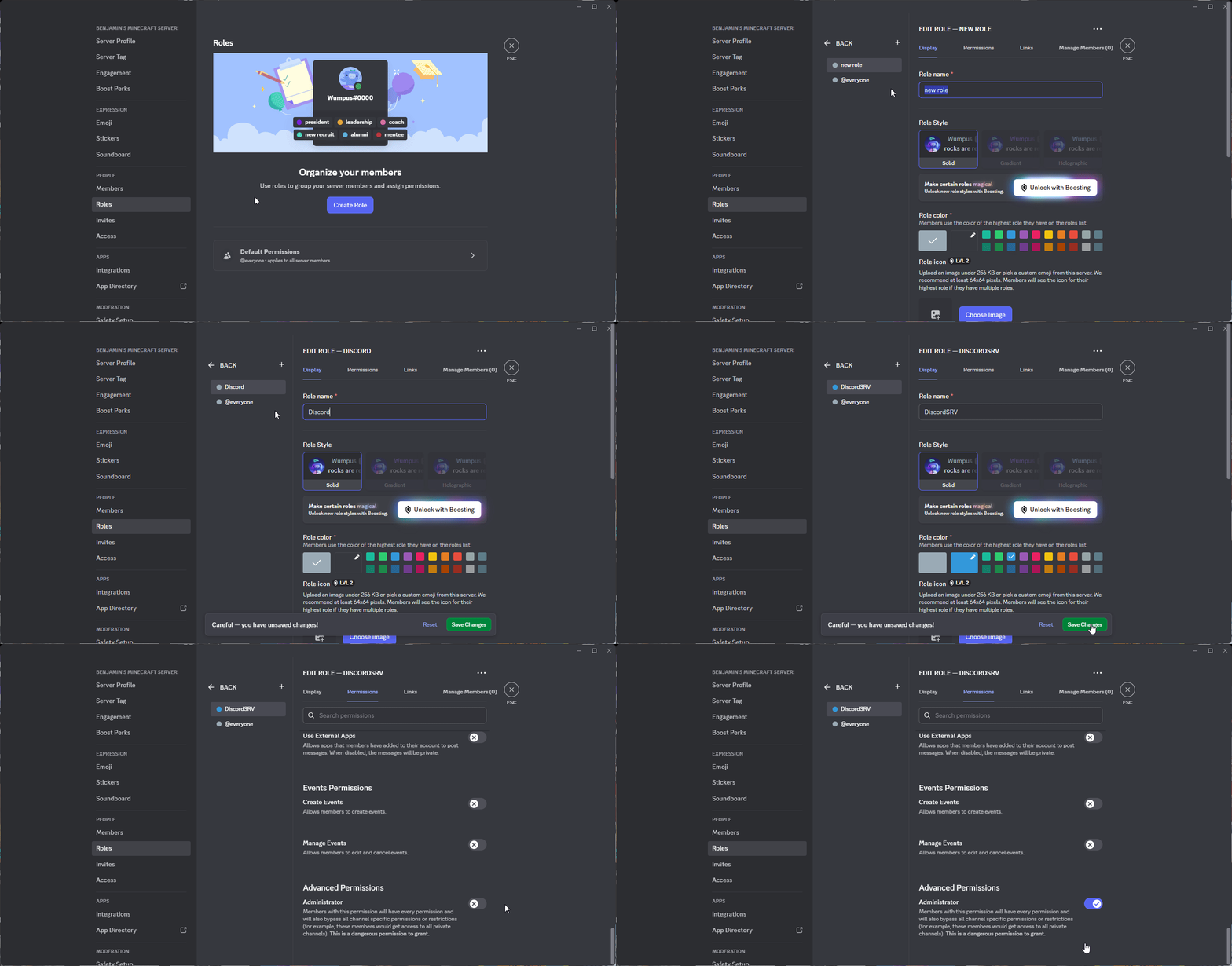
- Give the bot the newly created role.
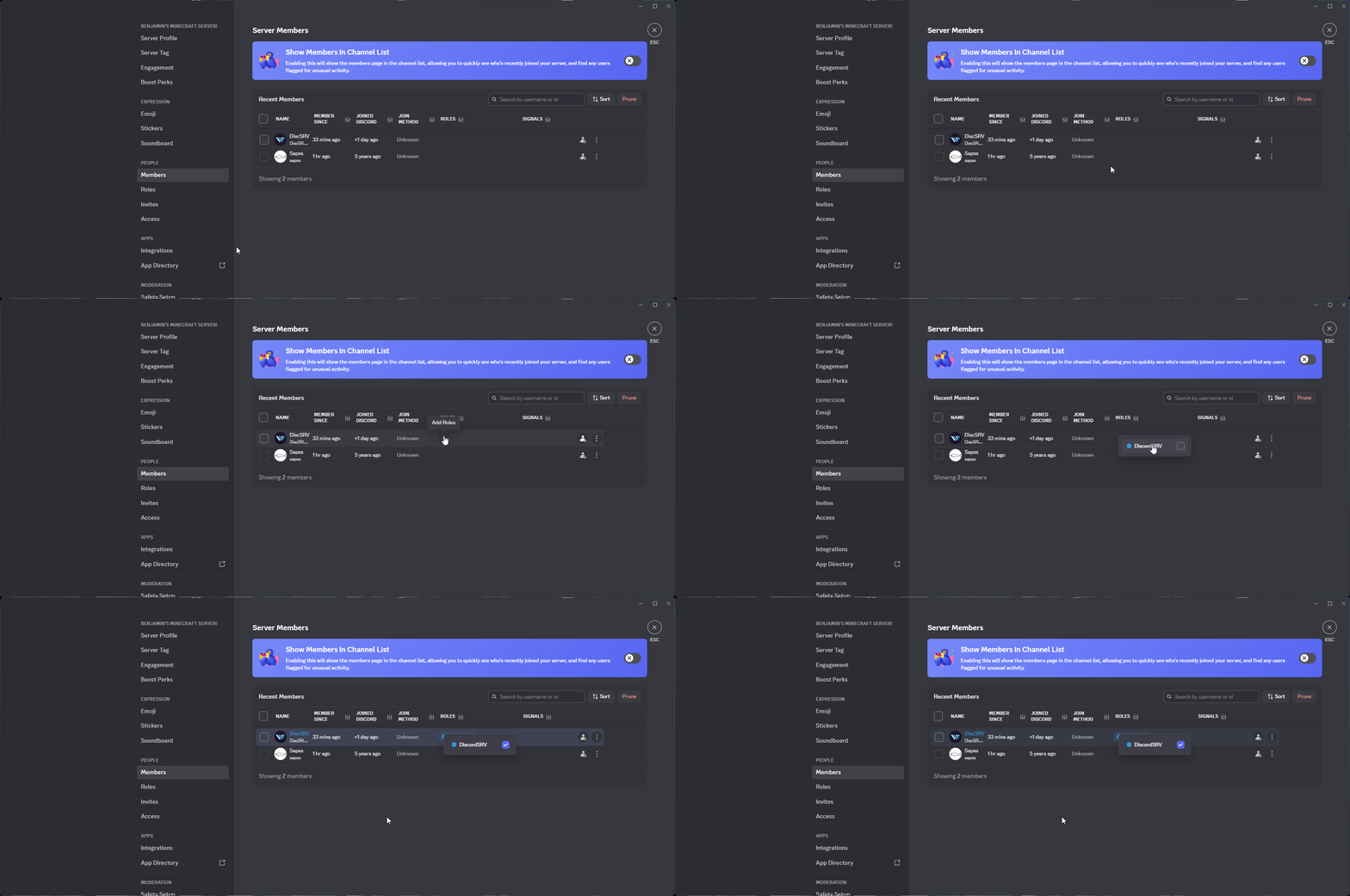
- Restart the server and everything should be synced.


