



There are many reasons why your Minecraft server could crash, whether it's because of mods, memory, plugins, world corruption, or the wrong Java version.
Step 1: Find the Evidence
When your server crashes, the cause is written down in one of three places.
- Head over to the Game Panel and open the Files tab.
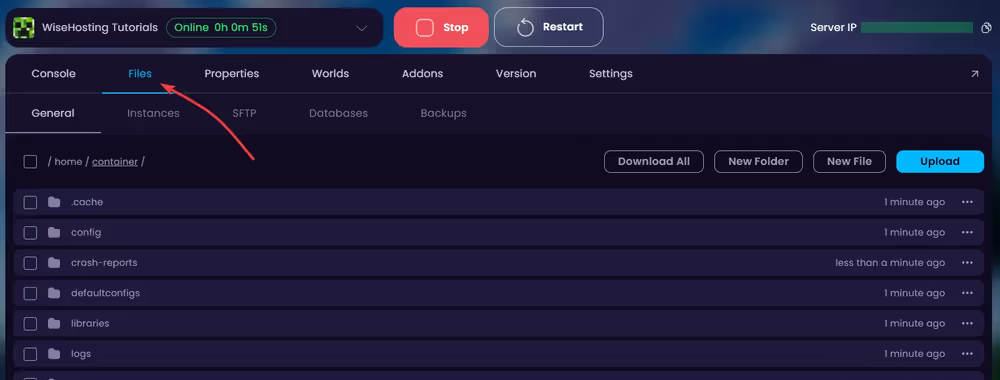
crash-reportsfolder: a newcrash-....txtfile is created every time the game itself crashes. Open the one at the very bottom (that's the latest).
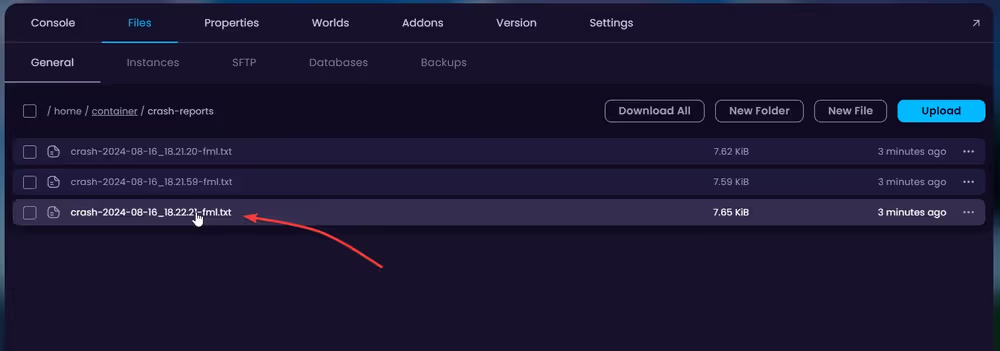
logsfolder: the full log of the current session (the same output you see in the console). If there's no crash report, the last lines of this file usually show what went wrong.hs_err_pid*.login the main server folder: if you find one of these, Java itself crashed. Skip to Crashed with no crash report? below.
You can also just watch the Console while starting the server. Mod loading errors print there directly. In this example the console tells us the "Zombie Horse Spawn" mod requires the "Collective" mod to work:
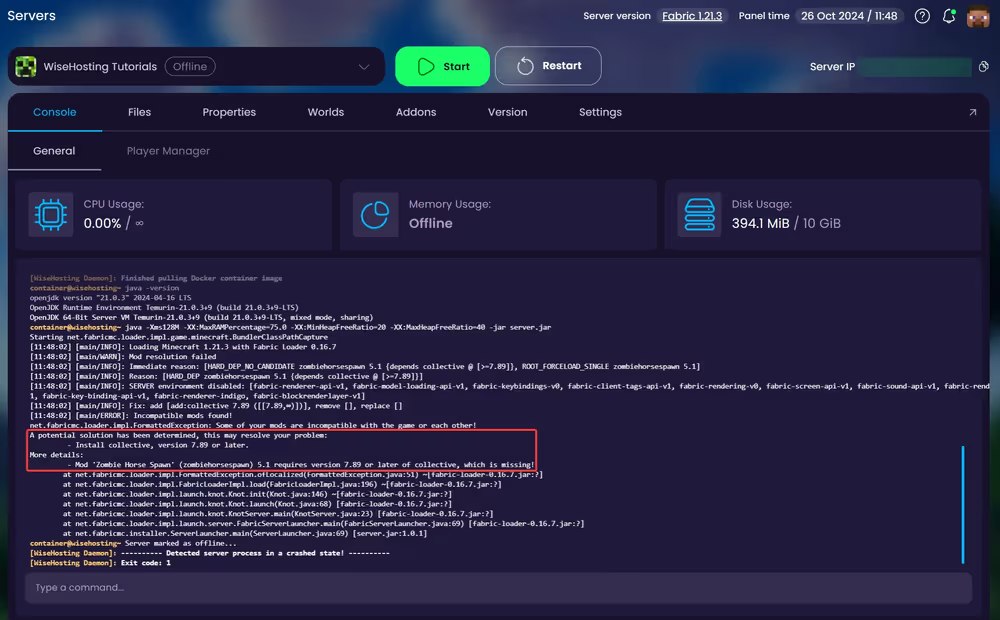
Step 2: Read the Crash Report in 60 Seconds
Crash reports look scary, but you only need three things:
- The
Description:line near the top. It's a plain-English label likeTicking entity,Exception in server tick loop, orMod loading error has occurred. - The
Caused by:chain. Inside the error, keep reading down to the deepestCaused by:line. That's the root cause, everything above it is wrapping. - Mod names in the error. Any package name that isn't
net.minecraft...orjava...points at a mod. The first mod named is your suspect, but in a big modpack it can also be the victim of another mod, so don't delete it blindly.
At the very bottom, the System Details section lists your Minecraft version, Java version, memory, and every installed mod which is useful for checking versions match.
A detailed walkthrough, the section after that line names the mods involved.Step 3: Match the Error
1. Missing or Wrong-Version Mods
On Fabric, the server stops with a block like this and it literally tells you the fix:
Incompatible mods found!
A potential solution has been determined, this may resolve your problem:
	 - Install fabric-api, version 0.100.7 or later.
	 - Replace mod 'Clumps' (clumps) 19.0.0.1 with any version that is compatible with: minecraft 1.21.3
More details:
	 - Mod 'AmbientSounds' (ambientsounds) 6.1.3 requires any version of fabric-api, which is missing!
On Forge/NeoForge, look for:
Missing or unsupported mandatory dependencies:
	Mod ID: 'collective', Requested by: 'zombiehorsespawn', Expected range: '[7.30,)', Actual version: '[MISSING]'
It names the missing mod (Mod ID), which mod needs it (Requested by), and the version it wants. If Mod ID: 'minecraft' shows the wrong version, the mod was built for a different Minecraft version than your server runs.
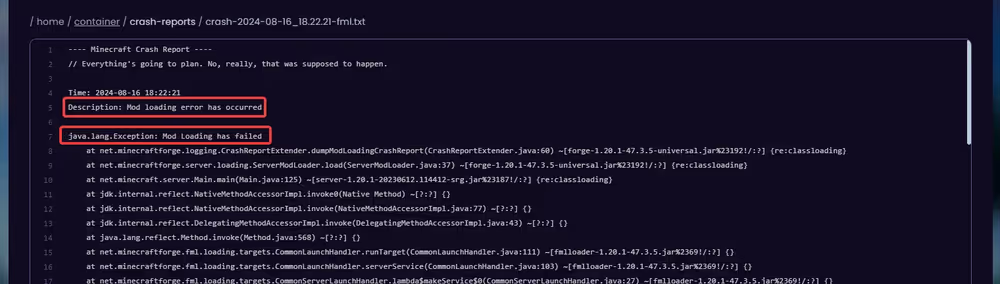
In this crash-report we can see it's caused by the "fastbench" mod requiring the "placebo" mod to work. After installing the required mod, the server starts nicely:
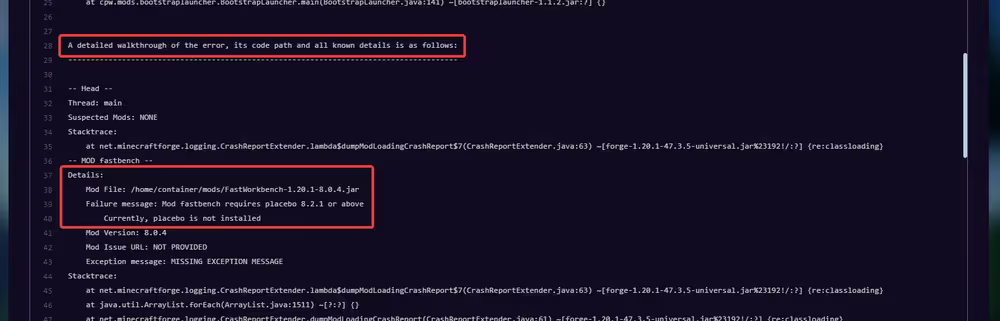
2. A Client-Only Mod on the Server
Mods like minimaps, shaders, and FPS boosters (Sodium, Iris, OptiFine, etc.) only work in the game client. On a dedicated server, they can crash startup with:
Attempted to load class net/minecraft/client/multiplayer/ClientLevel for invalid dist DEDICATED_SERVERAny error mentioning net/minecraft/client/... classes or invalid dist DEDICATED_SERVER means a client-only mod is in your server's mods folder.
3. Mixin Errors (mod conflicts)
If the report contains org.spongepowered.asm.mixin anywhere in the Caused by: chain, two mods are fighting over the same piece of game code, or a mod doesn't match your game version. Search the log for Mixin apply for mod, it names the cause directly:
Mixin apply for mod seasons failed seasons.mixins.json:BiomeMixin from mod seasons ...
... cannot inject into ... merged by me.jellysquid.mods.sodium... with priority 1000
Here both mods are named: seasons (the one that failed) and Sodium (the one it collided with).
4. Duplicate Mods
EarlyLoadingException: Duplicate mods foundTwo copies of the same mod (often an old and a new version with different file names) are in the mods folder.
5. Wrong Java Version
... has been compiled by a more recent version of the Java Runtime (class file version 65.0),
this version of the Java Runtime only recognizes class file versions up to 61.0
The mod or server jar wants a newer Java than the server is running. The numbers translate as: class file version minus 44 = Java version (61 = Java 17, 65 = Java 21, 66 = Java 22).
6. Ticking Entity
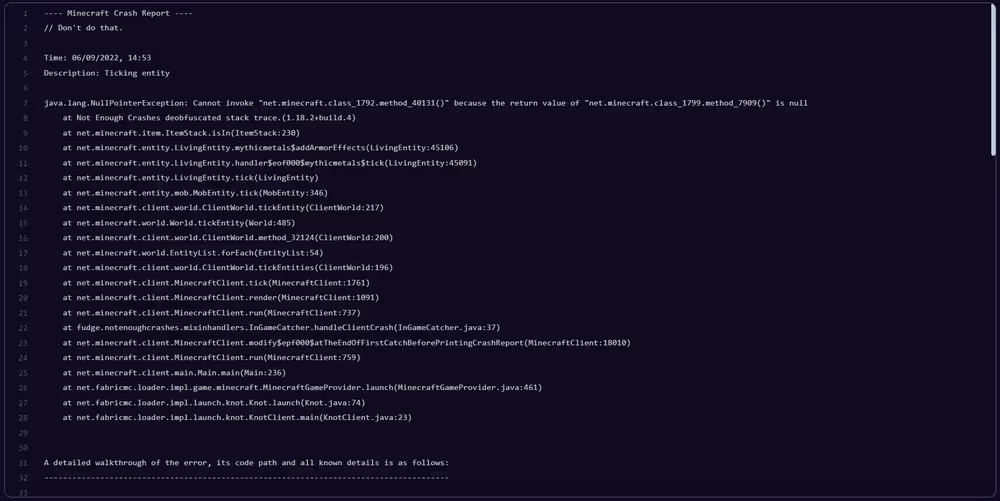
If the Description: says Ticking entity (or Ticking block entity), one specific creature or machine in the world errors every time the game tries to update it. Scroll to the -- Entity being ticked -- section as it gives the exact entity and coordinates:
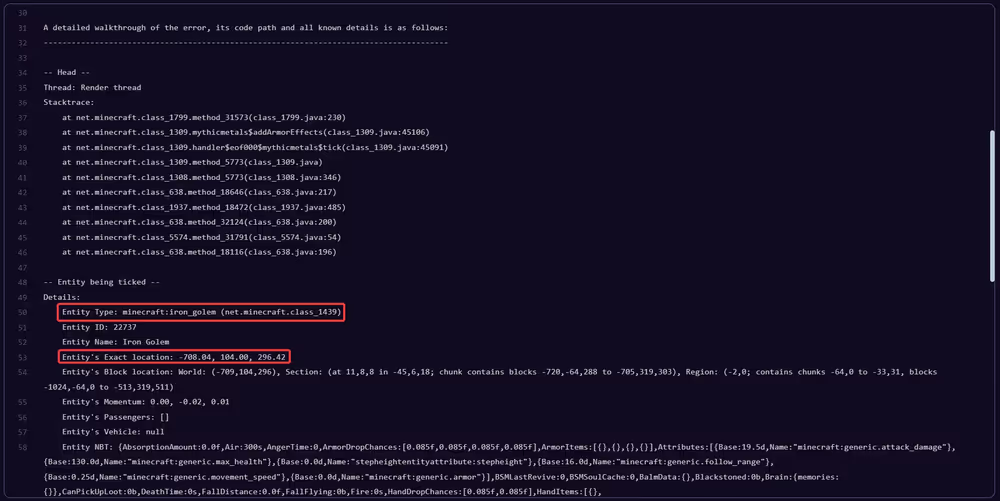
Here an Iron Golem at -708, 104, 296 is the problem. Fixes, from safest to hardest:
- Restore a backup from before the crash loop started, the cleanest fix.
- If the server stays up long enough, teleport there and remove the entity, or run a targeted
/killfrom the console. On older Forge packs, CoFH Core'scofh killall [type]can remove entities even in unloaded chunks. - Forge/NeoForge only: in
world/serverconfig/forge-server.toml(orneoforge-server.toml), temporarily setremoveErroringEntities(orremoveErroringBlockEntities) totrue, start the server once, then set it back to false. Leaving it on permanently can silently delete things you want to keep. - Edit/Trim the region with MCA Selector on a downloaded copy of the world.
7. Out of Memory
java.lang.OutOfMemoryError: Java heap spaceThe server genuinely ran out of its allocated RAM. Before upgrading, check why. A modpack that needs more memory than the plan provides, too many loaded chunks/entities (huge farms, massive exploration), or a leaking mod.
If the pack's official page recommends more RAM than your plan has, upgrading is the right option. If the server ran fine for weeks and suddenly OOMs, something changed; find that first. Our support team can help confirm by opening a ticket.
8. Crashes After Updating or Removing Mods
Changed the modpack under an existing world? These are the usual suspects:
- "Fatally missing registry entries". Blocks/items from a removed mod still exist in the world. The console offers
/fml confirmto continue without them (they vanish from the world, so backup first!). Failed to load data packs, can't proceed with server load. A worldgen mod/datapack the world depends on was removed or changed. Restore it, or start with--safeModeto recover (contact support to do that).- Config errors (
ParsingException: Not a key...). A config file got corrupted (often after a hard crash). The error names the file, e.g.flywheel-client.toml; delete just that file from theconfigfolder and it regenerates with defaults.
9. Crashing Due to Plugins
On Paper/Purpur/Spigot servers, watch the console at startup:
[Server thread/ERROR]: Could not load 'plugins/EssentialsX.jar' in folder 'plugins'
org.bukkit.plugin.InvalidPluginException: Unsupported API version 1.16
The plugin is named right in the error, it's built for a different server version.
Step 4: No Clear Error? Use the Binary Search
When the report doesn't name a usable suspect (common in 200+ mod packs), find it by elimination:
- Back up the server first.
- In the Files tab, move half your mods out of the
modsfolder (or disable them). - Keep dependencies together since if you disable a library/API mod, disable the mods that need it too, or you'll create new crashes that mislead you.
- Start the server. Still crashing? The cause is in the half that's still enabled. Fixed? It's in the half you removed.
- Repeat with the problematic half until one mod remains. Update it, replace it, or remove it.
Crashed With No Crash Report?
If the server stops and there's no new file in crash-reports, don't assume anything yet. Check in this order:
- The last lines of
logs/latest.log. Startup errors on modded servers often stop the server before a crash report is ever written. - An
hs_err_pid*.logfile in the main folder. Java itself crashed. This can indicate memory problems, but not always. - Neither? The process may have been stopped from outside which can mean the server exceeded its memory limit, but it can also be other things. Open a ticket and our team will check what actually happened on the node.


