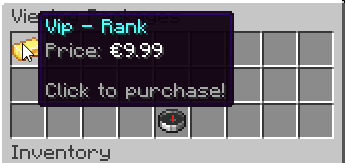


Making products for your server is what most Minecraft server owners do to stay afloat. In this guide, we will be showing you how to create products such as ranks or cosmetic items with Tebex, formerly known as Buycraft.
👉
WiseHosting has partnered with Tebex to offer you 30 days of free Plus plan if you’re a first-time Tebex user.
To claim this, register with our affiliate link here: https://tebex.io
To claim this, register with our affiliate link here: https://tebex.io
Setting up the Store on Tebex
- Head over to the Tebex’s website.
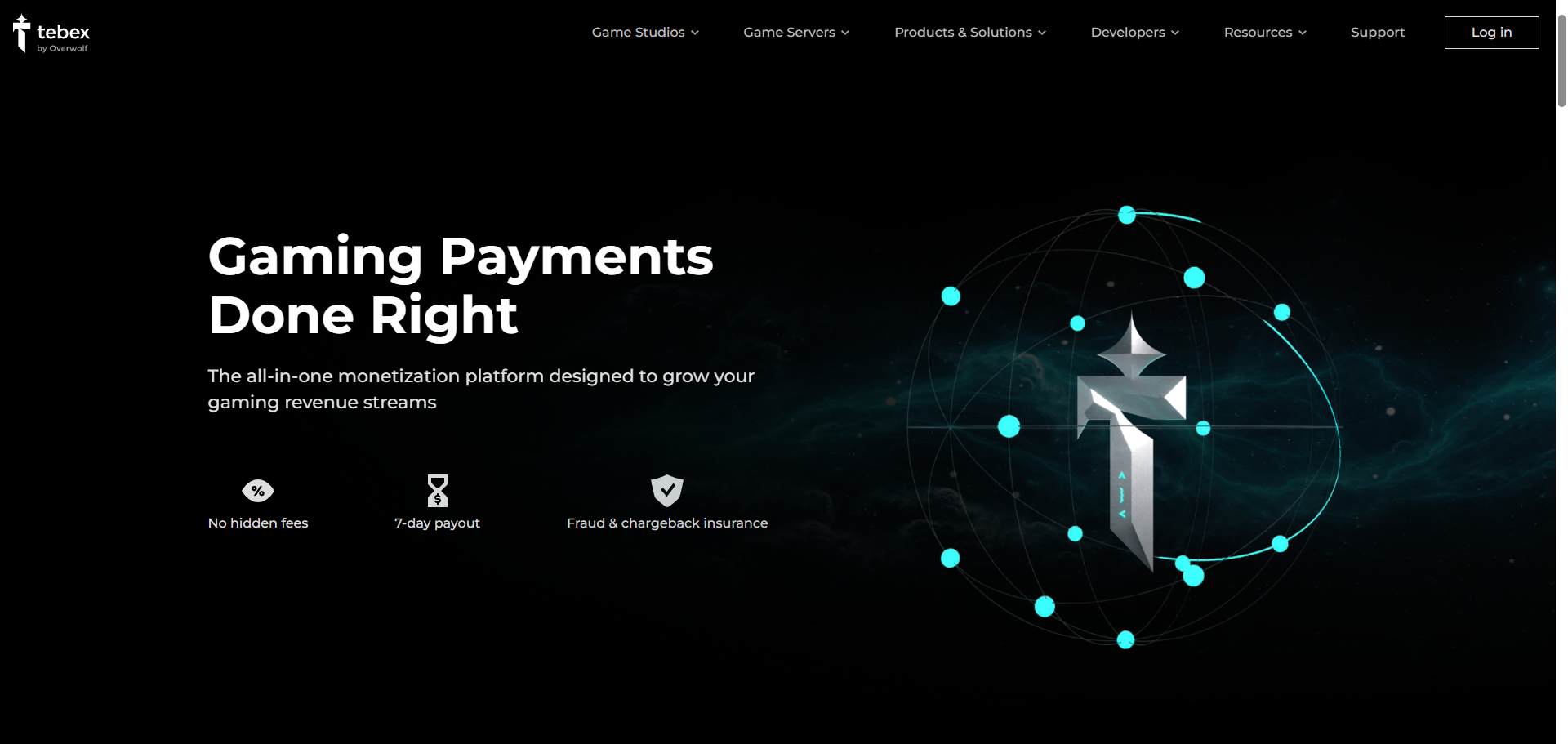
- Register an account and click on the Create another project button.
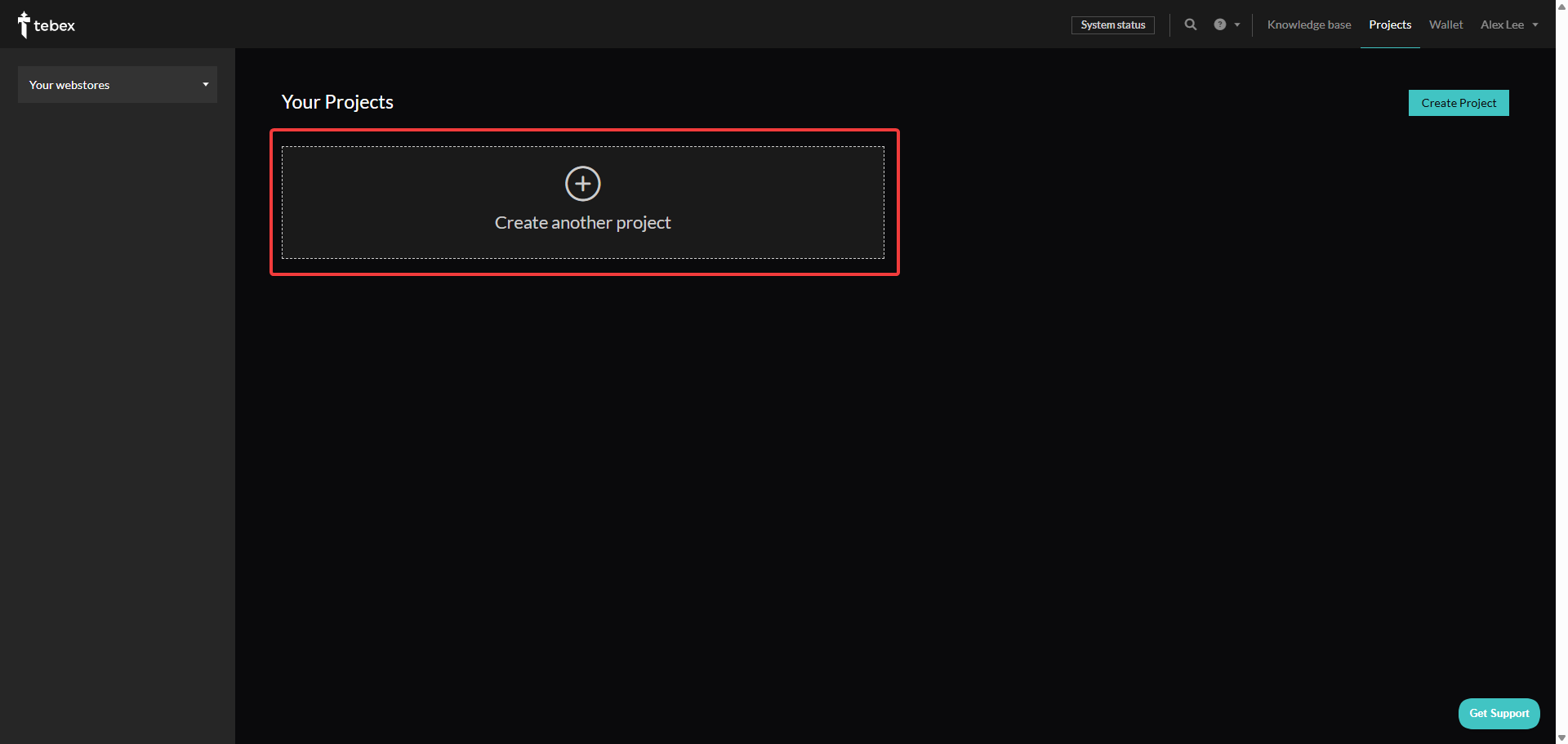
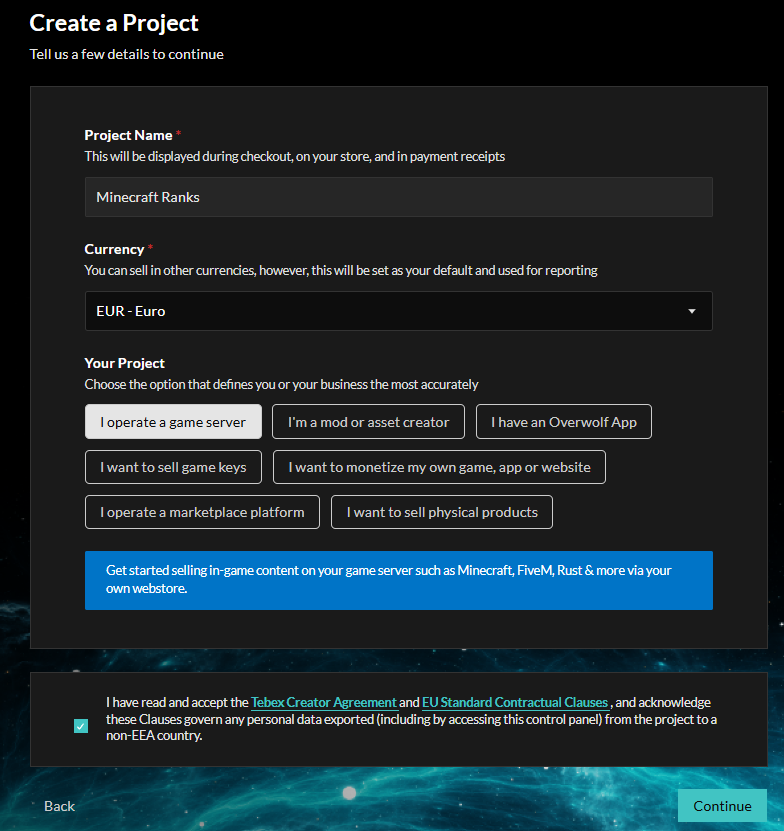
- Create your project and press Continue.
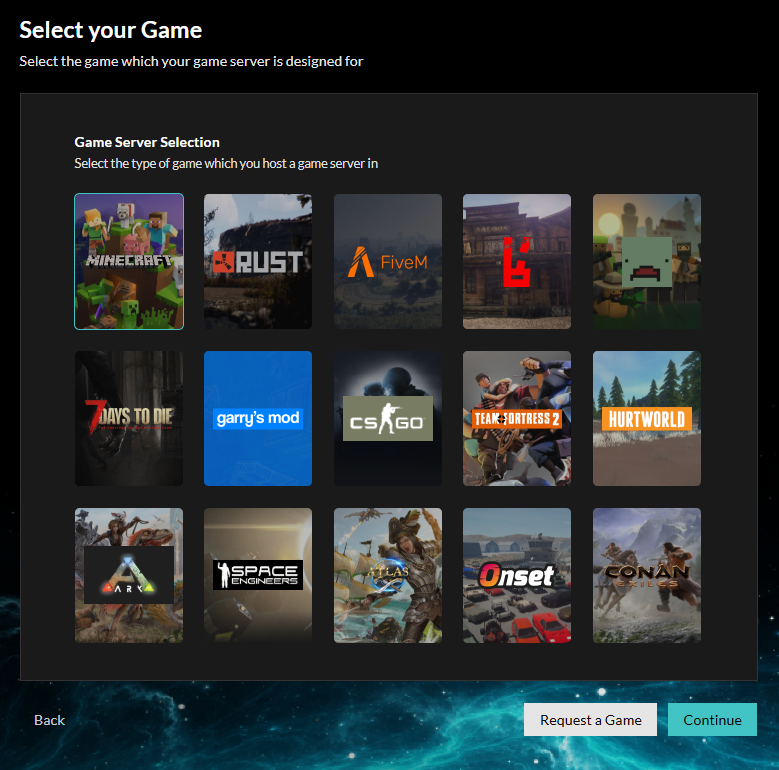
- Select the game. In this case, it’s Minecraft.
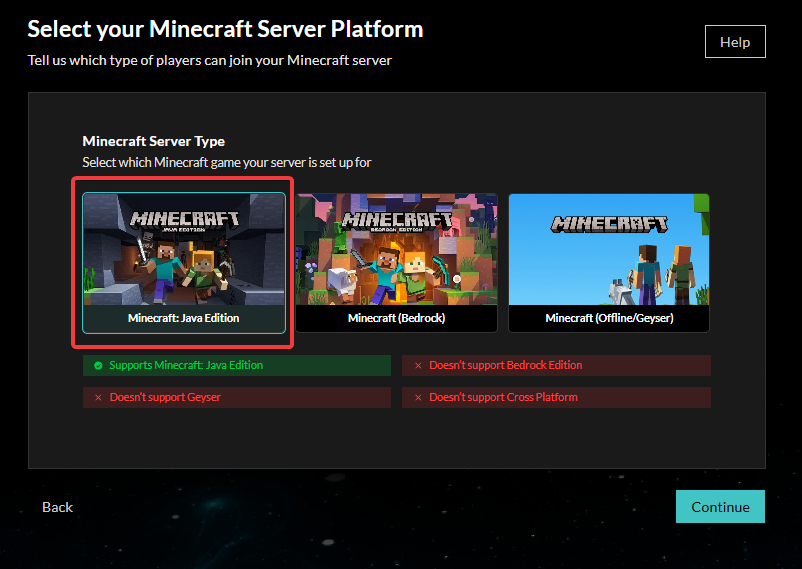
- Select your preferred Minecraft server platform and click on Continue.
- After clicking on continue, follow the setup instructions given by Tebex.
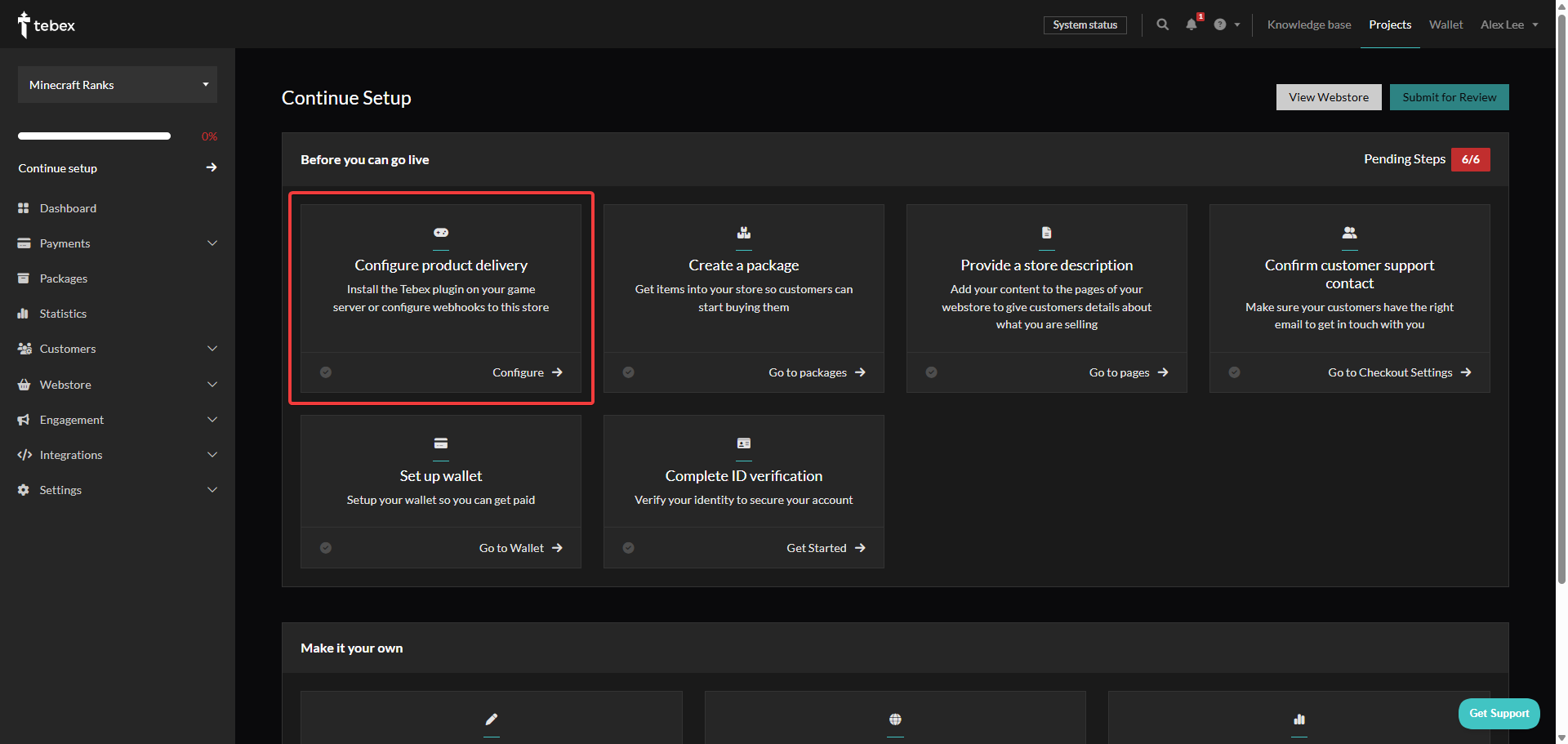
- Install the Tebex plugin/mod onto your server and follow the given instructions.
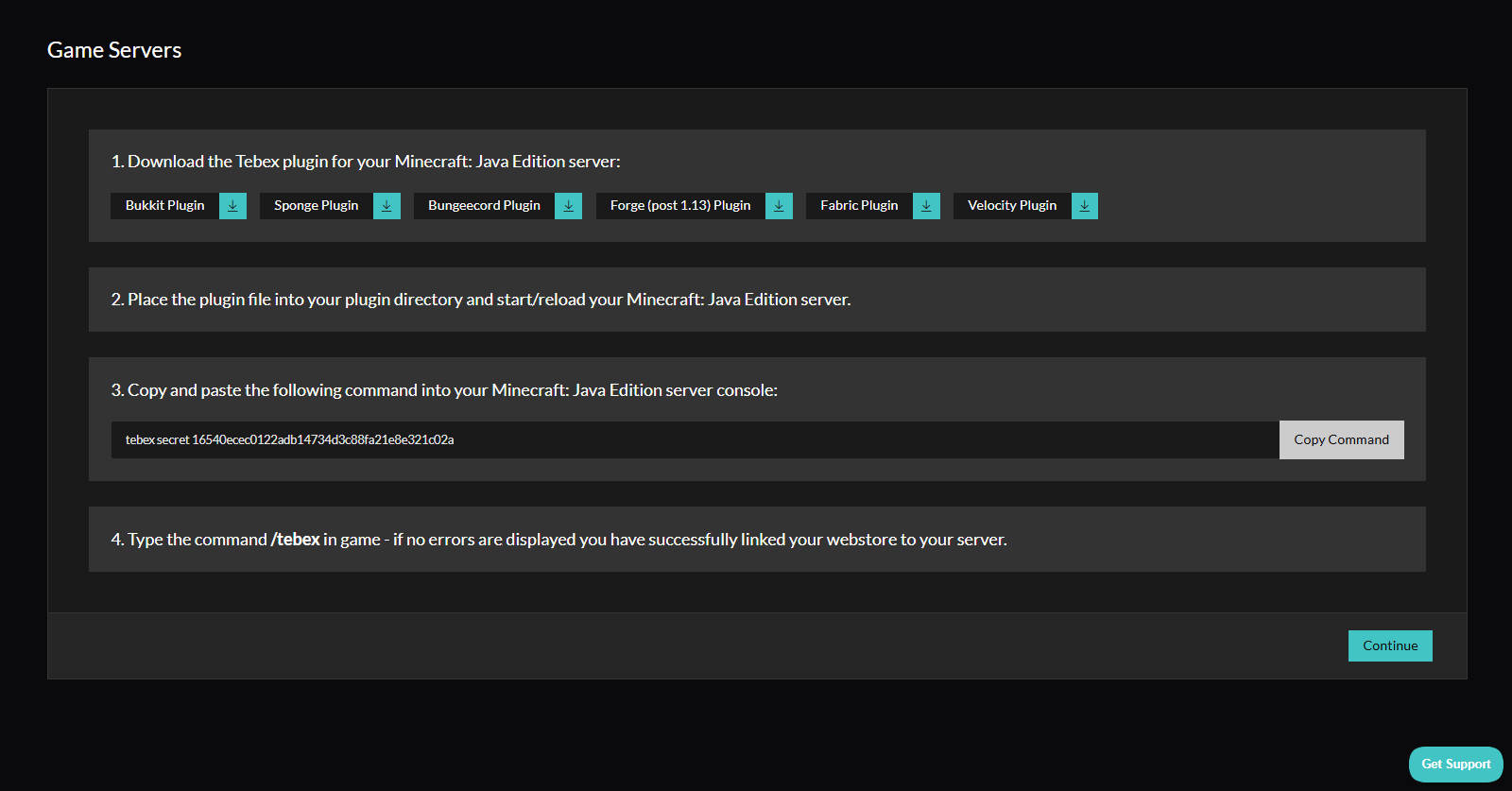
Creating Your First Product
- After installing the plugin/mod onto your server, head over to Packages and click on Package under Add New.
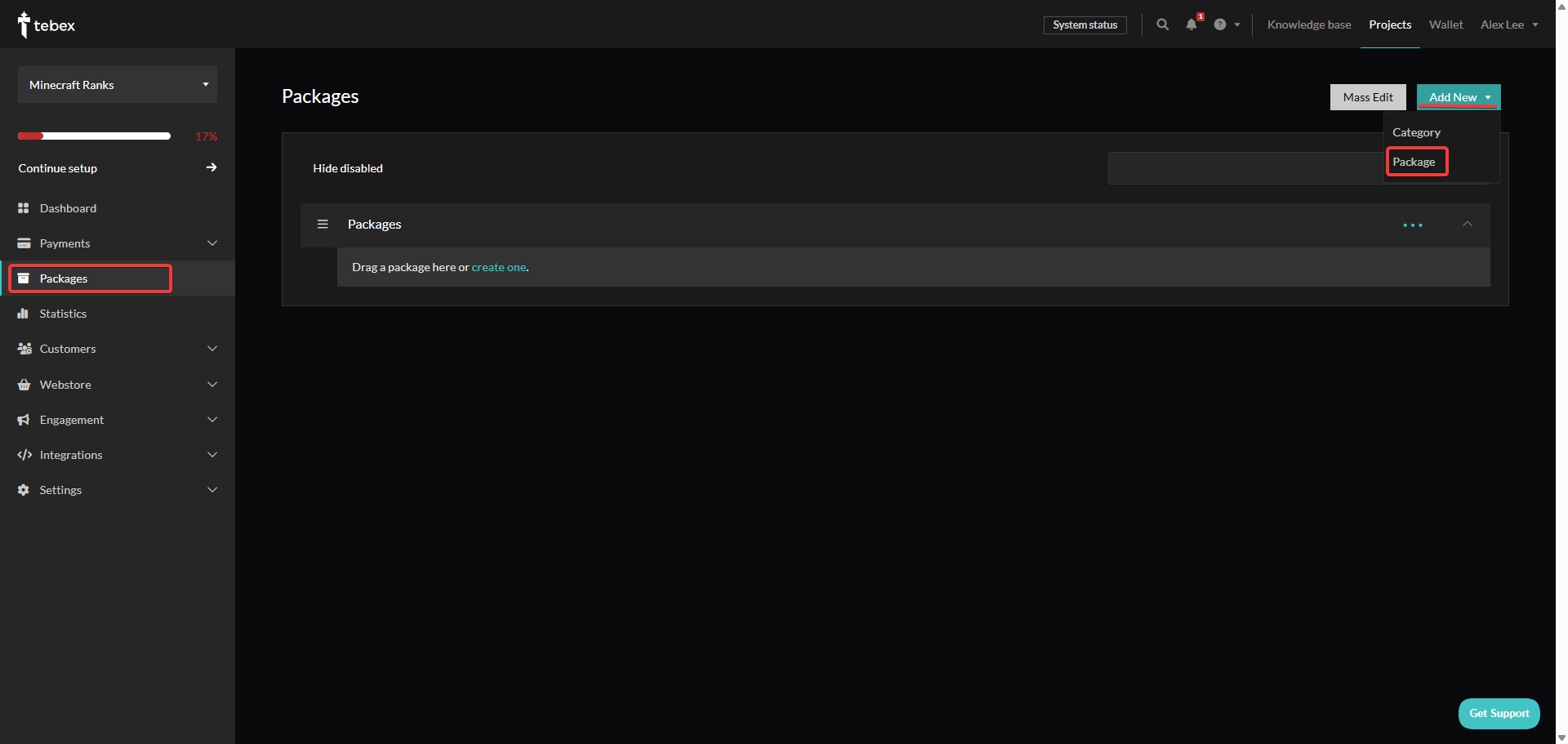
- You will be greeted with a page where you’ll start creating the product.
- Name - A short name for the product, for example, like Vip - Rank.
- Description - Text containing the information on what the product gives, for example, like the perks of a rank.
- Price - The price of the product.
- Category - Category that your product will appear in.
- Recurring Payment - Option to choose whether you want the product to be a subscription-based or a one-time purchase.
- Global Limit ( Under the ‘Limits’ tab ) - An option that allows you to configure how many times the product can be bought.
- User Limit - An option that allows you to configure how many times the product can be bought by an individual.
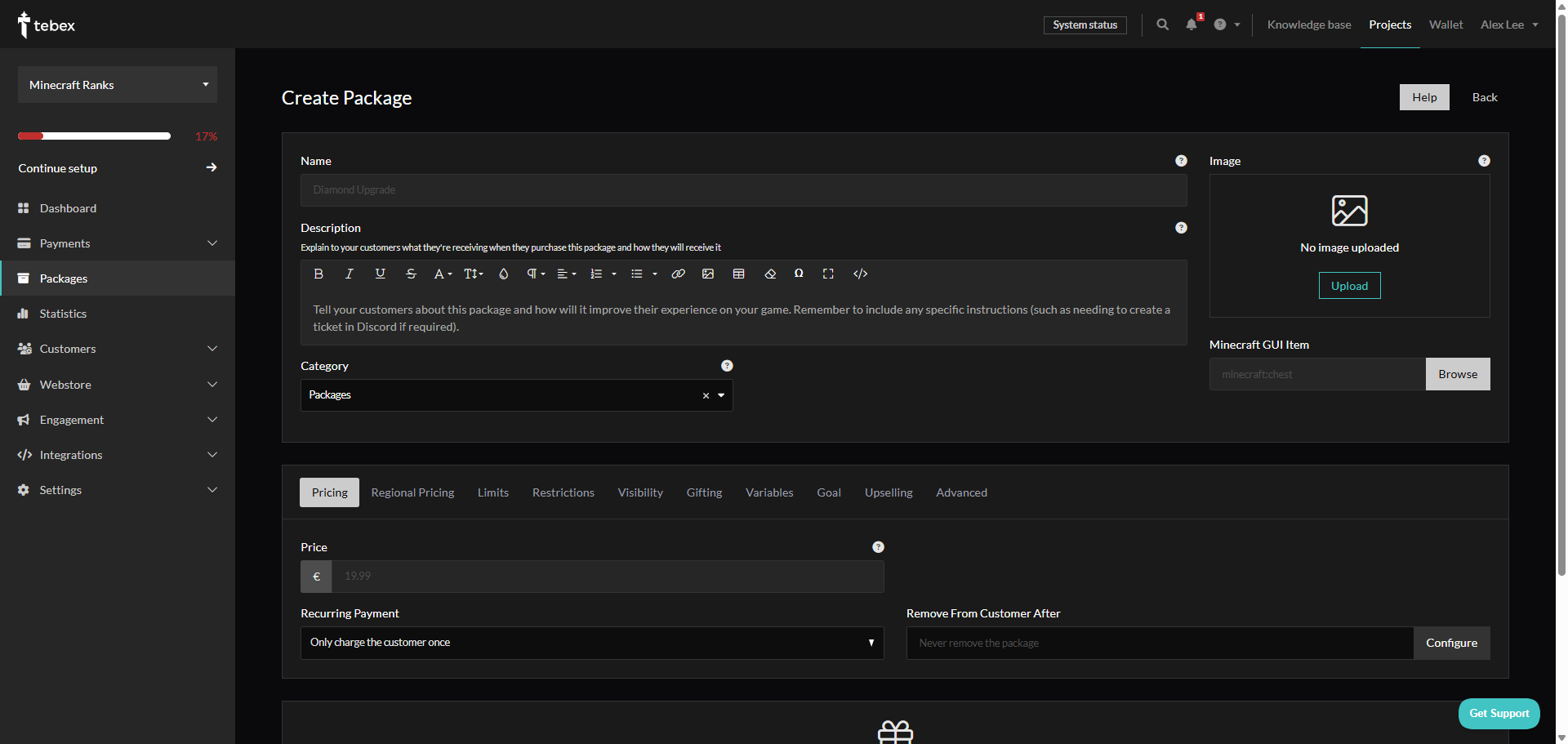
- When you are finished, click Create and publish your product. The players will be able to open the shop with the ‘/buy’ command.