

Converting your Minecraft server world into a singleplayer world lets you explore, build, or test offline using the exact same map you've been playing on your server. This guide covers three ways to do it:
- The automatic converter which is the easiest, works on any version, and can keep your inventory.
- The manual easy way which moves the world; your character resets to a fresh spawn.
- The manual technical way which also transfers your inventory, position, and stats.
All methods work for Java Edition vanilla, Paper, Spigot, and Bukkit worlds. Modded versions (e.g., Forge, Fabric, NeoForge) may not work properly.
saves folder so you can restore them if anything goes wrong.Where to Find Your Files
On your computer, your singleplayer worlds live in the Minecraft saves folder:
- Windows:
%appdata%\.minecraft\saves - macOS:
~/Library/Application Support/minecraft/saves - Linux:
~/.minecraft/saves
saves folder is inside that instance's folder, not the default .minecraft.How to tell which world format you have
Minecraft reorganized how worlds are saved in version 26.1 and above. The manual steps differ depending on which format you have:
- Minecraft 26.1 and newer (new format): inside the world folder you will see
dimensionsandplayersfolders. - Before 26.1, such as 1.21.x, and earlier (old format): you will see
regionandplayerdatafolders, plus separateworld_netherandworld_the_endfolders from the server.
players/data/<uuid>.dat. On the old format, singleplayer instead reads your character from a Player tag inside level.dat. That is why moving an old world by hand resets your inventory until you migrate that data.Method 1: Using the Automatic Converter
We built a free, browser based converter that does everything for you. It works on every version, keeps your inventory if you want it, and fixes the differences between server and singleplayer worlds. Everything runs in your browser, so your world is never uploaded anywhere.
- Head over to the Game Panel and stop your server.
- Open the Files tab and find your world folder (usually named
world). On older versions (before 26.1), also grab theworld_netherandworld_the_endfolders.
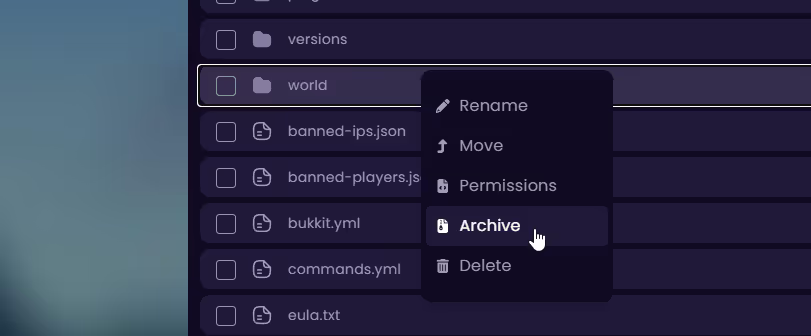
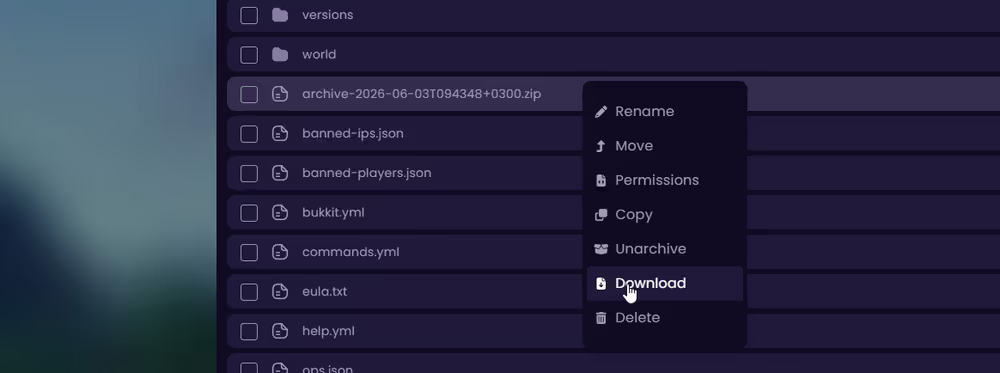
- Select the folder or folders, click Archive, then Download the
.zipto your computer.
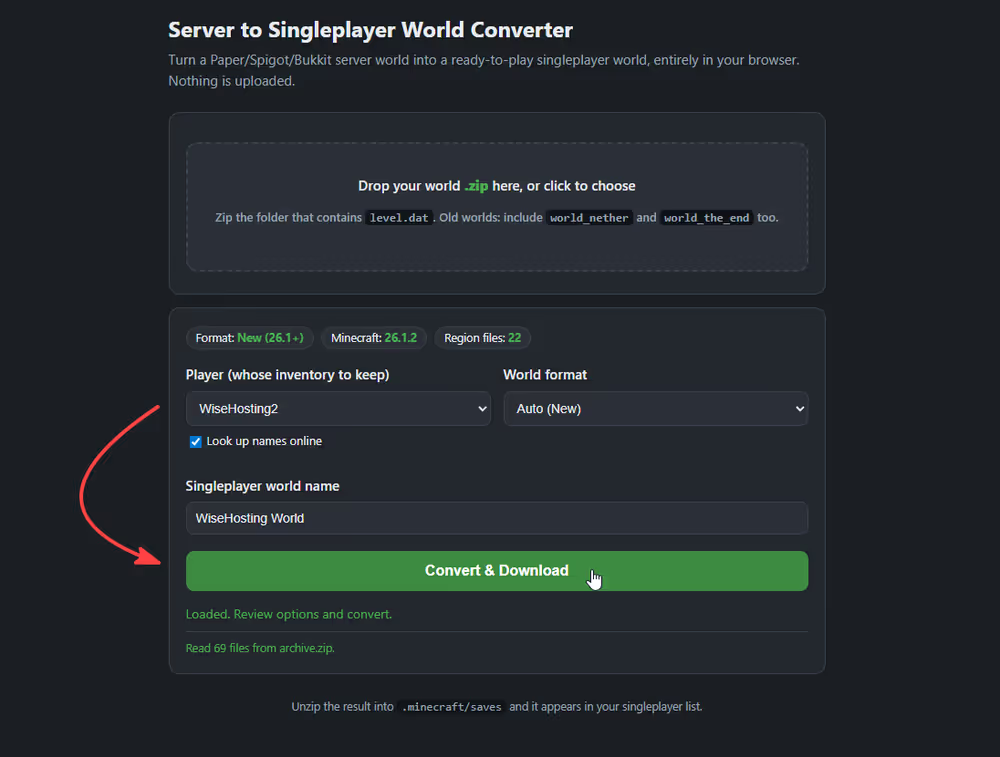
- Open the converter and drag your
.ziponto the page - Choose the player whose inventory you want to keep, or pick Fresh start, no player data.
- Click Convert and Download. You get a ready to use world
.zipback.
- Extract that
.zipinto your Minecraftsavesfolder. - Launch Minecraft on the same version your server used, click Singleplayer, and open your world.
Method 2: Manual World Conversion (without moving playerdata)
This gets your world into the singleplayer list. Your builds, terrain, chests, and entities all carry over, but your personal player data (inventory, XP, position) resets to a fresh spawn.
First, follow steps 1 to 3 from method 1 to stop your server and download your world archive, then extract it on your computer.
If your world is from before 26.1 (old format):
- You will have separate
world,world_nether, andworld_the_endfolders. Copy theDIM-1folder from insideworld_netherinto yourworldfolder, and copy theDIM1folder from insideworld_the_endinto yourworldfolder. - Open your world's
level.datin NBTExplorer, go toData>DataPacks>Enabled, and remove anyfile/bukkitandpaperentries (leavevanilla). - Delete the
datapacks/bukkitfolder,level.dat_old, andsession.lock, if they're there. - Move the
worldfolder into yoursavesfolder and rename it to something clear.
If your world is 26.1 or newer (new format):
- Inside the world folder, open
dimensions/minecraft/overworld/data/minecraft/and copyworld_gen_settings.datintoworld/data/minecraft/(create thedata/minecraftfolders if they do not exist). This single file is what prevents the "invalid or corrupted save data" error. - Open
level.datin NBTExplorer, go toData>DataPacks>Enabled, and removefile/bukkitandpaper(leavevanilla). - For a truly fresh start, delete everything inside
players/data,players/advancements, andplayers/stats. - Delete the
datapacks/bukkitfolder,level.dat_old, andsession.lock. - Move the
worldfolder intosaves.
Method 3: Manual World Conversion (with playerdata)
This does everything in the previous method, but also keeps your character. You can edit NBT data with NBTExplorer.
level.dat directly can corrupt your world if done incorrectly. Keep a backup of the entire world folder before you begin. For this one, the automatic converter is much safer and faster, since it does all of this in one click.If your world is from before 26.1 (old format):
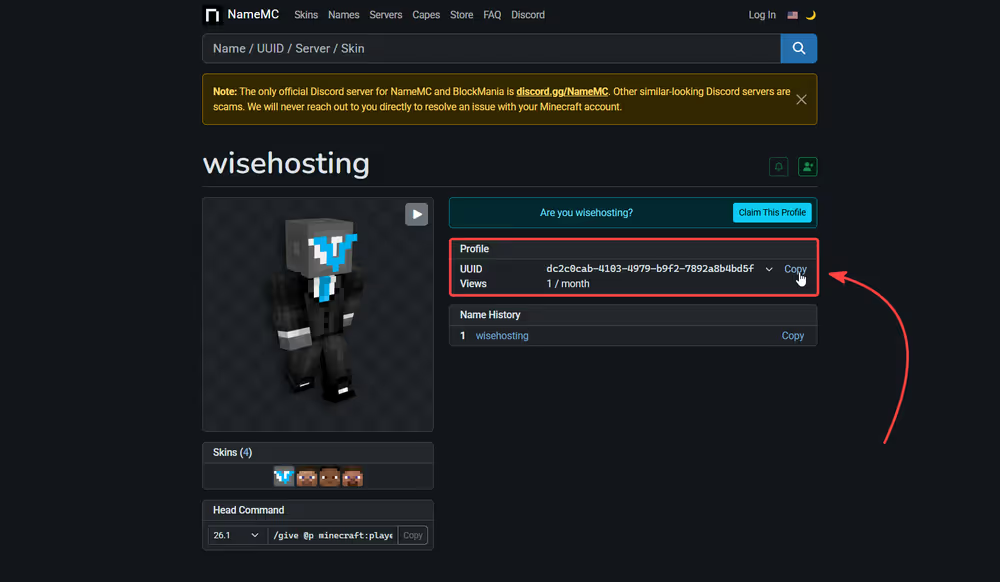
First find your UUID. In your world's playerdata folder you will see files named like xxxxxxxx-xxxx-xxxx-xxxx-xxxxxxxxxxxx.dat. Each name is a player's UUID. Use NameMC to match your username to its UUID.
- In NBTExplorer, open
playerdata/<your-uuid>.dat. You will see tags likeInventory,Pos,Health,XpLevel, andplayerGameType. This is your full player state. - Also open the world's
level.datand expand theDatacompound. On a world from a server there is noPlayertag, which is the part we are adding. - Right click
Dataand add a new Compound tag named exactlyPlayer. - Copy the tags you want (
Inventory,Pos,Health,XpLevel,playerGameType, and so on) from your<uuid>.datinto thatPlayercompound. - Save
level.dat, deletelevel.dat_old, move the world intosaves, and load it.
If your world is 26.1 or newer (new format):
Your server character is already stored at players/data/<your-uuid>.dat, so you just need to point singleplayer at it.
- Do the
world_gen_settings.datcopy and the datapack cleanup from the previous method (new format) first. - Keep your
players/data/<uuid>.datfile, along with the matchingadvancementsandstatsfiles. - In
level.dat, underData, add an Int-Array tag namedsingleplayer_uuidset to your player's UUID. - Save, delete
level.dat_oldandsession.lock, then move the world intosaves.
singleplayer_uuid by hand is fiddly, because it is four signed integers rather than the usual UUID text. If you would rather skip that, the converter does this exact step for you.

