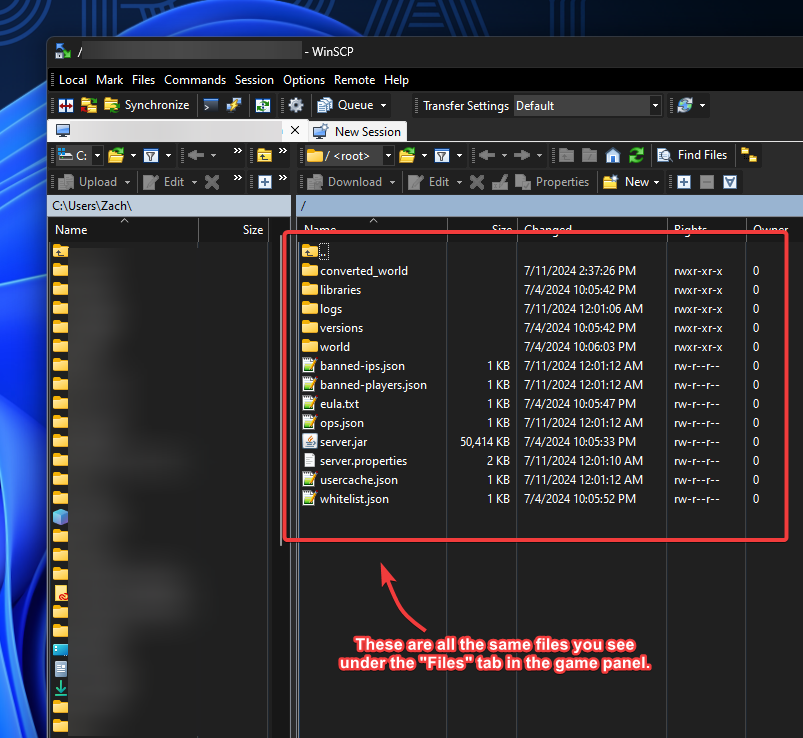
Our Game Panel has an upload limit of 10 GB and to upload bigger files than that, you need to do it through SFTP. It’s also faster this way!
It’s also important to note that if you upload large files through the game panel (over 1 GB), you may experience problems due to the upload taking a long time and may cancel mid-way. Uploading through SFTP solves this problem.
👉
How to Connect to SFTP?
- Head over to the Game Panel.
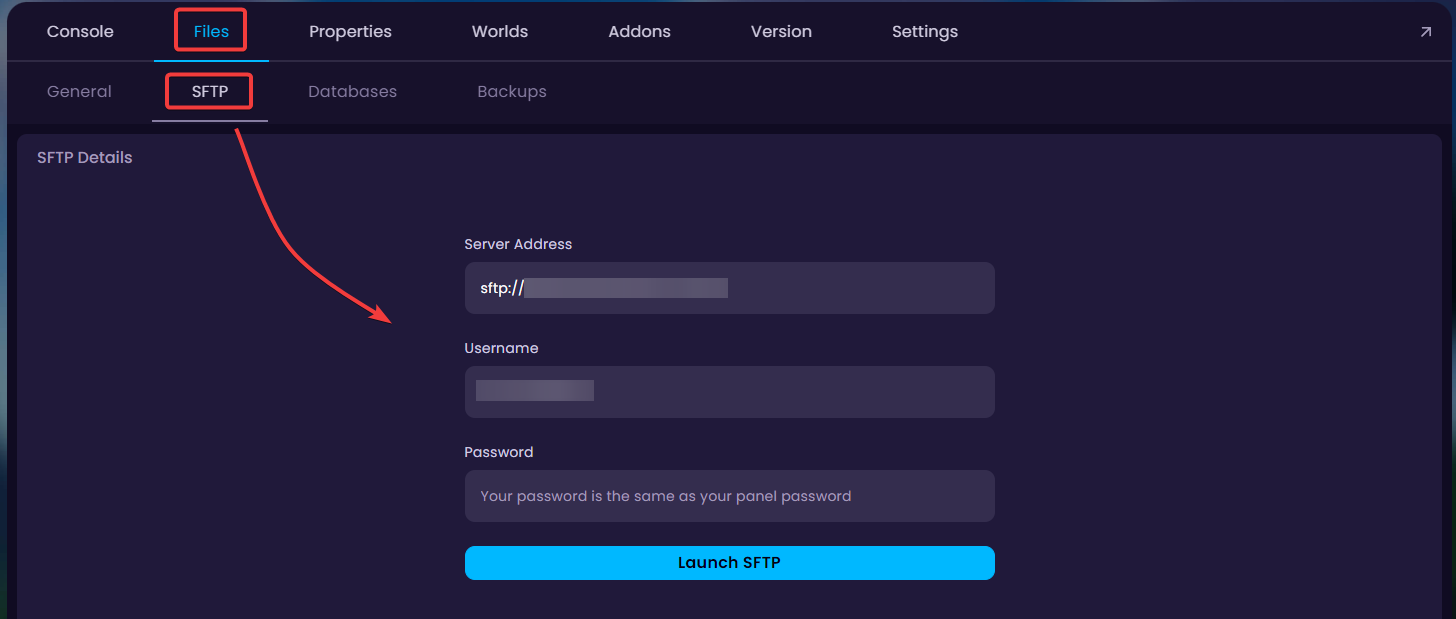
- Navigate to the Files → SFTP tab to view the SFTP's login information. Password is not shown here as it's the same as your panel account's password.
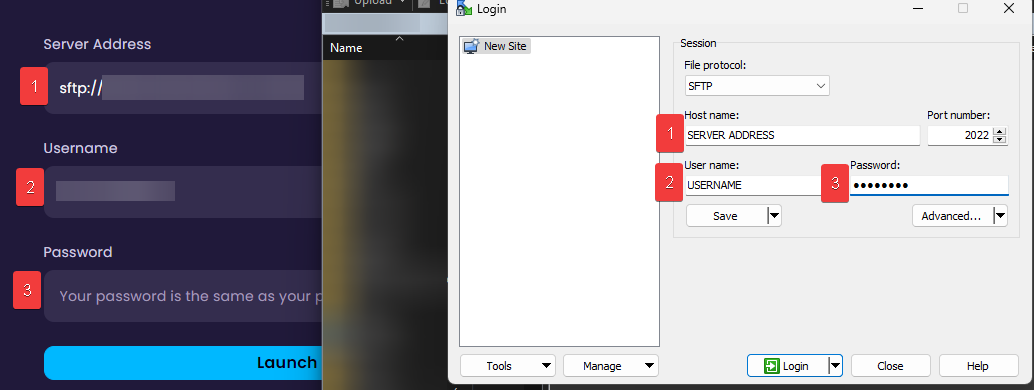
- Open Filezilla or WinSCP and insert the address, username, and password accordingly.
- Done! You're connected to the SFTP and can modify, upload, and delete files through there.