

We recommend backing up your data before any type of change. It is not recommended to downgrade your world to an older version as the server can crash and corrupt the world.
We always recommend to make a clean install of your server when switching to or from modpacks. Changing your server version from Vanilla to Spigot/Paper, we recommended to keep the same Minecraft version you had before.
⚠️
IMPORTANT: If you are upgrading/downgrading your server and want to keep the world, you MUST update it one version at a time or your world may be corrupted.
How To Change Your Server Version?
- Head over to the Game Panel and stop your server.
- Navigate to the Versions tab and select the type and version from the list.
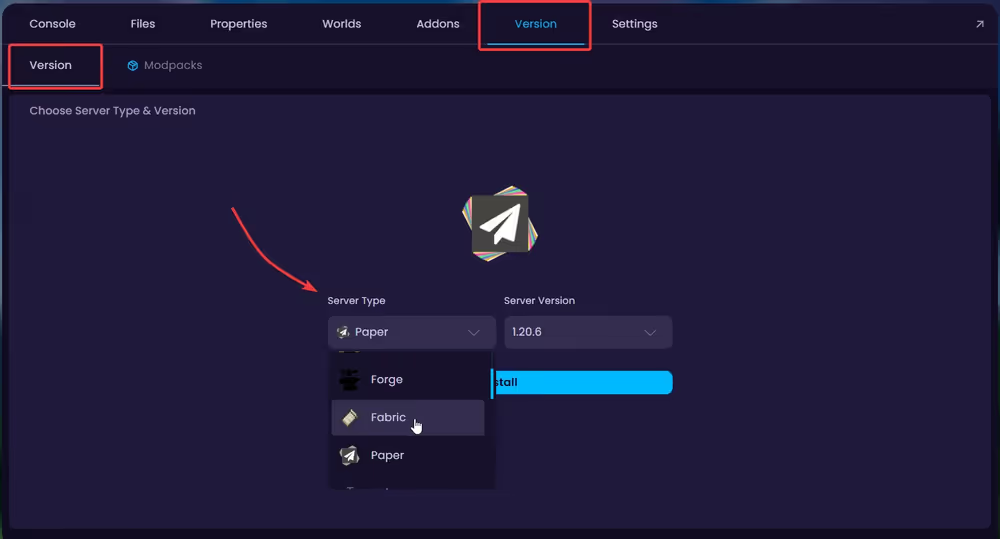
- Once you've selected the preferred type and version, click on Install to start the installation.


