👉
If you cancel your service through our billing area, but not through PayPal, you may still be charged and is a known issue in the subscription industry.
We cannot remove the subscription automatically as it was set through YOUR PayPal account, which we do not have access to.
How to Cancel Your PayPal Subscription?
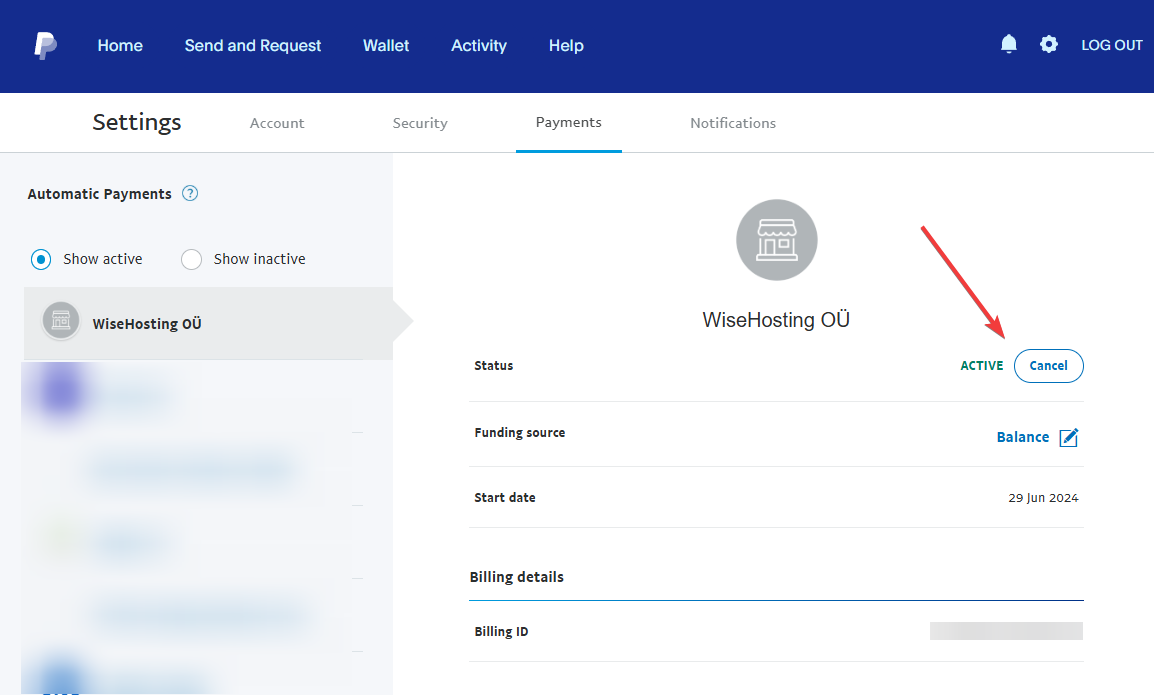
- Log into your PayPal account that the subscription was set up on.
- Navigate to the Subscriptions page here: https://www.paypal.com/myaccount/autopay
- Ensure that you do not have WiseHosting OÜ under the Show Active list. If you do, click on it and click on the Cancel button.