

The game panel allows you to manage your server through the console. You're able to upload worlds, install mods/plugins/datapacks, restart, and do much more through the server's console.
How to access the console?
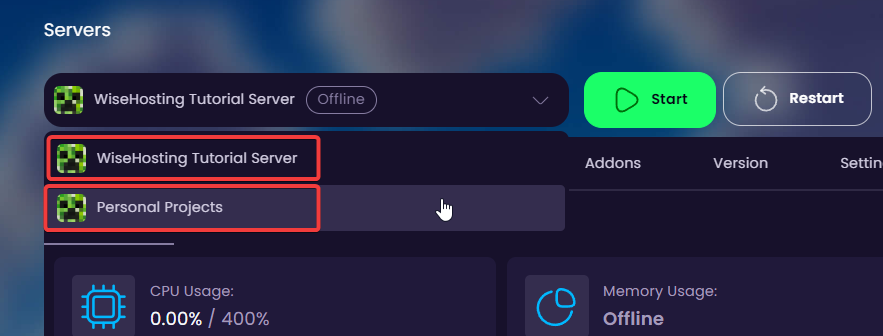
- The easiest way to access the console is by navigating to the panel.wisehosting.com page. This is where all of your servers are located. If you have multiple servers, you can switch between them as shown in the image:
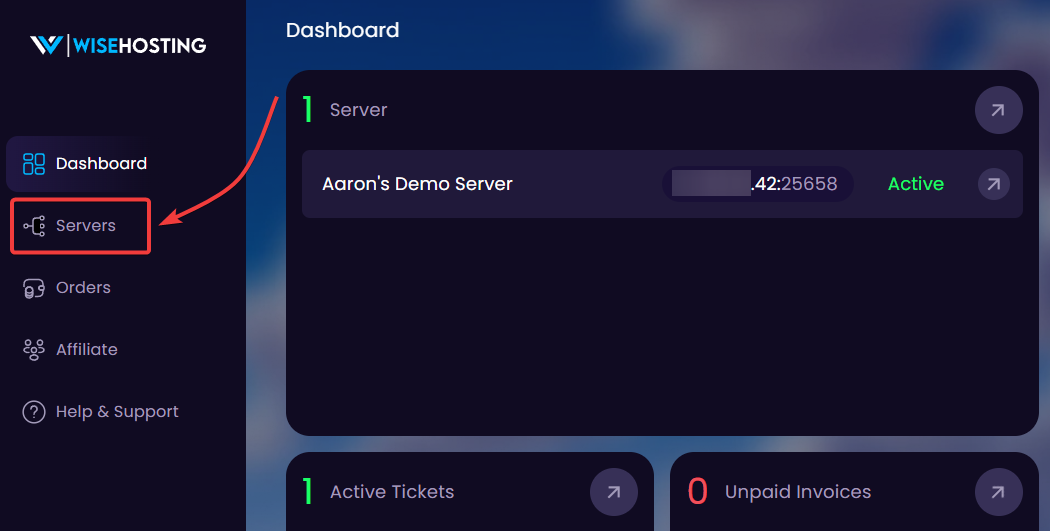
- You can also navigate from the billing area by clicking on Servers on the sidebar.
Logging in for the first time?
If you're logging in for the first time, you're going to see this page:
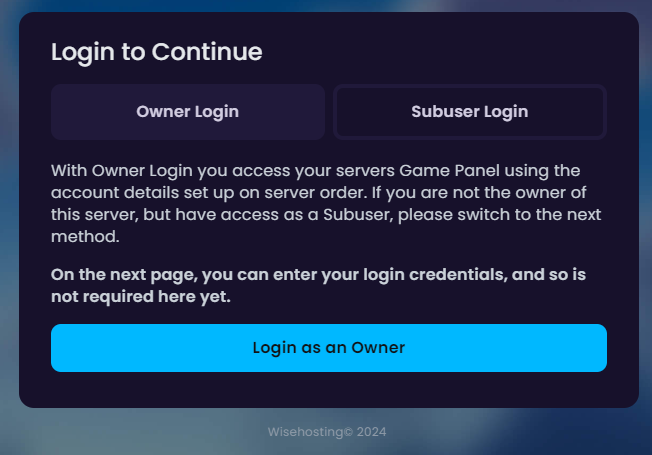
- Owner Login: This allows you to log in through your billing area's account. Simply click on Login as an Owner and you'll be redirected to the login page (or automatically log in with the billing account).
- Subuser Login: If you've been added to a server as a subuser then this allows you to log in with an email and password.
It says I don't have any servers even though I bought one!
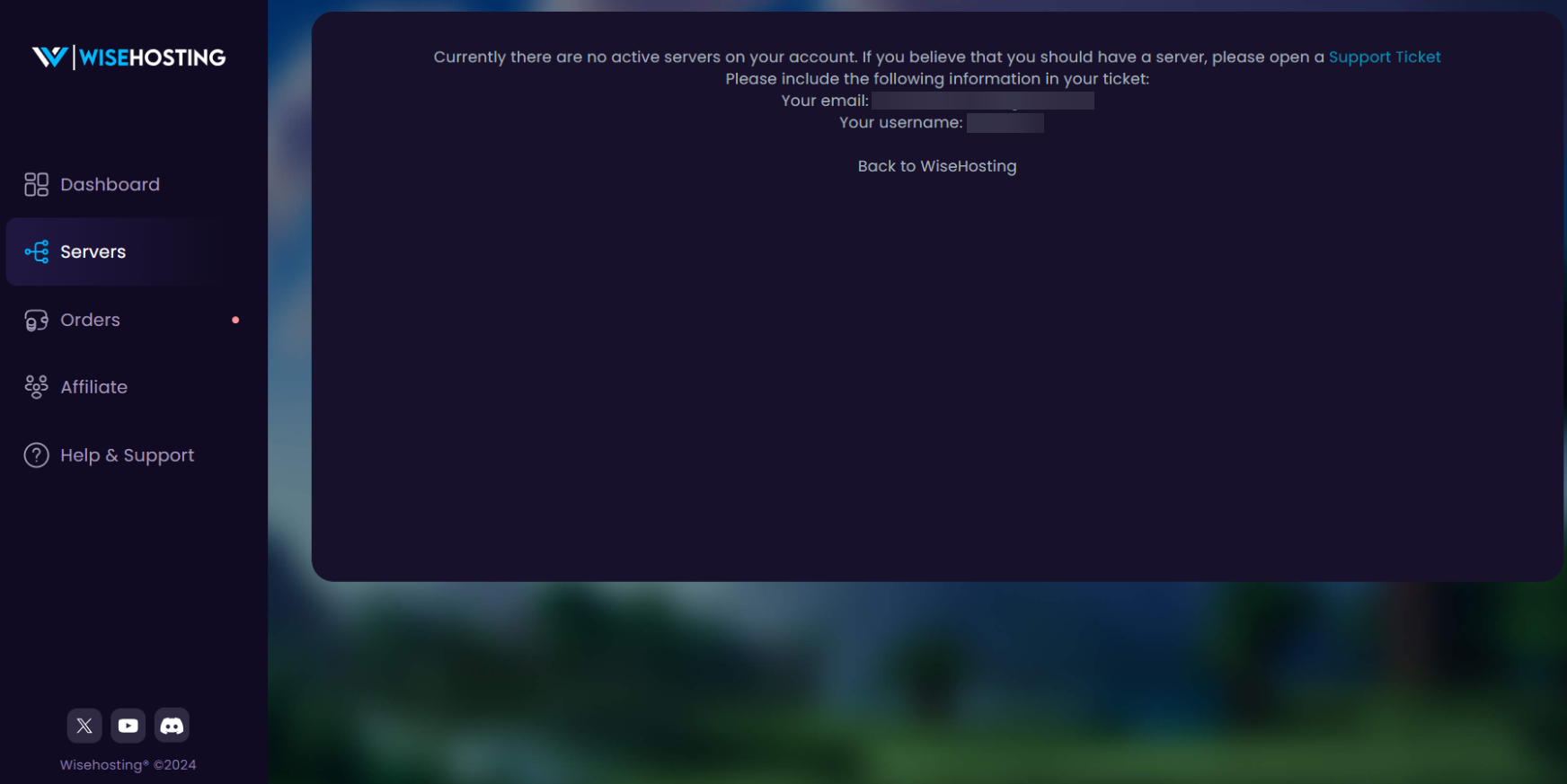
If you bought a server and it says that you do not have any active servers on your account, it’s possible that you’re logged in using the wrong account on the Servers tab. Please ensure that the email on the page matches with your billing account’s email.
If the email does not match, click on the Log Out button on the Servers tab and log in using the correct email.
💡
If the problem persists even after logging out and logging back in, please contact our support team by creating a ticket.
What are all these pages in the Panel?
The Game Panel consists of 7 tabs and 23 sub-tabs:
- CONSOLE
- General: This is the main page with server console and all the live data about your server's performance.
- Player Manager: The place where you can manage all the players in one place (OP/Kick/Ban/Whitelist). You are also able to view their live player data.
Click here to read more about this.
- FILES
- General: Online server directory and file editor with the possibility to create new directories and upload files.
- Instances: This feature allows you to have multiple server setups in one. For example if you'd like to switch between a modded and a vanilla server, this is the tab to do it through.
Click here to read more about this. - SFTP: This page shows you all the login information which allows you to connect to the files through an SFTP (Secure File Transfer Protocol) connection.
Click here to read more about this. - Databases: Access to MySQL databases. Please open a support ticket if you need a database.
Click here to read more about this. - Backups: Access to manual backups, can upgrade to additional backups if needed.
Click here to read more about this.
- PROPERTIES
- General: This will show all the available configurable properties that your server has.
- World: Here you can configure world-related properties in your server.
- Admin: All the admin-related properties are located here.
- WORLDS
- Worlds: This page allows you to manage all the worlds you have uploaded or generated in the server.
Click here to read more about this. - World Downloads: Do you watch the Shulkercraft's videos? Here are some of their world downloads.
- Worlds: This page allows you to manage all the worlds you have uploaded or generated in the server.
- ADDONS
- Presets: This will allow you to install various presets on your server with a simple-click. Such as voice chat, Java-Bedrock crossplay, and more!
- Mods: Multiple pages of different mods to use from Curseforge or Modrinth.
Click here to read more about this. - Plugins: Easy plugin installer with a search system to add cool features to your server.
Click here to read more about this. - Datapacks: From here you can download all the datapacks that VanillaTweaks has published and sort them by version and category.
Click here to read more about this.
- VERSION
- Version: List of all the available server types and versions, easy installation with just a few clicks.
Click here to read more about this. - Modpacks: Thousands of modpacks are located here and can be installed by a simple click. This fetches the modpacks from CurseForge, Modrinth, and FTB.
Click here to read more about this.
- Version: List of all the available server types and versions, easy installation with just a few clicks.
- SETTINGS
- General: Change the general settings of your server in the panel such as the name, server-icon, and timezone (amongside other features).
- Schedules: You can create automatic restarts or announcements to your server at the exact time you'd like these to happen.
Click here to read more about this. - Network: Manage the ports and subdomains you've created for the server.
Click here to read more about this. - Users: Manage the sub-users you've given access to.
Click here to read more about this. - Startup: Modify the server's startup parameters as well as toggle various JVM flags with a simple click.
- Activity: Every command entered through the console and move made in the panel is logged here.
Click here to read more about this.


