


WorldEdit is an easy-to-use in-game Minecraft map editor. You can easily sculpt your world or perform numerous terraforming tasks through a combination of commands and “brushes”.
👉
NOTE: It’s recommended to use the FastAsyncWorldEdit plugin instead of WorldEdit when working with huge buildings for better performance and faster results.
How to Install WorldEdit to Your Server?
- Head over to the Game Panel and stop your server.
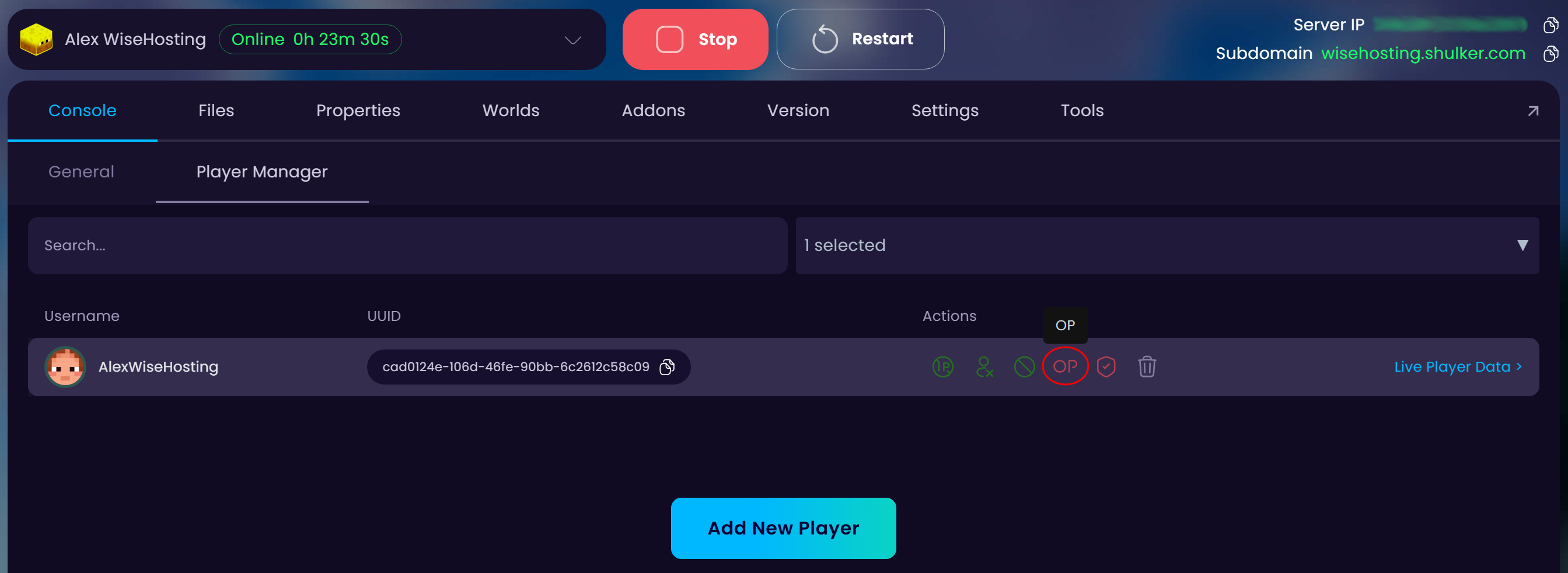
- Make sure to also OP yourself in your server to gain access to all the commands.
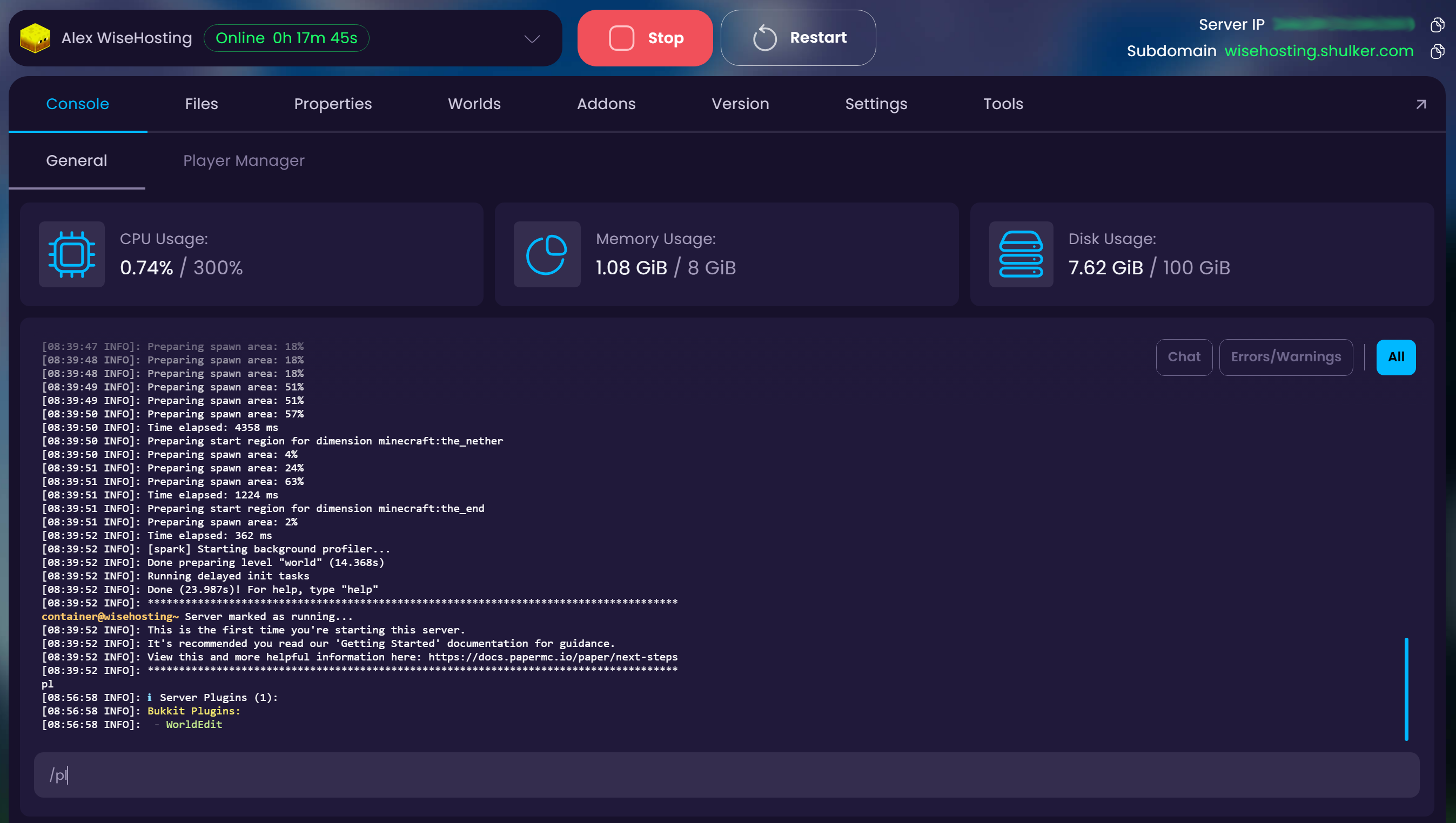
- Start up your server and check if WorldEdit started up, you can use the
plcommand to see all the plugins that are installed to your server.
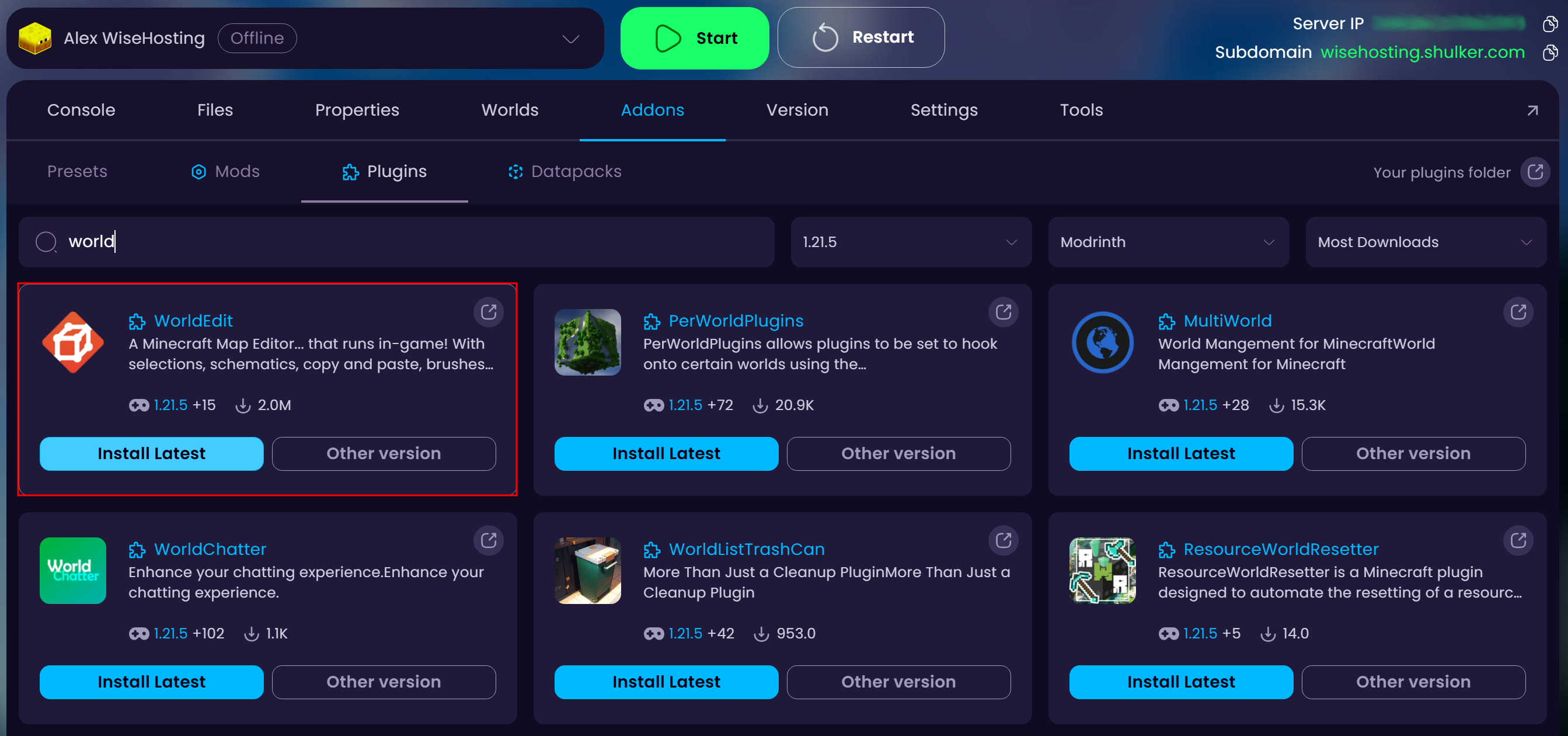
- Navigate to the "Addons → Plugins" tab and install the latest WorldEdit plugin to your server.
How to Copy or Cut Buildings with WorldEdit?
- Once you have something in your clipboard, you can paste it to your world with
//paste.
💡
The paste will be placed relative to you when you initially copied it. For example, if you were on top of your castle when you copied it, pasting it would result in the castle being pasted under you.
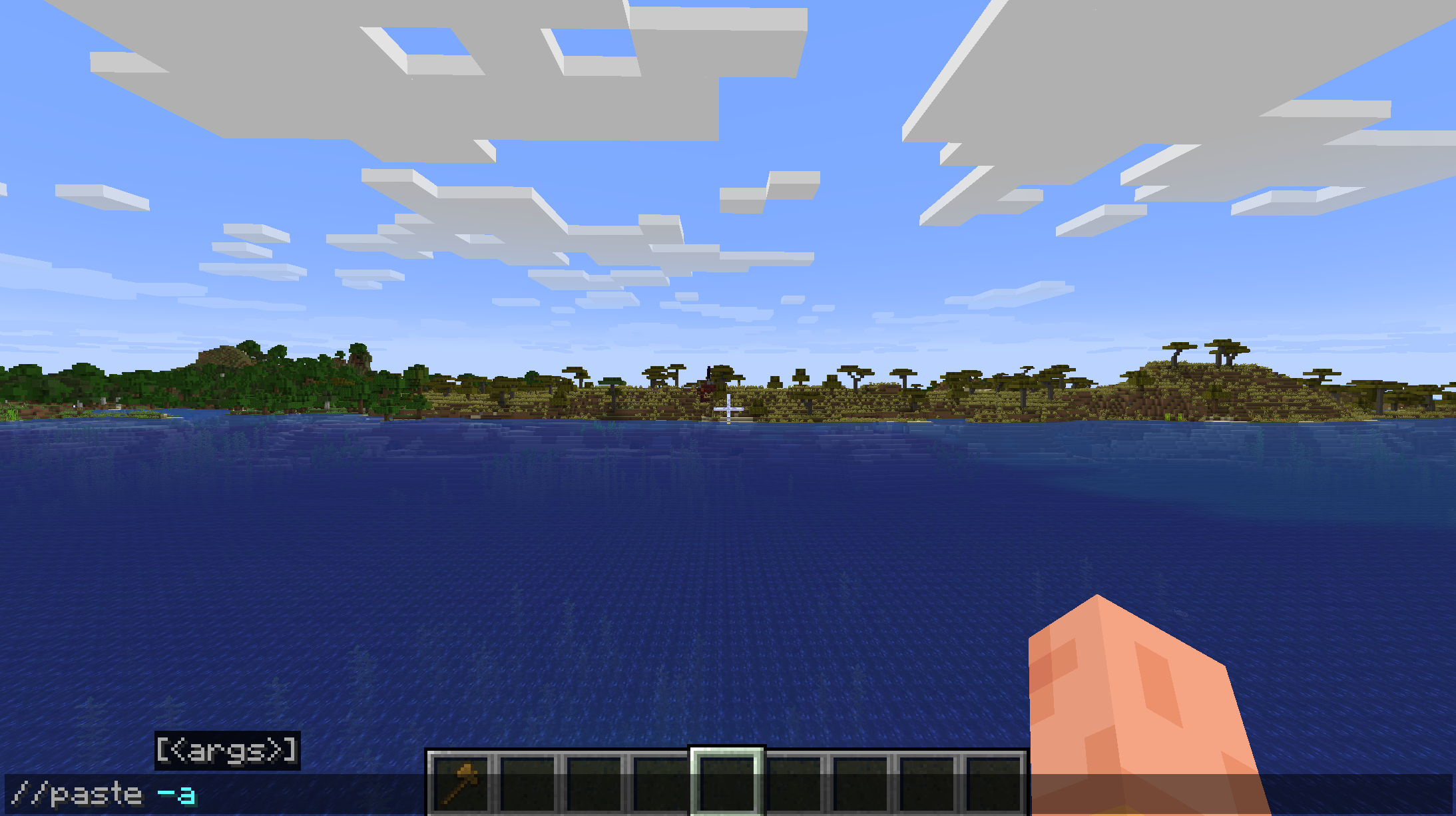
You can also paste without including air blocks with //paste -a to fit your building into tight spaces or just so the paste wouldn’t use as much server resources.
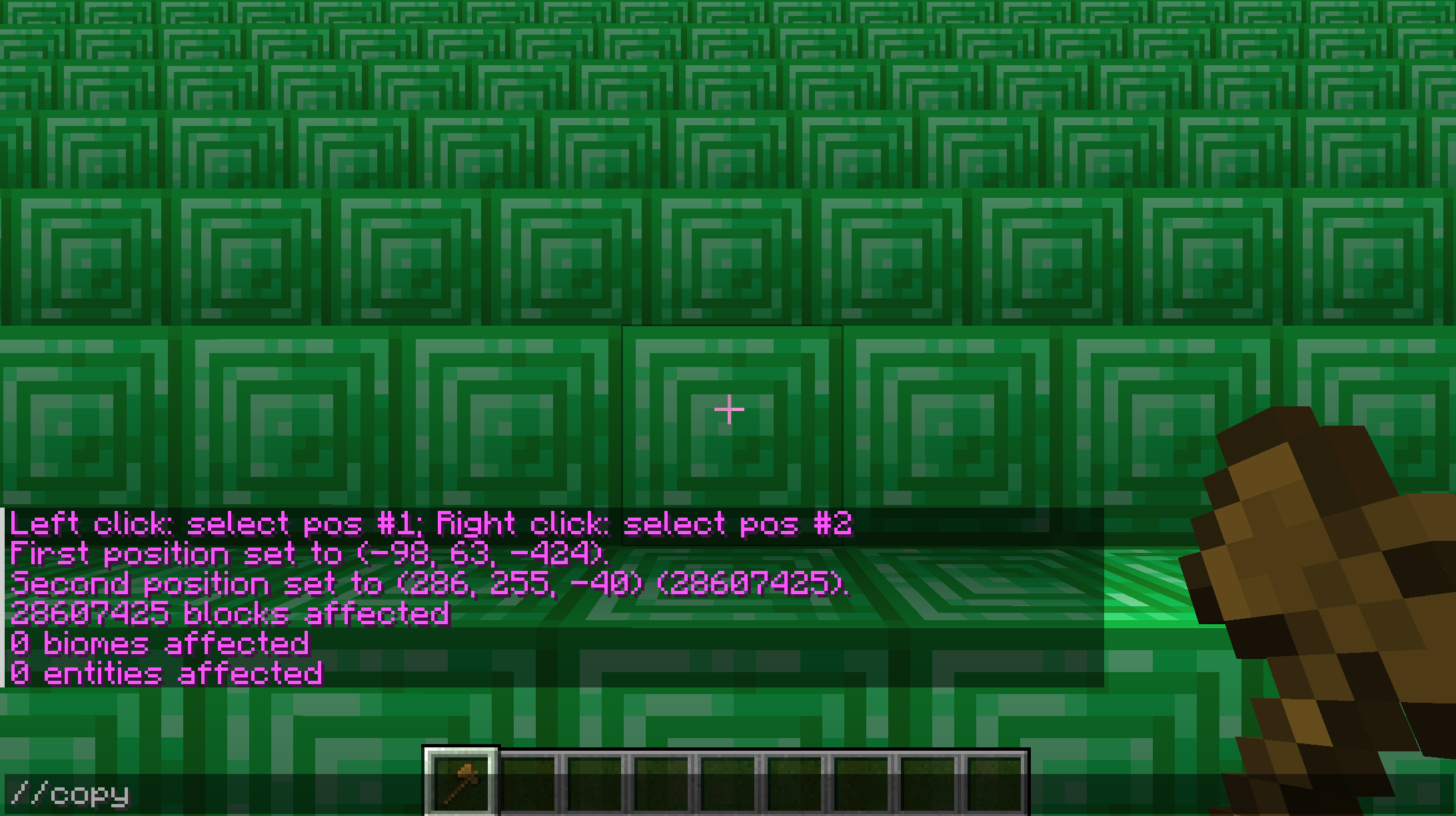
- After you’ve selected your building you can copy it with
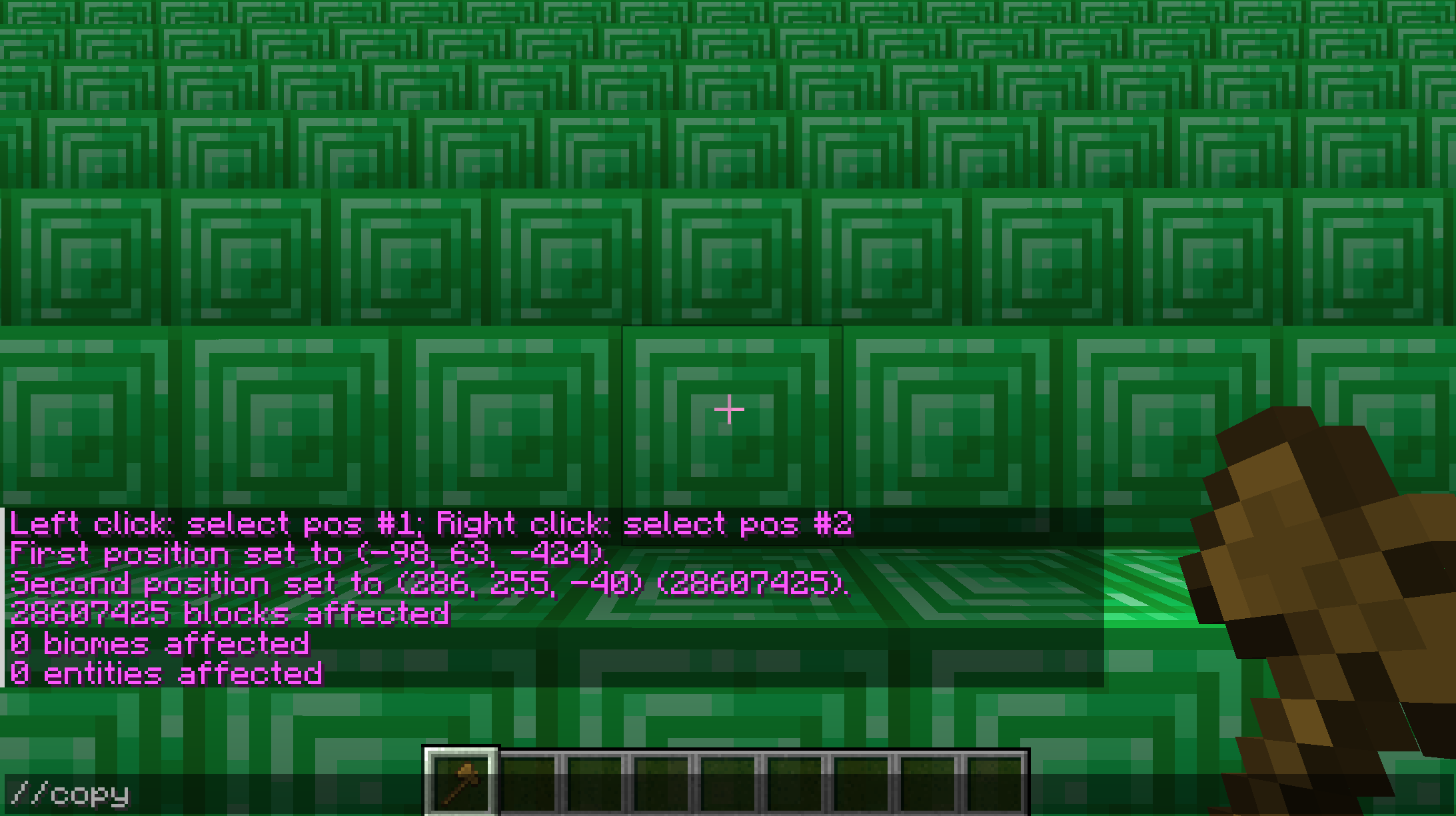
//copy(copies your building to the clipboard and doesn’t delete it from it’s original position) or cut it with//cut(removes the building from it’s original position and saves your building to the clipboard).
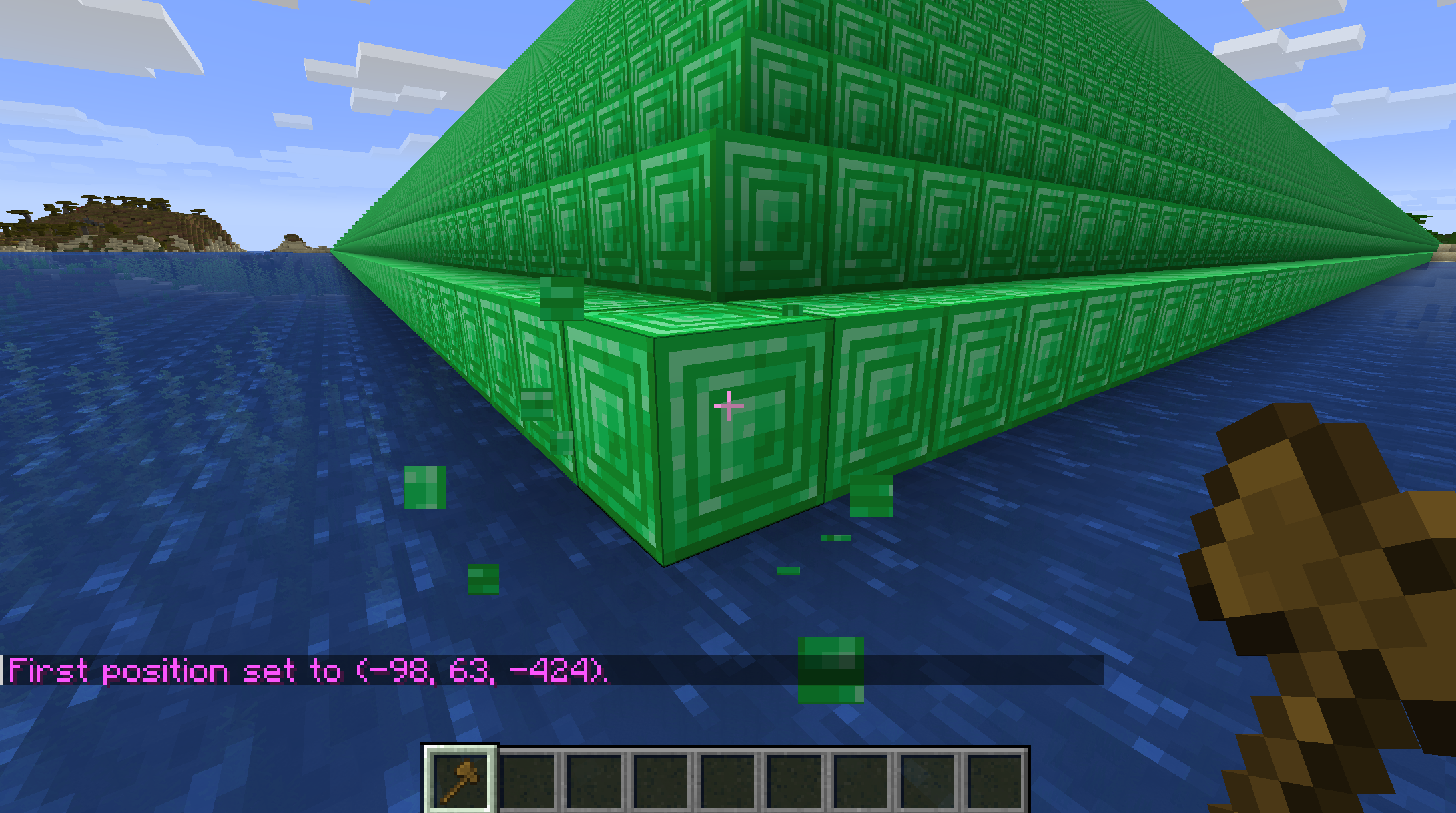
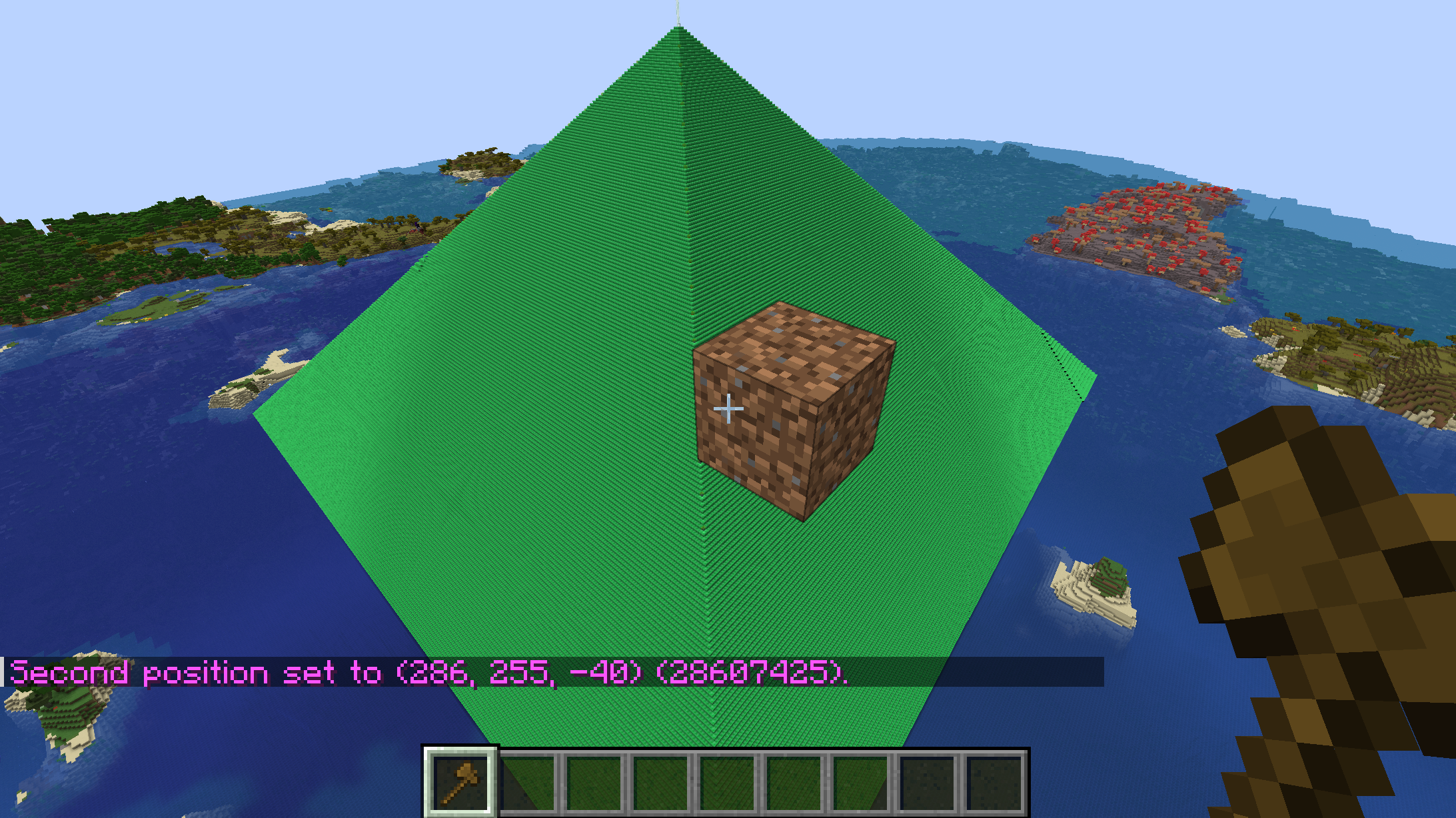
- Use the
//wandcommand to get a wooden axe so you can start marking positions.
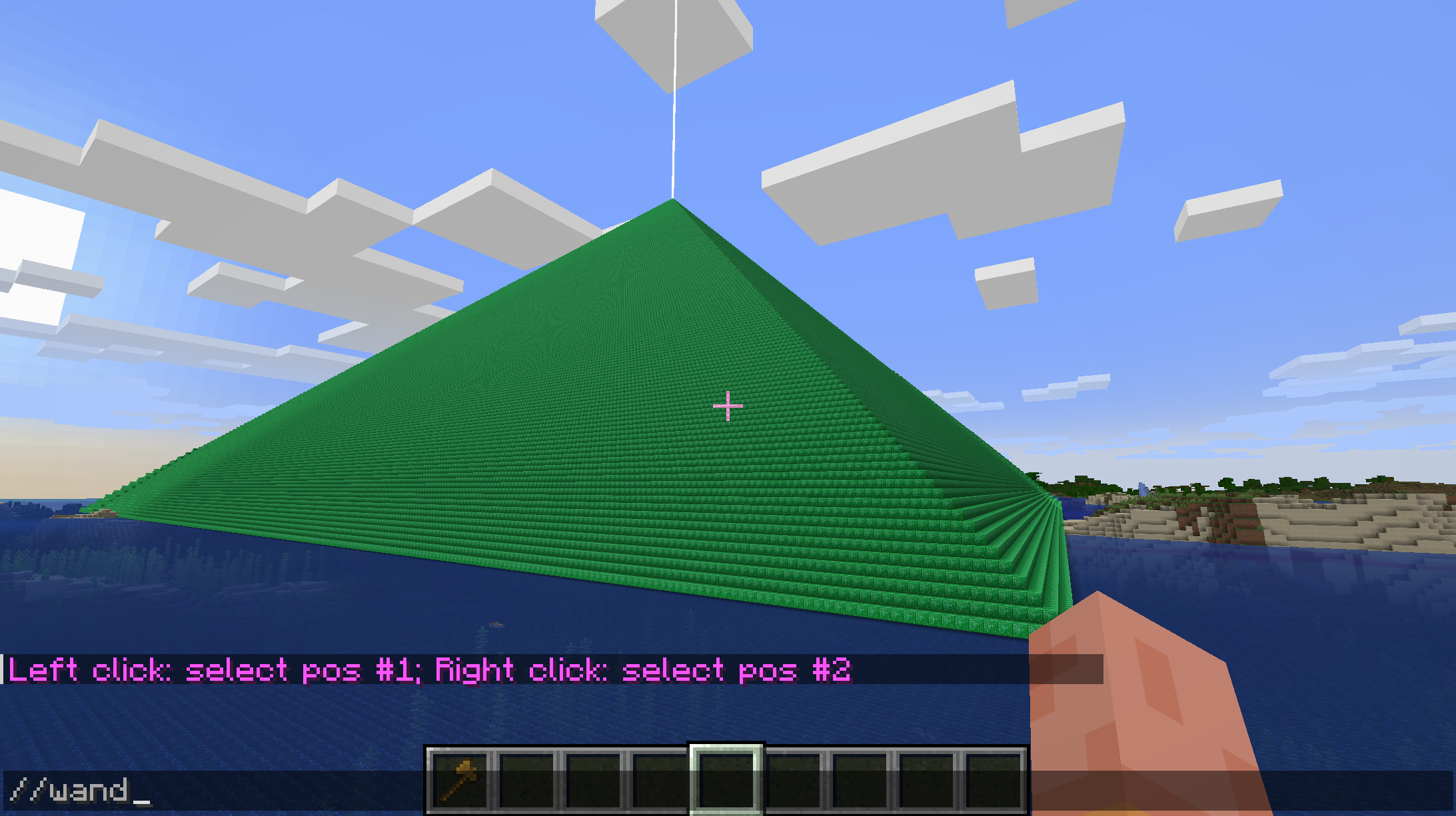
- In this example I will mark two positions so the whole pyramid would be selected:
How to Copy Buildings from One World to Another Using WorldEdit?
- When you’ve loaded your schematic it will be saved to your clipboard and you’ll be able to paste it anywhere in your world.
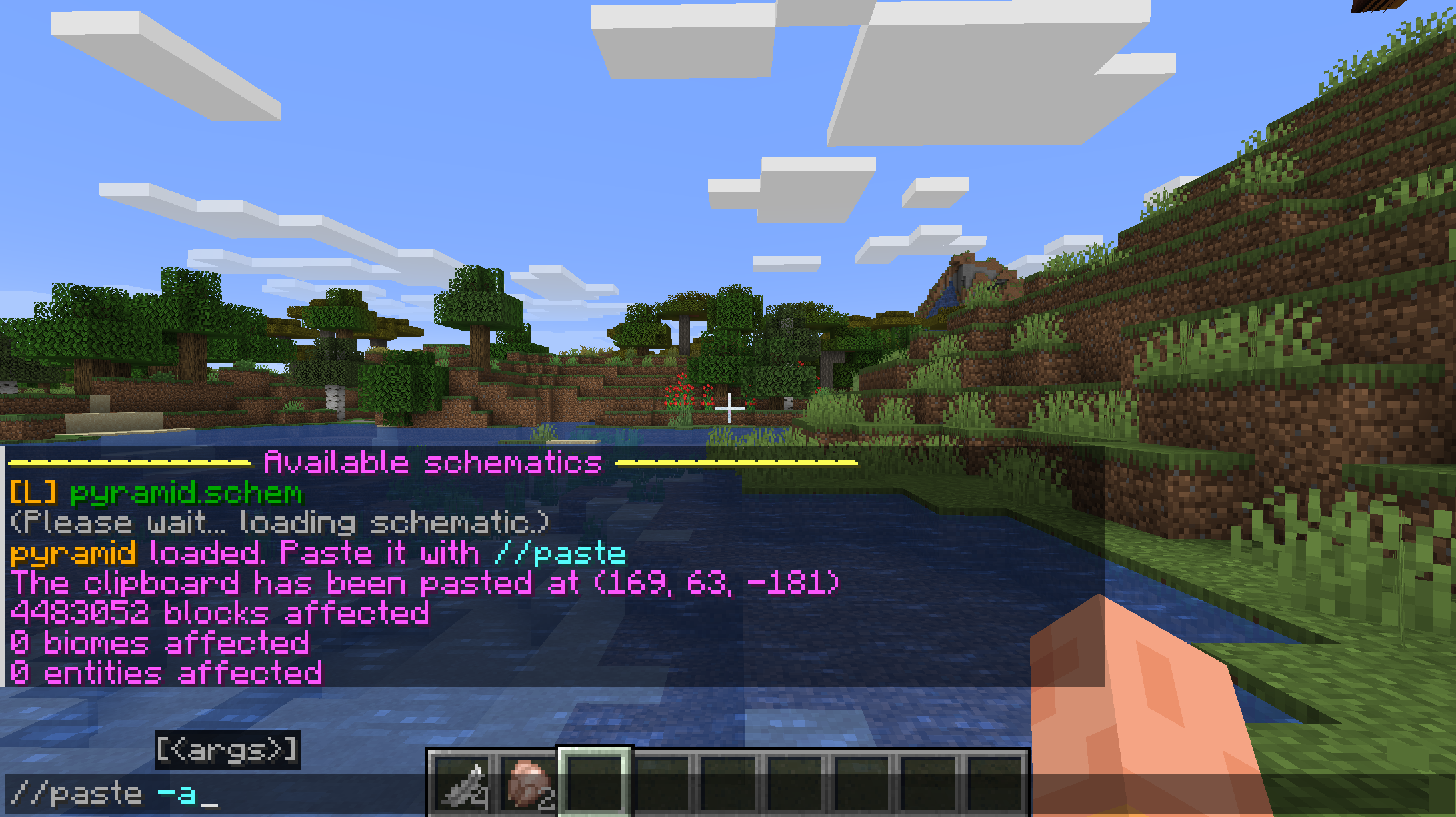
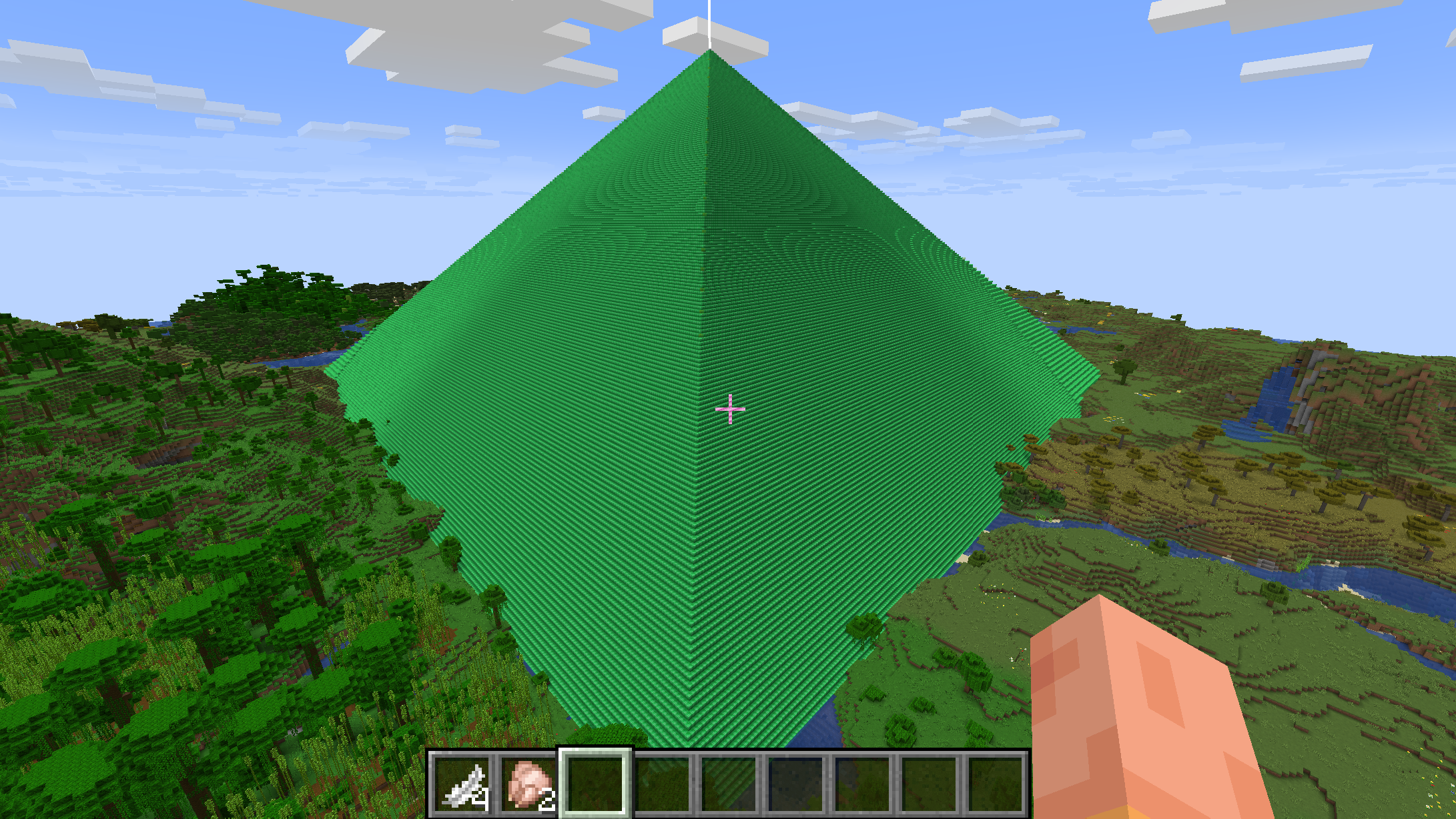
- Go ahead and join your server when it has started up again and you’re now able to load the schematic you saved in your previous world using the
//schem load <schematicName>command
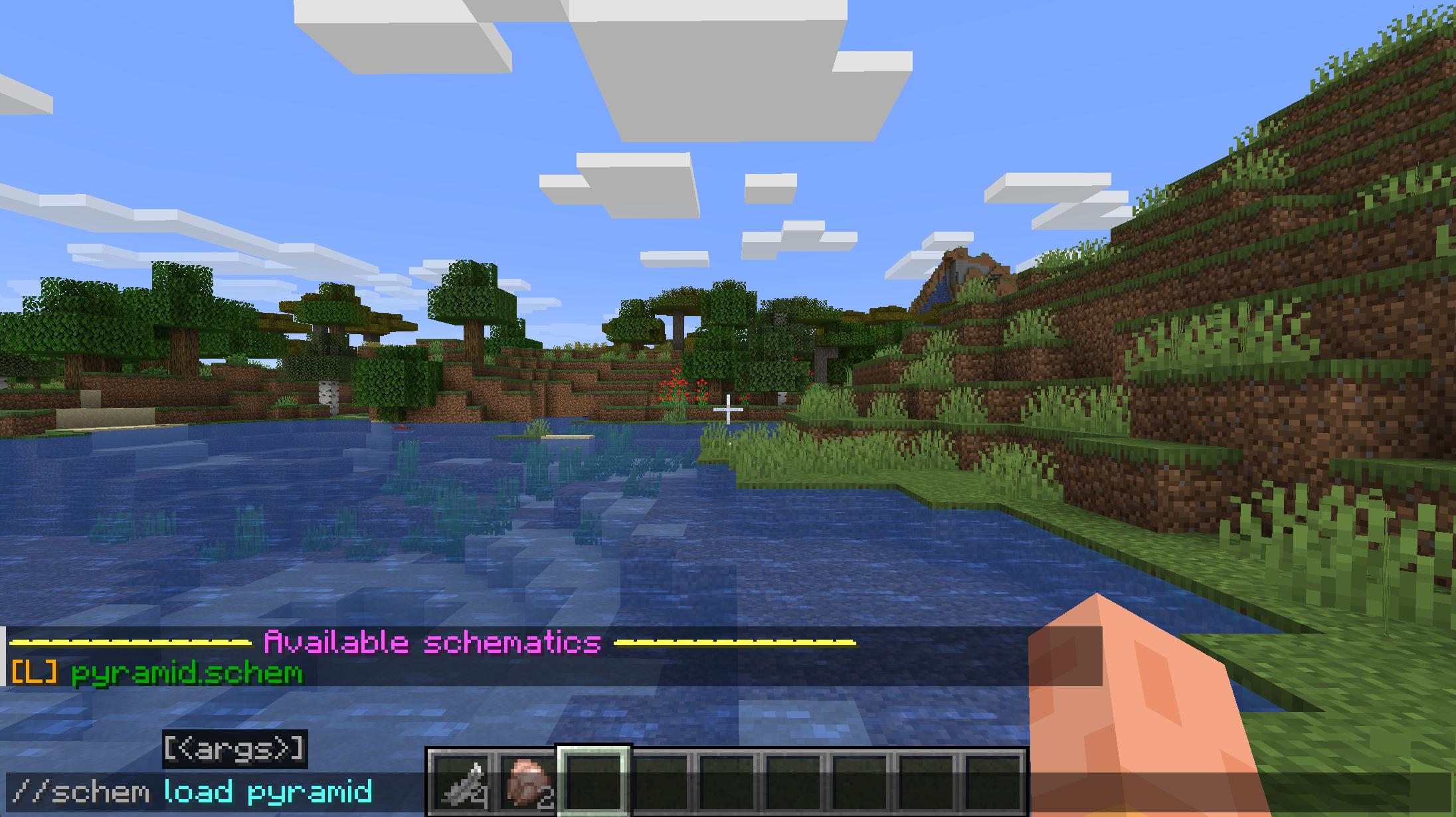
You can also use the //schem list command to see the schematics you’ve saved.
- Activate the world that you’d like to transfer your building to.
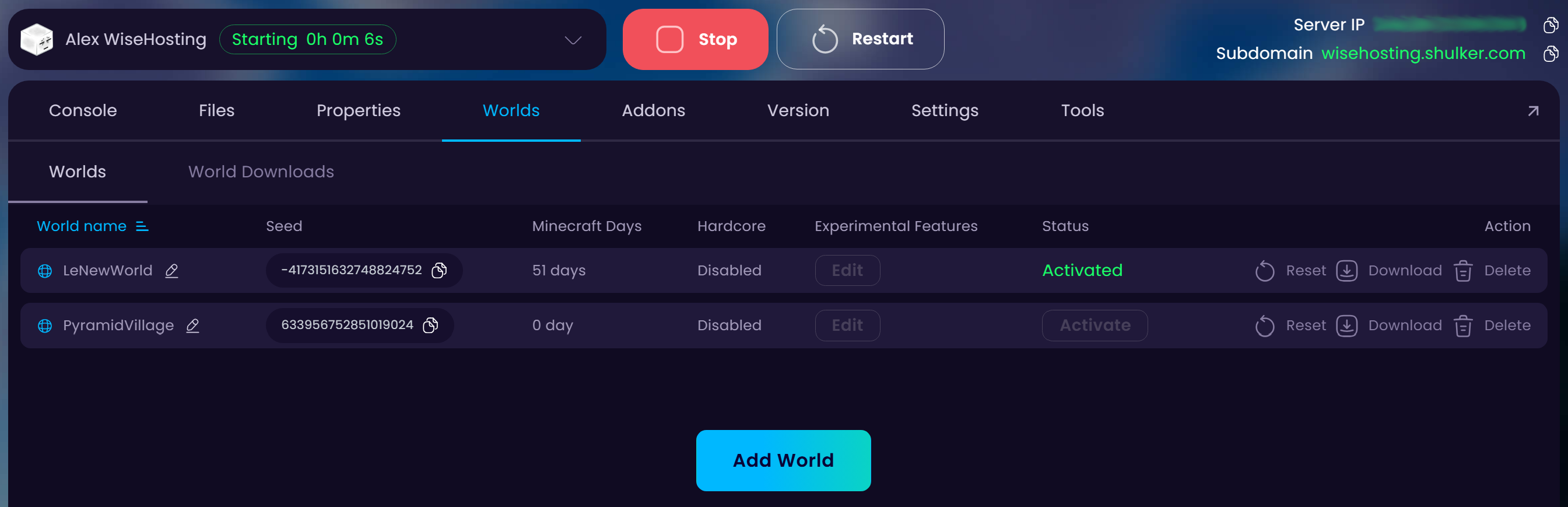
- After you’ve copied the building to your clipboard you’ll have to save it as a schematic just like this. The last argument after “save” will be the schematic’s name - feel free to name it however you’d like.
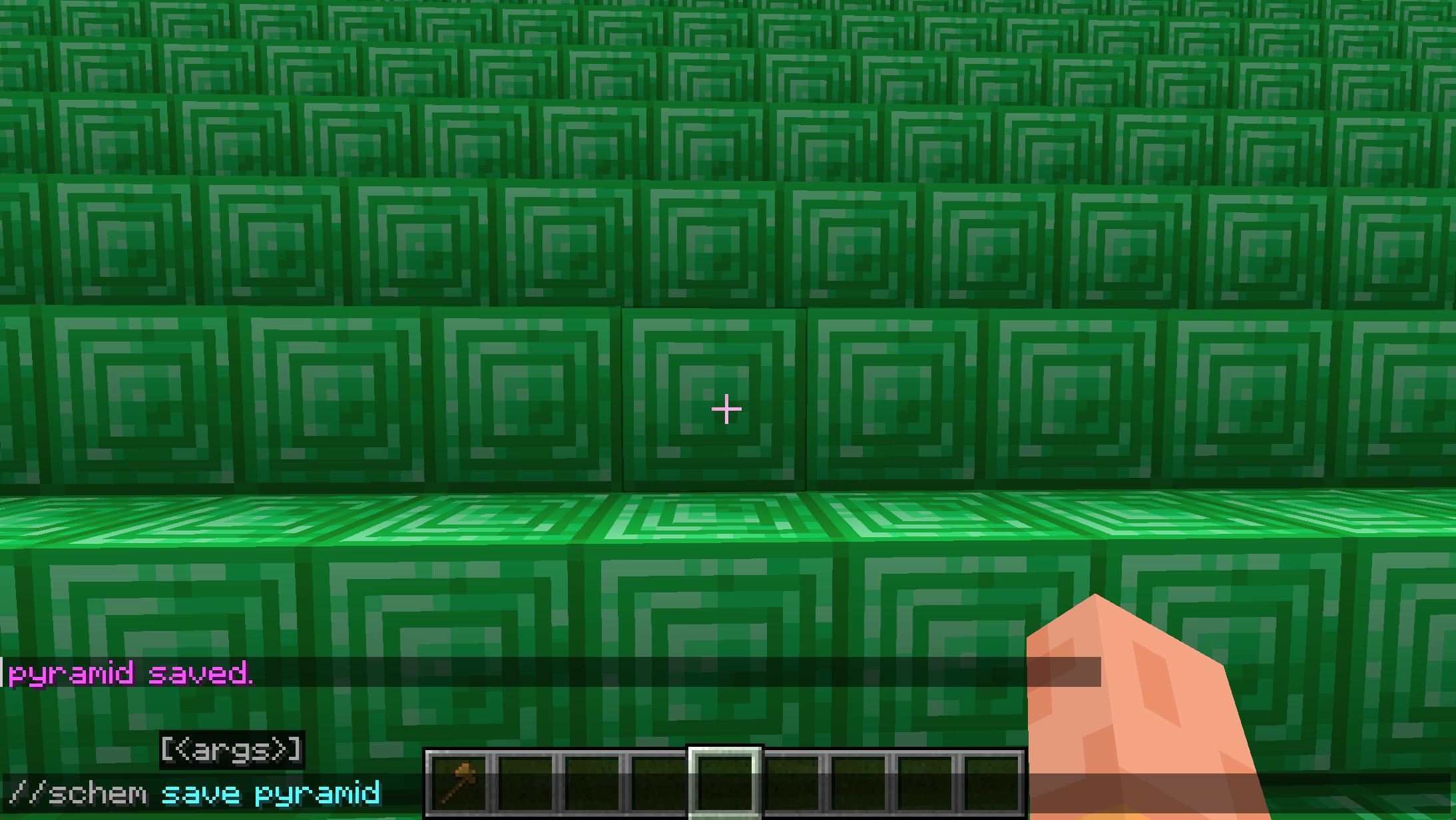
When you’ve saved a schematic of your building then it will be saved to your server files and you can load and paste this schematic to any other world.
- Copy the building that you’d like to transfer over to your other world.