
If you play Minecraft on Windows 10/11, Xbox, PlayStation, mobile, or Nintendo Switch, you are playing Bedrock Edition. And if you want to create your own server to play with friends across all those platforms, you will need to set up a Bedrock Dedicated Server.
Unlike Java Edition servers, Bedrock servers allow true cross-platform play by default, so your friends on mobile can join your friends on console, all in the same world. But here's the tricky part: setting up a Bedrock server on your PC requires downloading specific files, editing configuration files, and opening network ports that most players have never touched before.
That's why this guide will walk you through exactly how to make a Minecraft Bedrock server on Windows, step by step.
What Is a Minecraft Bedrock Server?
A Bedrock Dedicated Server is the official server software from Mojang that lets you host a multiplayer world for Bedrock Edition. Unlike Realms, which is an official limited version of Bedrock multiplayer, you can host your own server for free on your PC or through a hosting provider.
Bedrock servers are simpler than Java Edition servers in some ways. There are no plugins or mods to install, but you get full control over world settings, player permissions, and server rules.
How to Make a Bedrock Server on Windows
Step 1: Download Bedrock Dedicated Server
- Go to the official Minecraft website: minecraft.net/en-us/download/server/bedrock.
- Scroll down and click "Download" under the Windows version.
- Accept the terms and download the
.zipfile.
Step 2: Extract the Server Files
- Locate the downloaded
.zipfile (usually in your Downloads folder). - Right-click the file and select "Extract All".
- Choose a location that is easy to find, like
C:\MinecraftBedrockServer. - Click Extract.
You should now see a folder containing files like bedrock_server.exe, server.properties, and allowlist.json.
Step 3: Configure Server Settings
Before you start the server, you need to edit the server.properties file to customize your world settings.
- Open the folder where you extracted the server files.
- Right-click
server.propertiesand select "Open with" → "Notepad". - You will see a list of settings you can change.
Key settings to configure:
- server-name: The name that appears in the server list (e.g.,
My Bedrock Server). - gamemode: Choose
survival,creative, oradventure. - difficulty: Set to
peaceful,easy,normal, orhard. - max-players: Maximum number of players allowed (default is 10).
- level-name: The world name (default is
Bedrock level). - server-port: The port your server uses (default is
19132).
Save the file and close Notepad.
Step 4: Start the Bedrock Server
- Open the folder where your server files are located.
- Double-click
bedrock_server.exeto start the server. - A Command Prompt window will open and show server startup logs.
Wait until you see a message like "Server started" or "IPv4 supported, port: 19132". This means your server is running locally.
Step 5: Connect to Your Server Locally
Before inviting friends, test that the server works on your own PC.
- Open Minecraft Bedrock Edition on your PC.
- Go to "Play" → "Servers".
- Scroll down and click "Add Server".
- Enter the following:
- Server Name: Any name you want
- Server Address:
localhostor127.0.0.1 - Port:
19132
- Click "Save" and then "Join Server".
If everything is set up correctly, you should connect to your server and spawn in your world.
Step 6: Port Forwarding (So Friends Can Join)
To let friends outside your home network join, you need to port forward on your router.
Find Your Local IP Address
- Press Windows Key + R, type
cmd, and press Enter. - Type
ipconfigand press Enter. - Look for "IPv4 Address" under your active network connection (e.g.,
192.168.1.50).
Access Your Router Settings
- Open a web browser and type your router's IP address (usually
192.168.1.1or192.168.0.1). - Log in with your router's admin username and password (often printed on the router or in the manual).
Create a Port Forwarding Rule
- Find the Port Forwarding section (sometimes under "Advanced" or "NAT").
- Create a new rule with these settings:
- Service Name: Minecraft Bedrock
- Internal IP Address: Your PC's local IP (e.g.,
192.168.1.50) - Internal Port:
19132 - External Port:
19132 - Protocol: UDP (not TCP)
- Save the rule and reboot your router if prompted.
Find Your Public IP Address
- Go to whatismyipaddress.com in your browser.
- Copy your public IP address (e.g.,
123.45.67.89).
Now your friends can connect by entering your public IP address and port 19132 in their Bedrock Edition game.
The Easier Alternative to Host a Bedrock Edition Server
Hosting a Bedrock server on your PC works, but it comes with technical complications. Your PC needs to stay on 24/7, you need to manage port forwarding, and performance depends on your home internet connection.
That's where WiseHosting comes in. WiseHosting is the world’s highest-rated Minecraft server hosting and one of the few that exclusively focuses on Minecraft hosting only. It helps you start your Bedrock Minecraft server in just 5 minutes or less. Started by YouTuber Shulkercraft (2.5m subscribers), WiseHosting has become a go-to way to host a Bedrock Minecraft server.
Install Addons with Ease
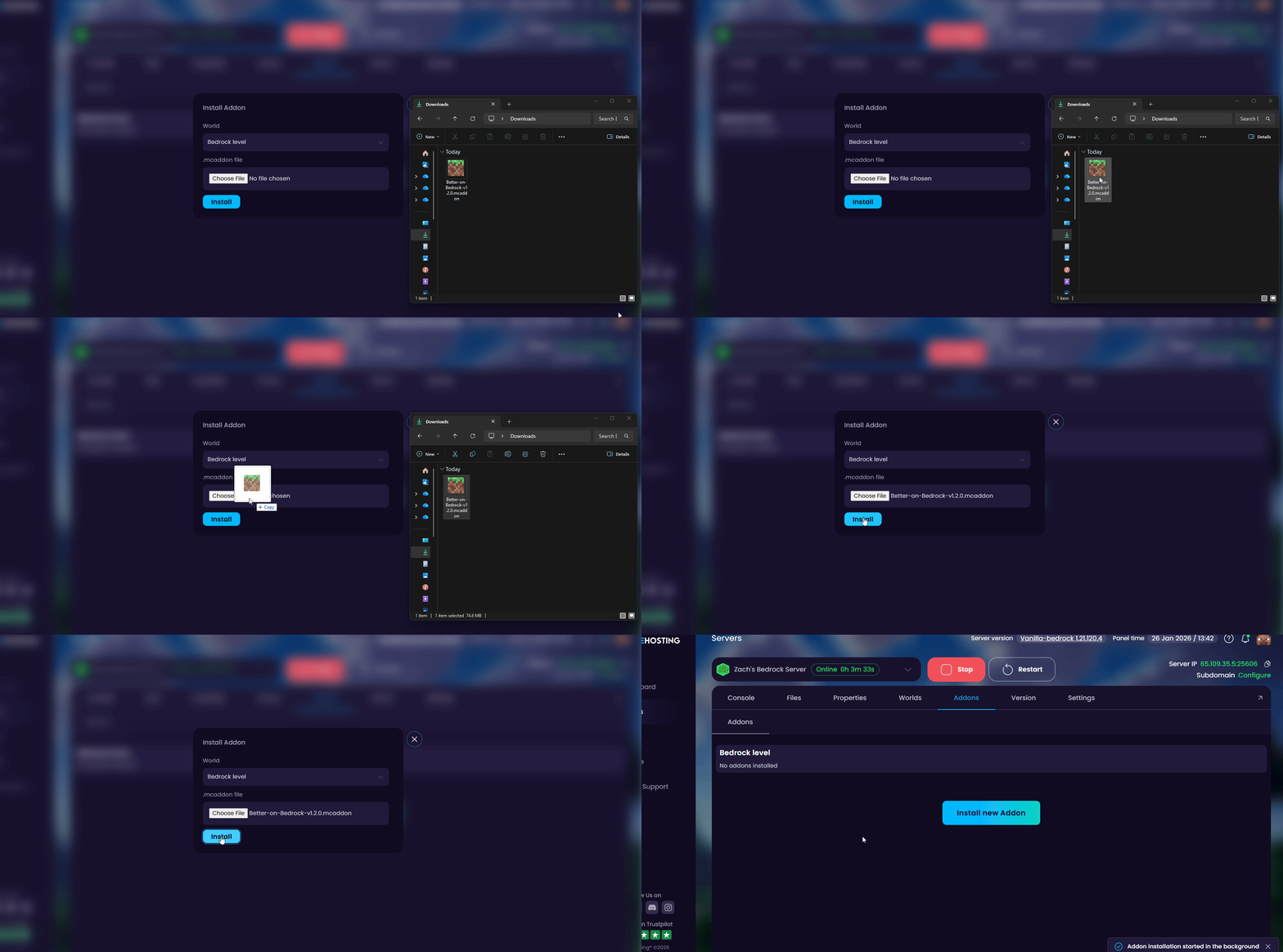
Instead of manually uploading files or trying to install addons for your server, WiseHosting automatically installs your chosen addon with just one click.
It automatically handles the configuration, so you don’t waste any time on updating or fixing things yourself.
High Performance Hardware
When it comes to server performance, WiseHosting easily stands out. Every plan runs on AMD Ryzen processors, DDR5 memory, and NVMe SSD storage, delivering the kind of speed Minecraft Bedrock Edition demands.
Deep Minecraft Expertise (24/7 Support)
WiseHosting is known for their deep expertise with Minecraft servers. Our support team is ran by server admins and active system administrators who know ins and outs of running a Minecraft Bedrock server.
You get 24/7 support from real hosting experts who understand Minecraft. Whether you have issues with installing an addon or fixing performance issues, you are one message away from fast and knowledgeable support.